
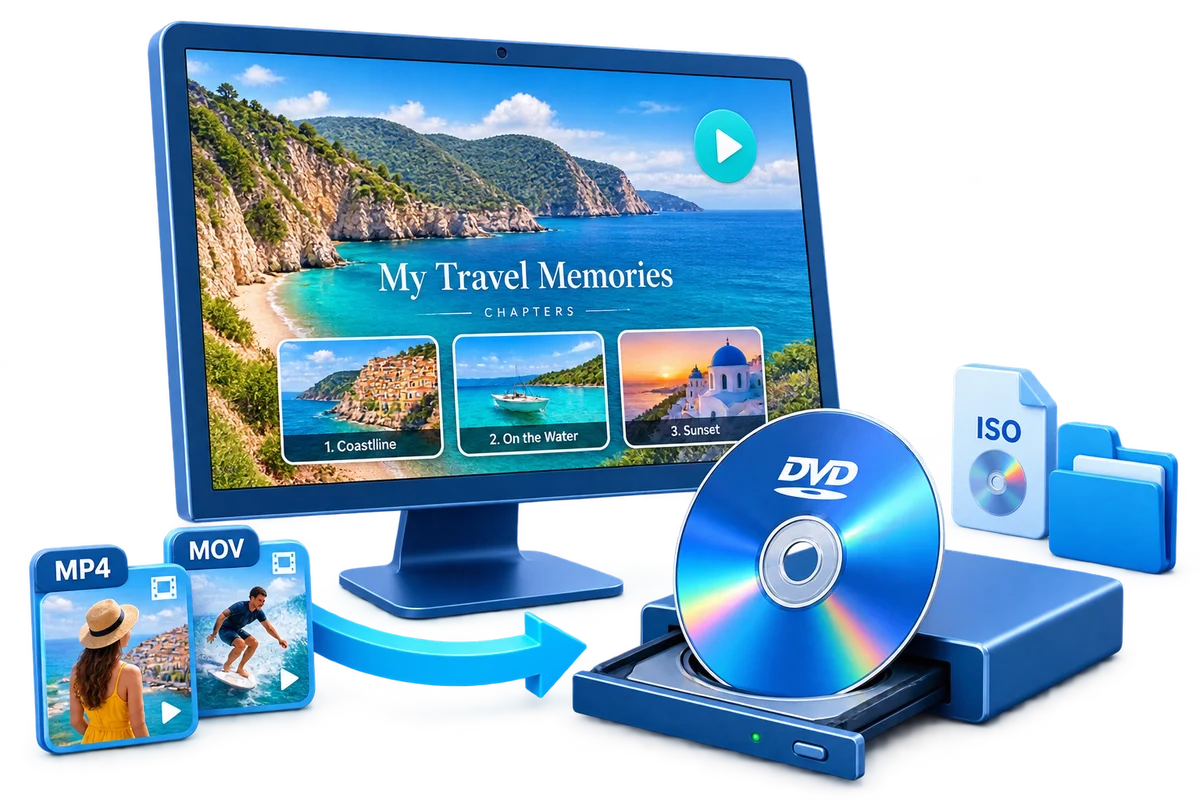
Choose the Output by How It Will Be Used
| Goal | Best choice | Why |
|---|---|---|
| Videos for computer backup | Data DVD or storage drive | Preserves files without authored navigation |
| Videos for standalone player | DVD-Video | Converts and authors the playback structure |
| Project for later burning | ISO image | One reusable authored disc master |
| Need accessible DVD files | DVD folder | Keeps the authored structure visible |
Prepare Before Creating the DVD
Normalize the project plan
Choose the final title order and chapter points first.
Review mixed sources
Check orientation, aspect ratio, audio, subtitles, and frame quality.
Protect originals
Work from copies and preserve original-resolution media.
Choose the destination
Know the target player, region, and available disc capacity.
Video to DVD Creator for Windows: Step by Step
Import the source videos
Add the final files from stable local storage.
Arrange and edit the clips
Set title order and make only necessary trim, crop, rotate, text, or subtitle changes.
Create titles and chapters
Turn separate programs into titles and long videos into navigable chapters.
Design and preview the menu
Use concise labels and test every remote-navigation path.
Choose PAL or NTSC and output
Set the destination standard and select disc, ISO, or DVD folder.
Create and validate
Complete the project and test the output from opening menu to final playback.


Plan for Quality and Compatibility
Runtime affects quality
More video on one disc generally requires more compression.
Source quality sets the ceiling
DVD authoring cannot restore detail missing from the original.
DVD-Video is standard definition
Keep HD and 4K originals separately from the viewing disc.
Player compatibility varies
Test the actual media and player used by the recipient.
Author the Complete Project with GiliSoft Movie DVD Creator
GiliSoft Movie DVD Creator keeps source preparation, titles, chapters, menu design, PAL or NTSC selection, preview, and disc, ISO, or DVD-folder output in one workflow. It is intended for creating DVD-Video, not merely copying loose video files to optical media.
Troubleshooting
- A source file fails to load: confirm it plays, copy it locally, or create a clean supported file.
- Mixed clips look inconsistent: correct orientation and aspect ratio before authoring.
- The project is too large: reduce runtime or use compatible higher-capacity media.
- Menu text is unreadable: shorten labels and simplify the background.
- The disc plays on a PC only: confirm DVD-Video output and target-player compatibility.
Create Discs Only from Authorized Video
Use recordings you own or have permission to copy and distribute. DVD creation does not override copyright, privacy, licensing, or technical protection.
Frequently Asked Questions
What is video-to-DVD authoring?
It converts source video into DVD-Video and adds the structure used for titles, chapters, and menus.
Can I combine different video formats?
Yes, when the formats are supported; review mixed sources carefully before final output.
Can I make a DVD without a menu?
A simple direct-play project may be suitable for one title, while collections benefit from menus.
Can I save an ISO instead of burning?
Yes. ISO and DVD-folder outputs are available alongside physical-disc creation.
Will a DVD preserve 4K quality?
No. DVD-Video is standard definition, so retain the original high-resolution files.
How do I improve compatibility?
Use suitable media, the correct PAL or NTSC setting, conservative burn choices, and test the target player.