
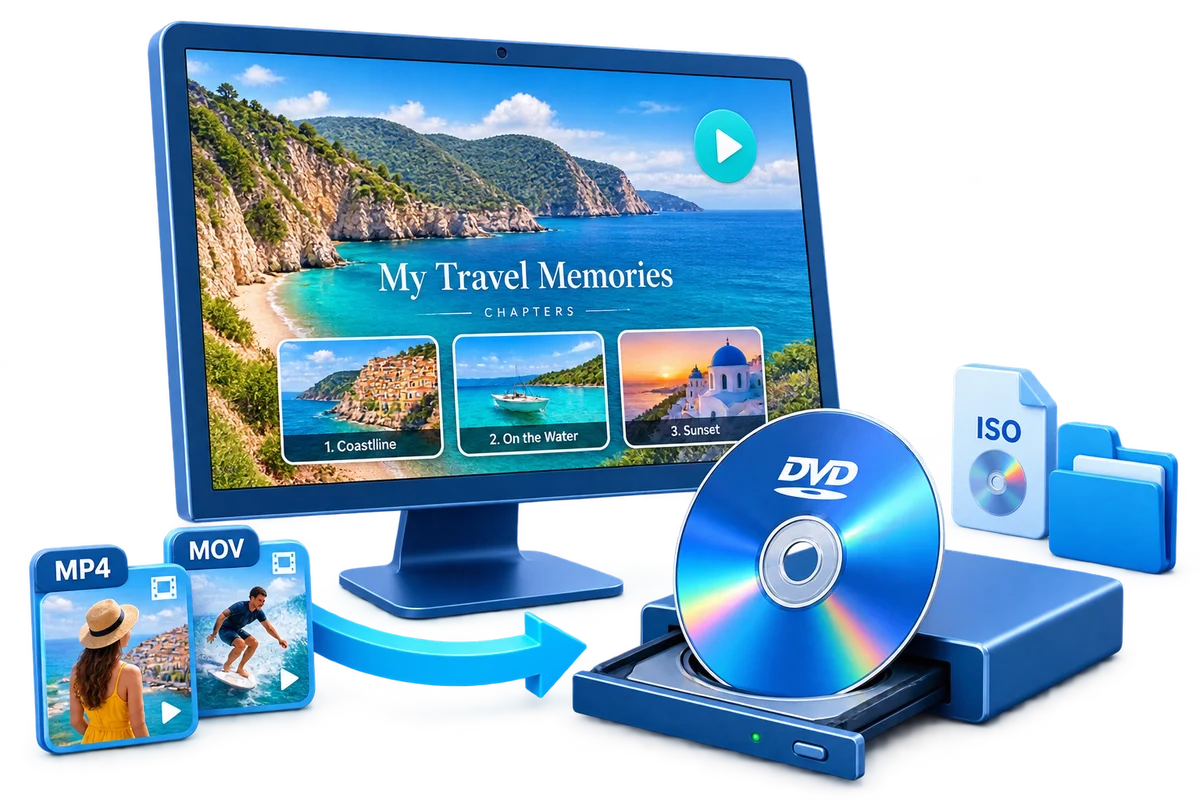
Choose the Output by How It Will Be Used
| Goal | Best choice | Why |
|---|---|---|
| Archive original files | Data DVD | Device must understand each stored format |
| Play on a DVD player | DVD-Video | Authored structure for standalone playback |
| Select multiple videos | Title menu | Separate buttons for each program |
| Jump through one long video | Chapter menu | Scene or topic entry points |
Prepare Before Creating the DVD
Verify the writer
Confirm the drive can write the blank DVD format.
Use final videos
Complete trimming, rotation, subtitles, and audio first.
Check capacity
Leave room for menus and the desired video quality.
Know the player
Choose the regional standard and compatible media for the destination device.
Windows DVD Menu Maker: Step by Step
Start an authored DVD project
Open GiliSoft Movie DVD Creator and choose the intended disc, ISO, or folder output.
Import and order the videos
Add local source files and arrange them in viewing order.
Prepare the titles
Make necessary corrections before assigning navigation.
Build the menu
Choose a template and create clear title or chapter buttons.
Preview the remote workflow
Test every button and the behavior after each title ends.
Burn and verify
Create the output and test it from the opening menu through the last title.


Data DVD and DVD-Video Are Not the Same
Data DVD
Stores files like removable media; playback depends on file support.
DVD-Video
Uses an authored structure intended for DVD players.
ISO image
Keeps the complete authored disc as one reusable image file.
DVD folder
Keeps the authored folder structure for inspection or later burning.
Author the Complete Project with GiliSoft Movie DVD Creator
GiliSoft Movie DVD Creator keeps source preparation, titles, chapters, menu design, PAL or NTSC selection, preview, and disc, ISO, or DVD-folder output in one workflow. It is intended for creating DVD-Video, not merely copying loose video files to optical media.
Troubleshooting
- The player shows files instead of a menu: the disc was likely created as a data DVD.
- The writer is unavailable: reconnect it directly and confirm Windows detects it.
- The project is too large: shorten content or use compatible higher-capacity media.
- Menu links are wrong: reassign targets and preview every path.
- Playback fails on an older player: verify media support, PAL/NTSC, and the completed burn.
Create Discs Only from Authorized Video
Use recordings you own or have permission to copy and distribute. DVD creation does not override copyright, privacy, licensing, or technical protection.
Frequently Asked Questions
Does Windows include a DVD menu maker?
Current Windows versions can write data discs but do not provide the classic Windows DVD Maker authoring workflow.
Can I burn MP4 files with a menu?
Yes. Import the MP4 videos into an authored DVD project instead of copying them as files.
Do I need a DVD writer to design the menu?
No. You can build the project and create an ISO or DVD folder before burning.
Can I add chapters?
Yes. Chapter navigation can be organized inside the authored menu.
What is the safest workflow for an important project?
Create and review an ISO first, then burn reliable media and test the target player.
Why can a data DVD play on one device but not another?
Data-disc playback depends on each device supporting the stored file container and codec.