
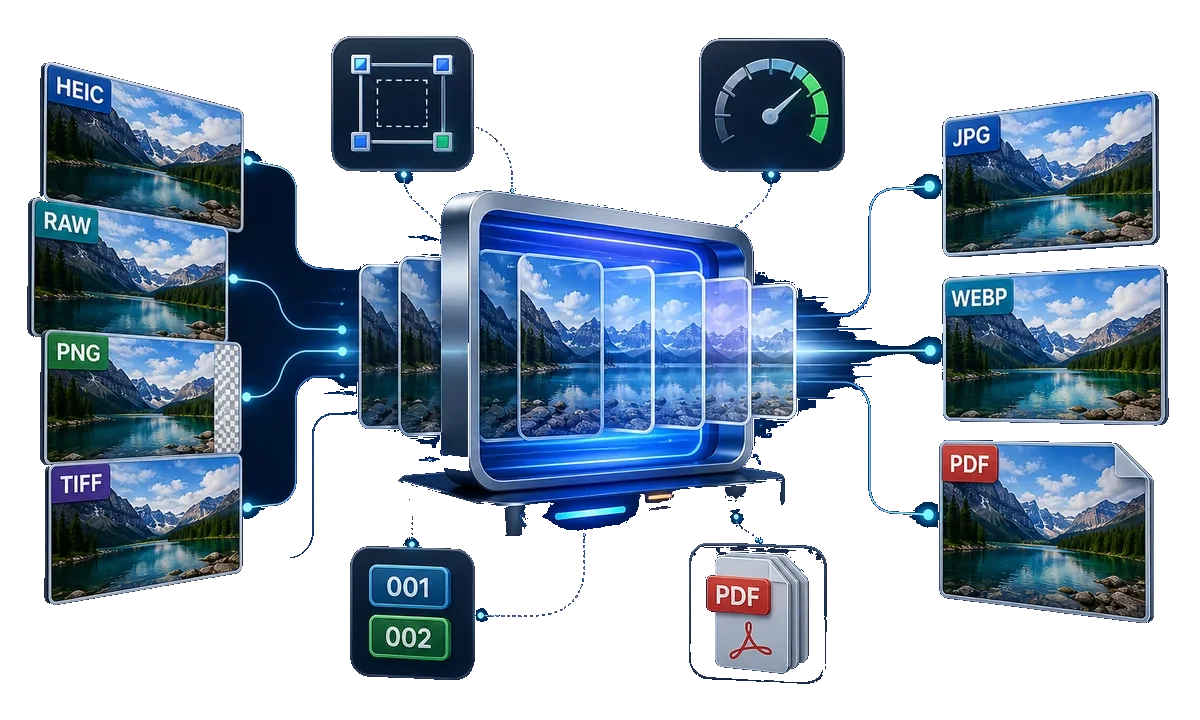
Batch Image Resize, Crop, and Rename Software for Windows
A batch is useful when every image needs the same output dimensions or naming convention. Cropping is riskier than resizing because subjects may sit in different positions within the source frame.
Quick answer
Stage copies, group images by aspect ratio, set resize or crop and rename rules in GiliSoft Image Converter, test a small sample, then inspect framing and filenames before processing the rest.
Before You Start
- Record the target pixel dimensions, aspect ratio, format, and filename pattern.
- Keep originals in a separate folder and remove duplicates from the working set.
- Group portraits, landscapes, product cutouts, and images with transparency separately.
Choose the Right Approach
| Situation | Approach | Check |
|---|---|---|
| Different dimensions, same framing | Resize proportionally | No stretched subjects or unexpected upscaling |
| Exact slot dimensions | Crop or fit based on the destination rule | Subject and required margins remain visible |
| Catalog import needs stable names | Batch rename with a test prefix and sequence | No collisions or overwritten originals |
Batch Image Resize, Crop, and Rename Software for Windows: Step by Step
- Stage representative images
Include wide, tall, small, transparent, and unusually cropped samples.
- Set the batch rules
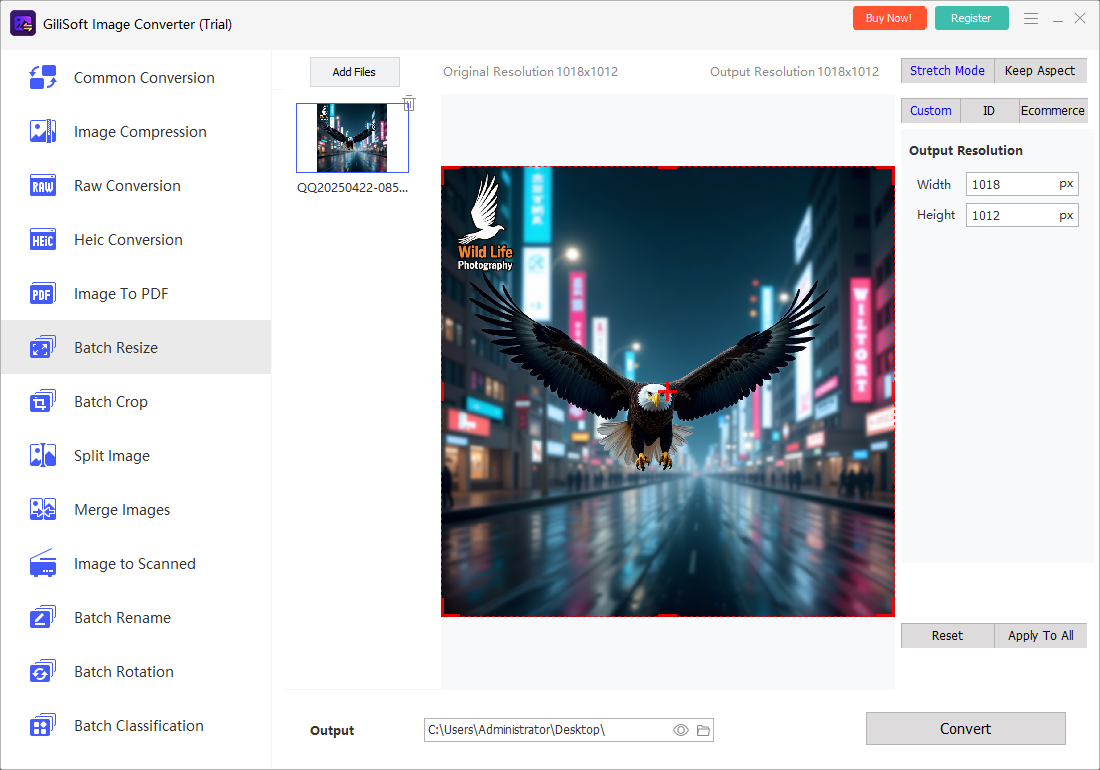
Use Image Converter's resize, crop, rotate, format, and rename tools for the relevant group.
- Test a few outputs
Open results at final dimensions and check sharpness, subject position, color, transparency, and naming.
- Run and reconcile
Process the remaining files, compare counts, and isolate failed or oddly framed images for manual correction.
Review the Result
- Are all images in the requested size and format?
- Did crop remove products, text, faces, or required whitespace?
- Are names unique and sorted in the intended sequence?
Limits and Common Mistakes
One crop rule cannot intelligently preserve every subject position. Do not stretch to force an aspect ratio or upscale low-resolution images and expect additional detail.
Frequently Asked Questions
Can I rename while converting?
Image Converter includes batch naming and format preparation; test the pattern on a small group first.
Should I crop or resize?
Resize to preserve all content; crop only when the destination requires a fixed frame and the subject fits.
What about transparent PNGs?
Check alpha after export, especially when changing to formats that do not support transparency.