

Best BitLocker Alternatives for Windows 11 Home in 2026
A useful BitLocker alternative must match the data you actually need to protect. System-drive encryption, portable USB protection, cloud-file encryption, and folder access control are different jobs, so this guide compares both free and paid choices by scope rather than treating them as interchangeable.
Quick answer
First check whether Windows Device Encryption is already available on the PC. For a free open-source full-drive option, evaluate VeraCrypt; for client-side cloud-folder encryption, evaluate Cryptomator. For a guided Windows disk workflow, use GiliSoft Full Disk Encryption. Use GiliSoft USB Encryption for removable-media private areas and GiliSoft File Lock Pro when the requirement is access control for selected files, folders, or data drives rather than full-disk encryption.
Before replacing BitLocker, check what Windows already provides
BitLocker Drive Encryption is manually manageable on Windows Pro, Enterprise, and Education. Some Windows Home devices instead expose Device Encryption, which can automatically protect the operating-system and fixed drives when the hardware, account, and security configuration meet Microsoft requirements.
- Open Settings > Privacy & security.
Look for Device encryption. If it is available and fits the requirement, a third-party replacement may not be necessary.
- Check the Windows edition.
Open Settings > System > About. Do not assume every Windows Home PC or every removable drive exposes the same encryption controls.
- Locate recovery information.
Before changing any disk-encryption setup, verify where the current recovery key is stored and that an authorized user can retrieve it.
- Back up important files.
Encryption protects confidentiality; it does not repair disk failure, corruption, or accidental deletion.
BitLocker alternatives compared
| Option | Cost model | Best use | Not a direct replacement for |
|---|---|---|---|
| Windows Device Encryption | Included on eligible Windows devices | Simple protection for the operating-system and fixed drives | Manual BitLocker management on every Windows Home PC |
| VeraCrypt | Free and open source | Advanced users who need containers, partitions, or supported system encryption | A low-maintenance, centrally managed business deployment |
| Cryptomator | Open-source desktop workflow; platform terms vary | Client-side encryption for files stored in cloud-synced folders | System-drive or whole-disk encryption |
| GiliSoft Full Disk Encryption | Commercial software with trial | Guided Windows disk, partition, and removable-media protection | Cloud collaboration or simple hiding of one folder |
| GiliSoft USB Encryption | Commercial software with trial | Public and private areas on removable storage | Encrypting the Windows system drive |
| GiliSoft File Lock Pro | Commercial software with trial | Locking or hiding selected files, folders, and supported data drives | Cryptographic full-disk protection against offline access |
Best guided disk alternative: GiliSoft Full Disk Encryption
Choose this route when the requirement is to protect Windows disks or partitions and you prefer a dedicated graphical workflow. It is the closest GiliSoft option to the broad “encrypt a disk” intent, but recovery preparation remains essential.
Good fit
- Protecting Windows system or data partitions.
- Password-protecting supported removable disks.
- Users who prefer a focused disk-encryption interface.
- Workflows that can prepare recovery media before system-disk changes.
Important precautions
- Back up the disk and verify representative files before encryption.
- Create and test the recommended recovery media before changing a boot disk.
- Keep passwords and recovery information outside the encrypted device.
- Complete encryption on stable power and do not disconnect removable media.
Free alternative for advanced users: VeraCrypt
VeraCrypt is an open-source option for encrypted containers, non-system partitions, and supported system-encryption workflows. It offers broad control, but setup, boot changes, recovery, updates, and cross-device compatibility require more technical care than a simple folder-locking tool.
Choose VeraCrypt when
- You specifically want an open-source encryption workflow.
- You understand containers, volumes, partition selection, and recovery media.
- You can test operating-system updates, boot behavior, and backups before deployment.
Do not choose it merely because it is free
A no-cost license does not remove migration, support, training, recovery, or downtime costs. For managed business devices, confirm policy, deployment, recovery-key custody, and update procedures before selecting any alternative.
Best for encrypted cloud folders: Cryptomator
Cryptomator encrypts files client-side inside a vault that can be placed in a cloud-synchronized folder. It is useful when the goal is to keep cloud-provider storage from seeing plaintext content, but it does not encrypt the Windows boot disk or every file on a physical drive.
Choose Cryptomator when
- The protected content lives in OneDrive, Dropbox, Google Drive, or another synchronized folder.
- You need a vault that contains selected cloud files rather than a whole-disk replacement.
- You can manage vault passwords and test synchronization conflicts across intended devices.
Best removable-drive alternative: GiliSoft USB Encryption
For USB flash drives and removable storage, a public/private area model may be more practical than encrypting the Windows system drive. Files placed in the private area require the correct password, while the public area remains available for nonsensitive content.
- Back up the removable drive.
Verify the only copy of important files is not on the device being changed.
- Create the protected area.
Choose an appropriate private-area size for current data and expected growth.
- Set a unique password.
Keep recovery information under separate access control.
- Move sensitive files into the private area.
Do not assume files left in the public area are encrypted.
- Test on every intended Windows PC.
Confirm the unlock workflow and application permissions before travel or delivery.

Best when you need folder access control: GiliSoft File Lock Pro
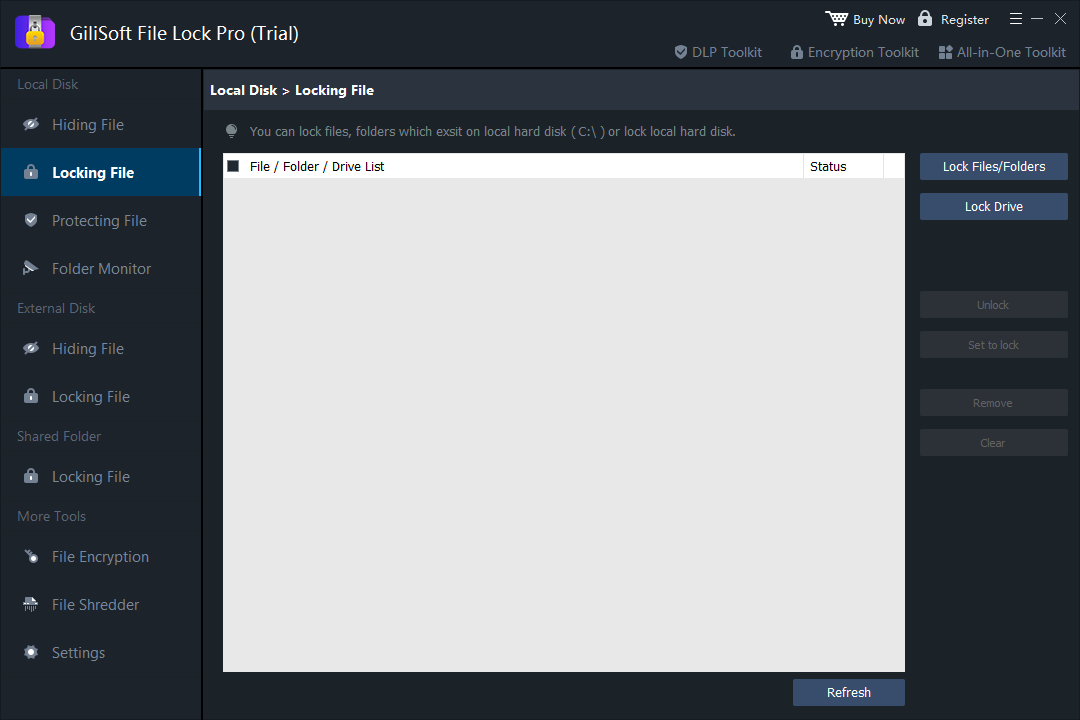
Not every “BitLocker alternative” search is really about full-disk encryption. If the goal is to hide or lock selected folders, files, or supported data drives during normal Windows use, File Lock Pro is more focused. This is access control, not a claim that every sector of the disk is cryptographically encrypted.
Which BitLocker alternative should you choose?
| Scenario | Start with | Why |
|---|---|---|
| Windows Home laptop with Device Encryption available | Windows Device Encryption | Already integrated and may satisfy basic lost-device protection |
| Free open-source full-disk or container workflow | VeraCrypt | Broad encryption scope for technically confident users |
| Files synchronized to cloud storage | Cryptomator | Client-side vault encryption for selected cloud files |
| Guided Windows disk or partition protection | GiliSoft Full Disk Encryption | Focused graphical disk-encryption workflow |
| USB drive with public and private content | GiliSoft USB Encryption | Separates ordinary storage from a password-protected private area |
| Hide or lock selected folders without full-disk encryption | GiliSoft File Lock Pro | Matches access-control intent without changing the entire disk |
Encryption migration checklist
- Inventory the data. Know whether you are protecting a boot disk, data partition, USB drive, cloud folder, or selected files.
- Verify backups. Open restored sample files before changing encryption.
- Preserve recovery information. Keep keys, passwords, and recovery media outside the protected device.
- Check boot and update compatibility. System encryption can interact with firmware, Secure Boot, recovery tools, and Windows updates.
- Test removal and recovery. Confirm that an authorized person can recover access without weakening normal security.
- Document ownership. For company devices, define who controls passwords, recovery keys, and emergency access.
BitLocker alternative FAQ
What is the best BitLocker alternative for Windows 11 Home?
First check whether Device Encryption is available. For open-source full-drive control, evaluate VeraCrypt. For a guided commercial Windows disk workflow, evaluate GiliSoft Full Disk Encryption. The best choice depends on the drive and recovery requirements.
Is there a completely free BitLocker alternative?
Windows Device Encryption may already be included on eligible PCs. VeraCrypt is a free open-source option for containers, partitions, and supported system encryption. Cryptomator is designed for selected cloud-synchronized files rather than whole disks.
Is File Lock Pro the same as BitLocker?
No. File Lock Pro controls access to selected files, folders, or supported data drives in Windows. BitLocker and full-disk encryption protect the underlying drive data against offline access.
Can I encrypt a USB drive without BitLocker?
Yes. GiliSoft USB Encryption can create public and private areas on supported removable storage, while GiliSoft Full Disk Encryption can address broader disk-encryption workflows. Back up and test the intended destination PCs first.
Should I decrypt BitLocker before moving to another tool?
Do not stack or replace disk-encryption products without a tested migration plan. Back up the data, verify recovery keys, review the new product's instructions, and complete one supported transition at a time.