
Quick answer: how do you block a program from running?
Add its executable to GiliSoft EXE Lock and select Direct Block. The program stays installed but cannot start. If an administrator, parent, or supervisor still needs access, choose Password Verification instead.
Removing a shortcut does not block a program
A program can still start from the Start menu, Windows Search, its installation folder, a file association, or another shortcut. Effective control must apply to the application target or to a Windows application-control policy.
| Method | Result | Best use | Important detail |
|---|---|---|---|
| GiliSoft EXE Lock Direct Block | Stops selected desktop or supported Store apps from launching | Shared or purpose-specific Windows PCs | The application stays installed and can later be released |
| GiliSoft Password Verification | Requires a password before launch | Supervised or occasional authorized access | Not suitable when no user should ever receive approval |
| Windows AppLocker | Uses allow or deny rules assigned to users or groups | Centrally managed organizations | Requires policy design, testing, and administration |
| Microsoft Family Safety | Blocks apps or sets app and game time limits | Microsoft family accounts | Focused on parental controls rather than business approval |
Block selected programs without uninstalling them
EXE Lock provides Direct Block, Password Verification, Temporary Unlock, an app whitelist, and intercept logs in one Windows interface.

Before applying a block rule
Identify the real executable
Confirm the displayed program path rather than relying only on the shortcut name.
Protect recovery access
Set the release password and recovery email before adding important applications.
Keep Windows essentials approved
Review protected system items and the whitelist before creating custom rules.
How to block a program from running on Windows
These steps use the current EXE Lock interface and can be tested without uninstalling the target application.
Prepare the password, recovery email, and whitelist
Open Settings. Configure the release password and recovery email, then verify that trusted and system-critical applications are whitelisted.
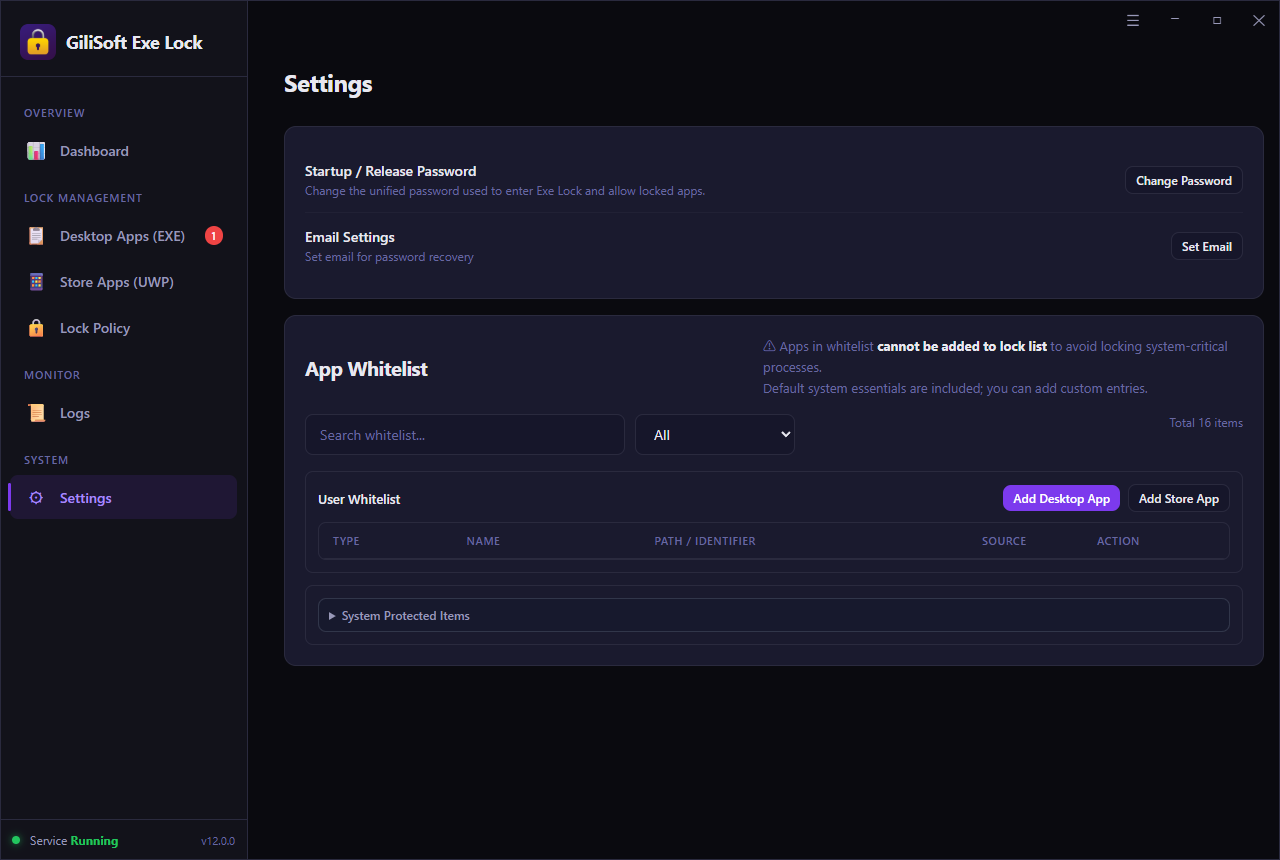 Settings and whitelist. Select the image to enlarge.
Add the program to the protected list
Open Desktop Apps (EXE), choose Add, and select the program executable. Use Store Apps (UWP) for supported Microsoft Store applications.
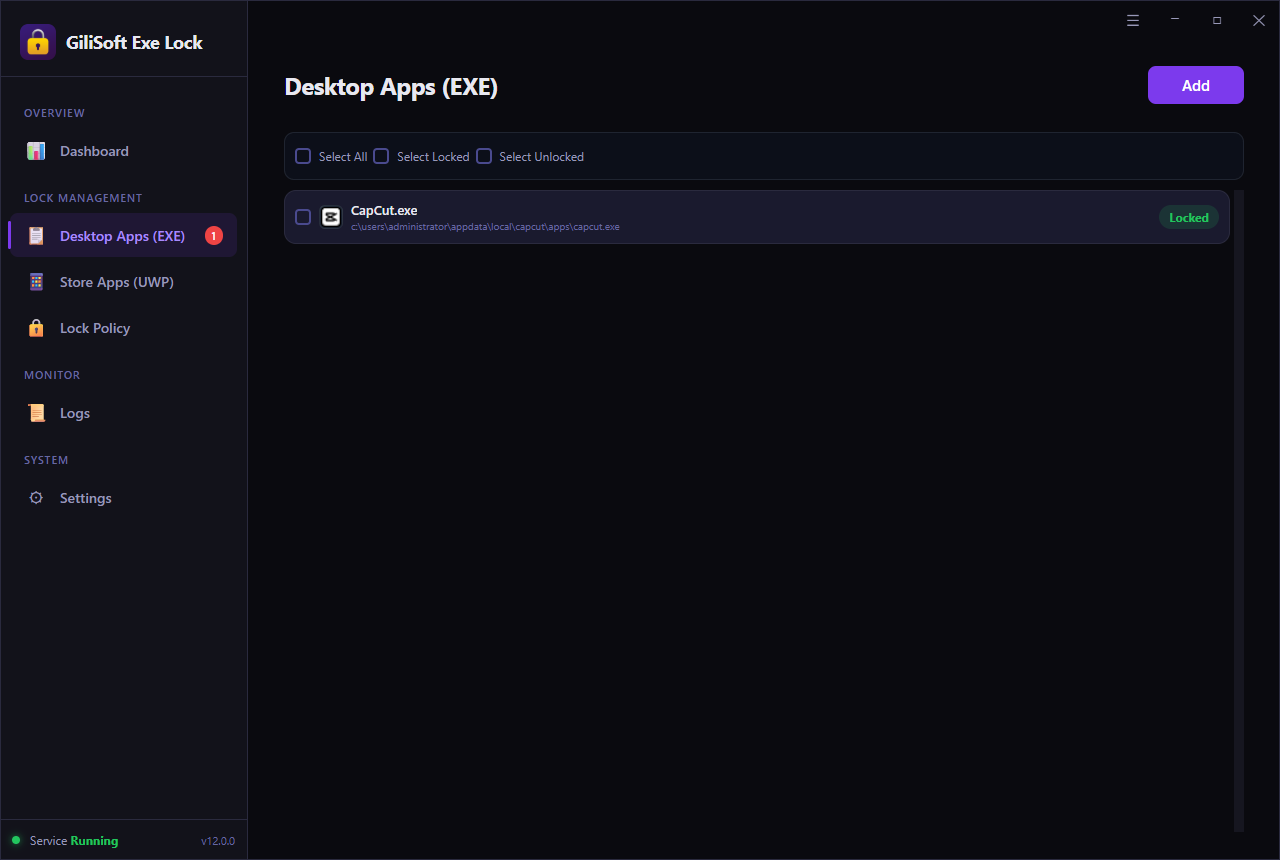 A desktop executable added to the protected list.
Select Direct Block
Choose Direct Block when the program must not start and no password prompt should appear. Select Password Verification only when an approved user may release the application.
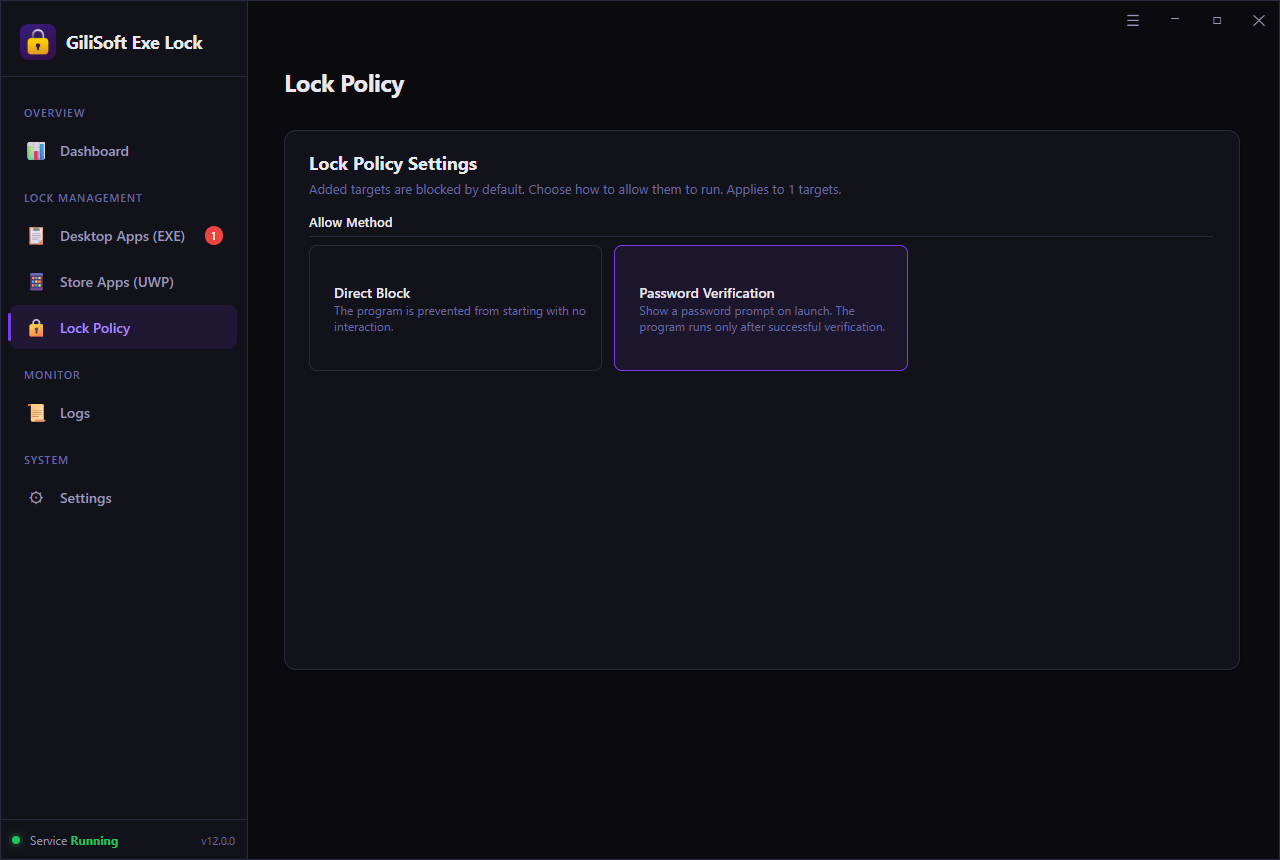 Direct Block and Password Verification policies.
Test every normal launch path
Try the Start menu, desktop shortcut, Windows Search, and the executable path. Return to the dashboard to confirm the protected target and blocked-attempt count. Temporary Unlock can be used for authorized updates.
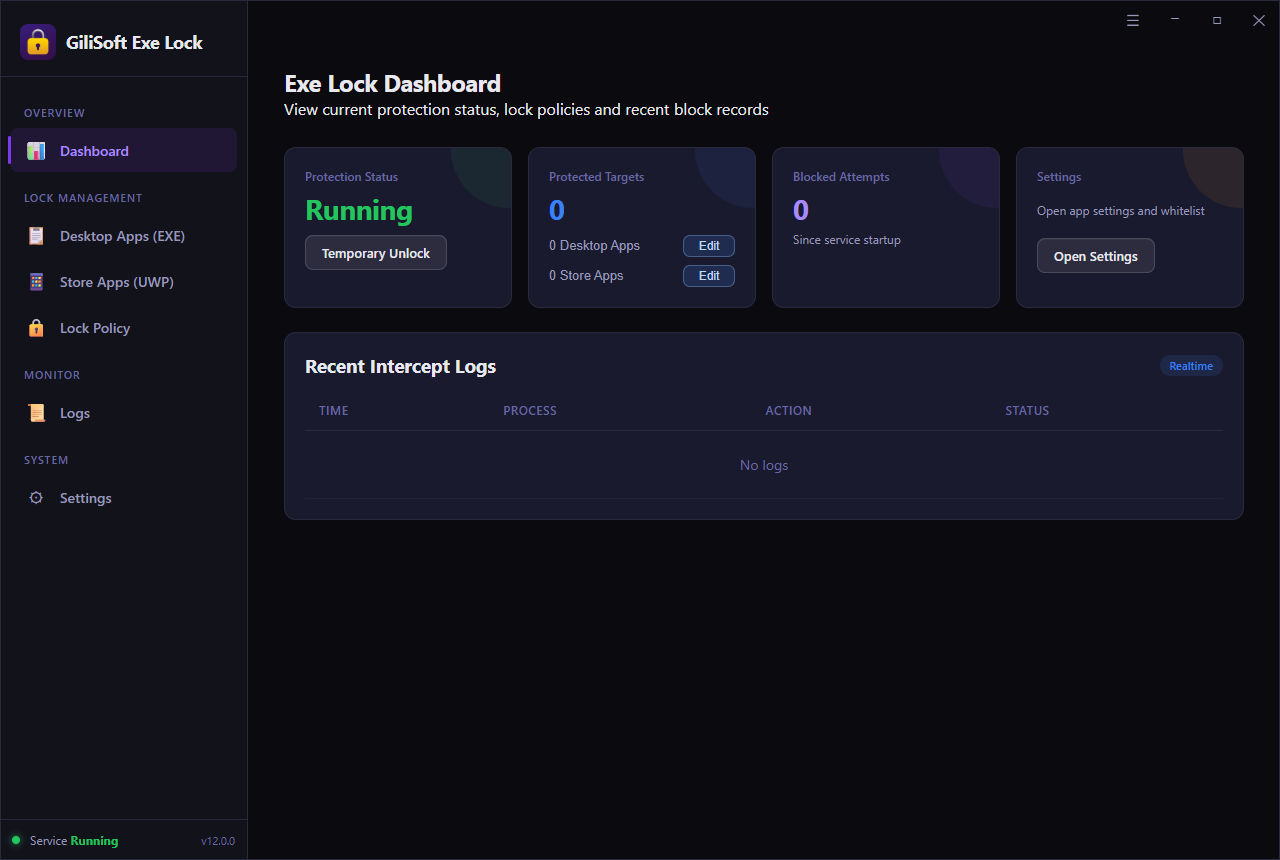 Protection status and intercepted launch attempts.
Choose the right launch rule
Direct Block
The application is prevented from starting without asking the user for a password.
Use for prohibited games, chat apps, remote tools, and unauthorized utilities.Password Verification
The program opens only after the correct password is entered.
Use when a manager, parent, teacher, or administrator may approve access.Windows built-in methods
AppLocker
Microsoft AppLocker supports executable, script, installer, DLL, and packaged-app rule collections, with rules assigned to users or groups. It is designed for managed application-control policies.
Microsoft Family Safety
Family Safety can block apps and set app or game time limits for family members. It is useful for household accounts rather than password-gated business software.
Standard user accounts
Standard accounts reduce administrative changes but do not automatically prevent every installed program from launching.
Software Restriction Policies
Older policy environments may use path, hash, certificate, or zone rules. Current deployments should be planned and tested using Microsoft's documented controls.
Primary references: Microsoft AppLocker rulesMicrosoft Family Safety
Programs commonly blocked on Windows PCs
Games and entertainment
Prevent selected games, launchers, media players, and entertainment apps from opening during work or study.
Chat and social apps
Restrict messaging or social applications on front-desk, classroom, support, and training computers.
Remote and administration tools
Block casual access to remote clients, uninstallers, configuration utilities, and internal support tools.
Sensitive business software
Control finance, HR, inventory, customer-record, editing, and licensed production applications.
Common program-blocking mistakes
Deleting only the shortcut
The installed program remains available through other launch paths.
Blocking a Windows component
Do not add security, sign-in, update, networking, or system-critical executables.
Ignoring alternate executables
Some software uses launchers, helper processes, or separate update executables. Test normal use carefully.
Forgetting recovery setup
Verify the recovery email before restricting important shared workstations.
Blocking programs on Windows FAQ
Can I block a program without uninstalling it?
Yes. Direct Block stops the selected program from launching while leaving it installed.
Can an authorized person still open it?
Use Password Verification instead of Direct Block, or temporarily unlock protection for maintenance.
Can I block Microsoft Store apps?
EXE Lock includes a separate Store Apps (UWP) area for supported modern Windows app targets.
Can I see attempted launches?
The dashboard and logs show blocked-attempt counts and recent intercept activity.