
Can Windows put a password on an EXE file?
Windows can allow or deny applications through policy, but it does not include a simple command that asks for a separate password whenever one selected desktop program opens. GiliSoft EXE Lock adds that missing launch-password prompt without rewriting the original EXE file.
Choose the right way to control a Windows app
The correct method depends on whether you need a password prompt, a company allow/deny policy, or a family time limit.
| Method | What the user sees | Works with | Use it when |
|---|---|---|---|
| GiliSoft EXE Lock | Password prompt or immediate block | Desktop EXE apps and supported Store apps | You want to lock individual apps on a Windows 11/10 PC without building Group Policy rules. |
| Windows AppLocker | The app is allowed or blocked by policy | EXE, scripts, installers, DLLs, and packaged apps | IT administrators need user/group rules, audit events, and centrally managed application control.It does not add a friendly per-app launch password. |
| Software Restriction Policies | The program is allowed or refused | Executables, scripts, and other designated file types | You manage older Group Policy-based restrictions on stand-alone or domain PCs. |
| Microsoft Family Safety | The app follows a daily schedule or time allowance | Apps and games connected to a family member | You want parental time limits rather than a separate password for each launch. |
Fastest method: lock the app with GiliSoft EXE Lock
Select the installed program, choose Password Verification, and test the prompt. Use Direct Block when the program should not open at all.

Before locking an application
How to password protect an EXE file with GiliSoft
These steps control program launch. They do not encrypt, rename, or rebuild the executable.
Set the release password and recovery email
Open Settings. Confirm the password used to enter EXE Lock and authorize protected applications, then add a recovery email.
- Use a password other PC users do not know.
- Review the App Whitelist before adding targets.
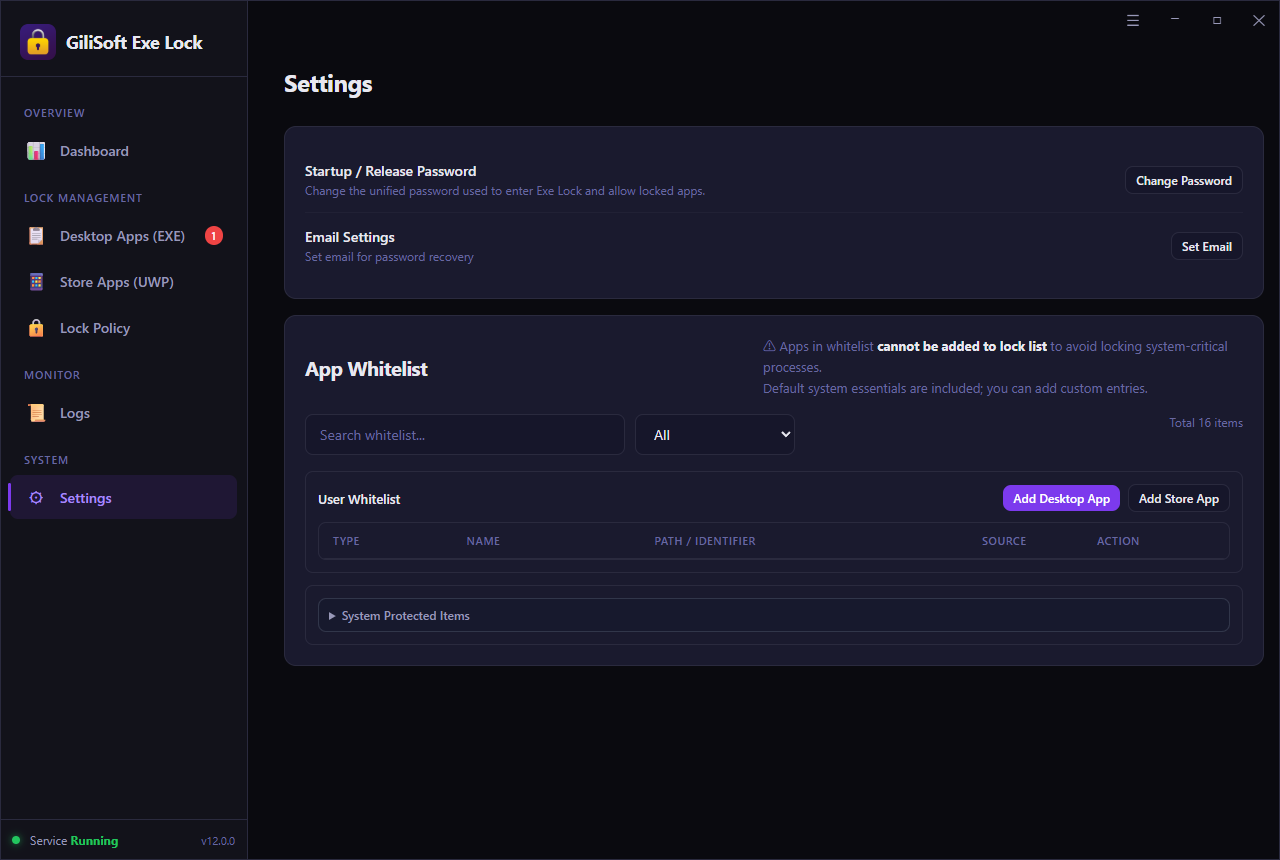 Settings contains the release password, recovery email, and whitelist.
Add the installed desktop application
Open Desktop Apps (EXE) and click Add. Select the program you want to control. Check the displayed file name and path before continuing.
For supported Microsoft Store applications, use the separate Store Apps (UWP) list.
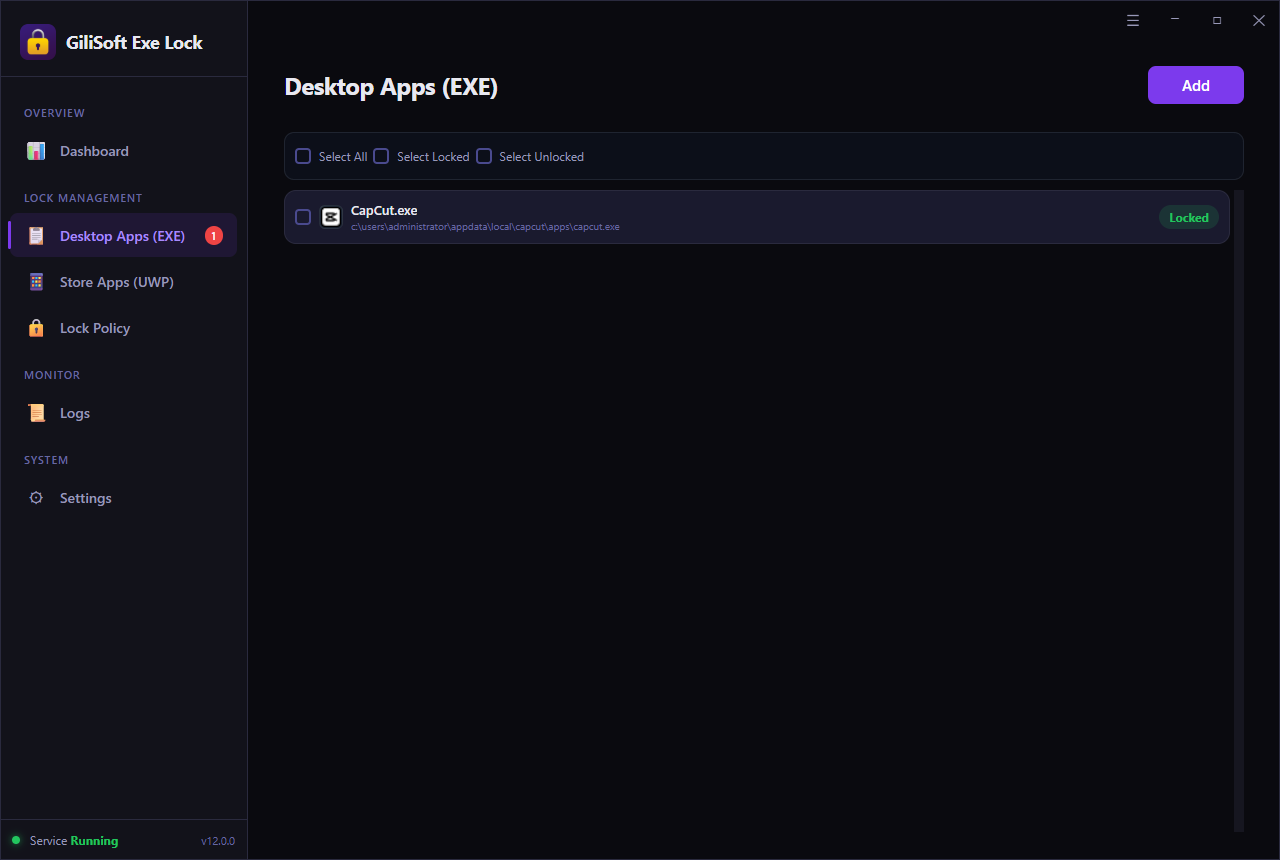 Desktop Apps (EXE) lists the protected program and its installation path.
Select Password Verification
Open Lock Policy and choose Password Verification. The protected application opens only after the correct release password is entered.
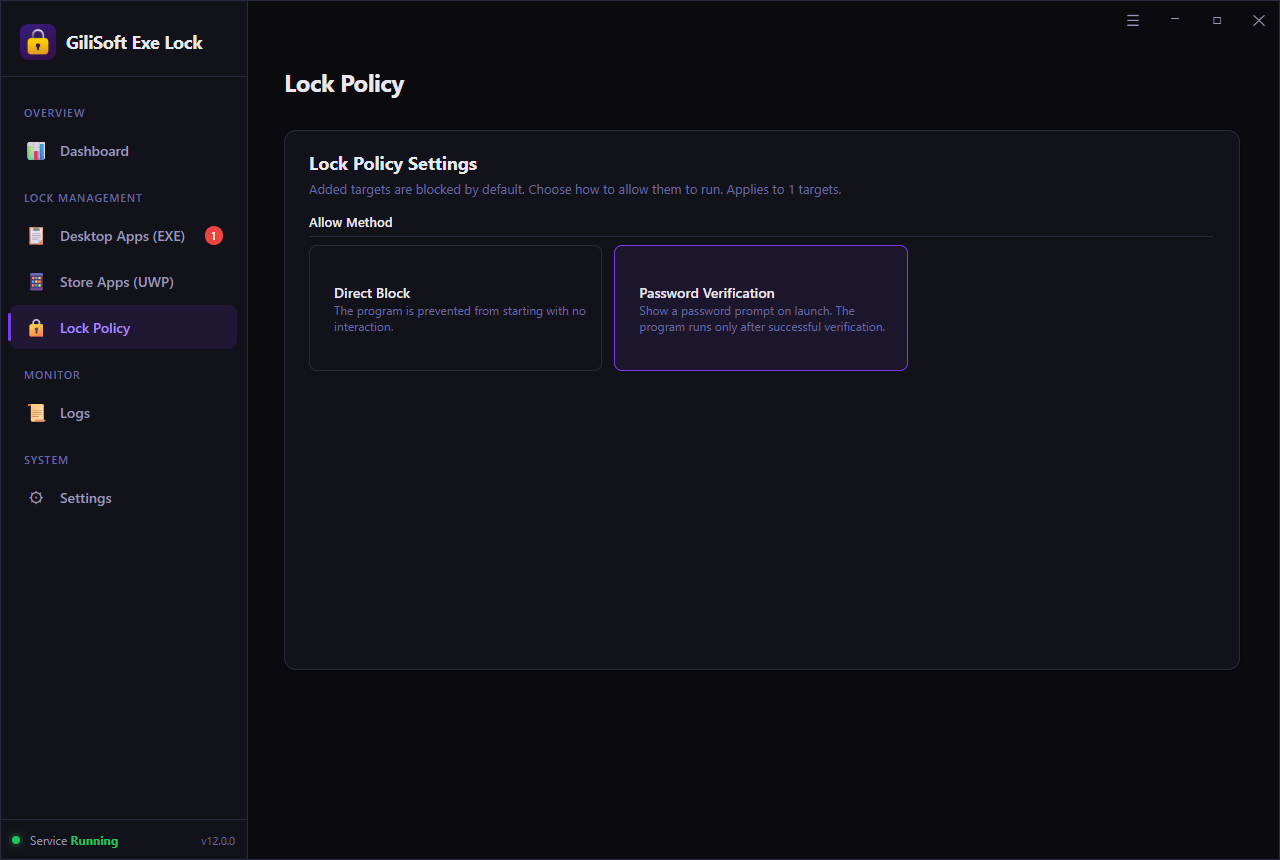 Lock Policy offers Password Verification and Direct Block.
Test the app and review intercept records
Launch the protected program from the shortcut or location people normally use. Verify that the correct password opens it and an incorrect attempt does not.
Return to the Dashboard or Logs to review protection status, blocked attempts, and recent intercept records. Use Temporary Unlock when authorized work needs a short unrestricted period.
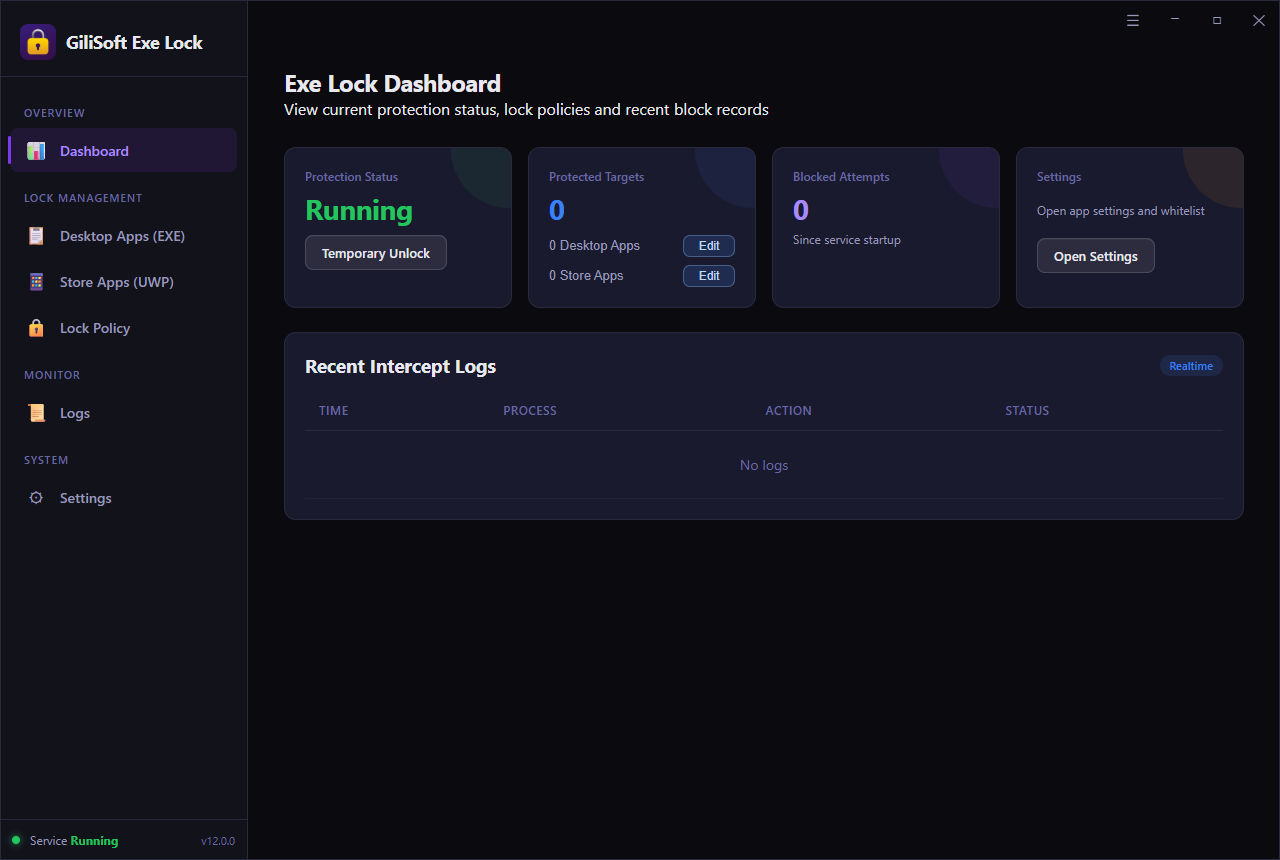 The Dashboard shows service status, protected targets, and blocked attempts.
Password Verification or Direct Block?
Password Verification
The application remains available to a person who knows the release password.
Use it for finance tools, licensed editors, private work apps, and shared PCs.Direct Block
The application does not start and no password prompt is shown.
Use it for games, distracting apps, unapproved tools, or programs users must not launch.Where app launch protection helps
Shared family or classroom PCs
Put selected games, chat tools, browsers, or editing software behind a password while leaving ordinary Windows use available.
Business administration tools
Require authorization before finance, inventory, remote-support, HR, or internal management applications open.
Licensed production software
Limit access to paid editors and project applications on a shared workstation without moving their files.
Reception and public workstations
Keep required software accessible while blocking maintenance, configuration, or unrelated applications.
What Windows built-in options actually do
These Microsoft tools are useful, but they solve different problems from a per-app password prompt.
AppLocker
AppLocker creates allow or deny rules for executables, packaged apps, scripts, installers, and DLLs. Rules can target users or groups and can be distributed through Group Policy or management tools. It is designed for policy administration, not for asking an end user to enter a separate password before one app opens.
Software Restriction Policies
SRP is an older Group Policy-based control for deciding which executable files, scripts, and other code may run. It is useful in managed configurations, but rule creation and testing require administrative care.
Microsoft Family Safety
Family Safety can set daily app and game limits for a family member across connected devices. Choose it for schedules and parental time limits, not for protecting a business or private program with a launch password.
Microsoft references: AppLocker overviewSoftware Restriction PoliciesFamily Safety app limits
More Windows app lock guides
EXE password protection FAQ
Can I password protect an EXE file on Windows?
Yes. Add the installed desktop application to EXE Lock and choose Password Verification. The password controls launch access; it is not embedded into the EXE file.
Does EXE Lock change the original EXE?
No. It applies launch control without rewriting or repackaging the executable.
Can I block a program without a password prompt?
Yes. Select Direct Block when the program should not start.
Can it lock Microsoft Store apps?
Supported Store applications are managed in the separate Store Apps (UWP) area. See the Microsoft Store app locking guide.
Require a password before selected Windows apps open
Download GiliSoft EXE Lock, test Password Verification with a nonessential application, then add the programs that need controlled access.