
Quick answer
Open Store Apps (UWP) in GiliSoft EXE Lock, find the supported app by name or package identifier, add it to the protected list, and choose Direct Block or Password Verification. Always test the app after adding it because packaged apps do not use the same launch structure as ordinary desktop EXE programs.
Why Store Apps Need a Separate List
Many Store apps are packaged applications with identities and protected installation paths rather than a simple executable that users can browse to normally.
| App type | Where to manage it | How it is identified | Typical examples |
|---|---|---|---|
| Microsoft Store / packaged app | Store Apps (UWP) | Detected app name, package identity, or target | Store games, media apps, communication tools |
| Traditional desktop program | Desktop Apps (EXE) | Executable path or shortcut target | Win32 software, launchers, portable programs |
Use one policy for Store and desktop apps
GiliSoft EXE Lock keeps packaged apps and traditional EXE programs in separate lists, then applies the same clear launch choices: block the target completely or require an authorized password.

Before You Lock a Store App
Open the app once
Confirm that the Store app is installed correctly and note its displayed name before looking for it in the detected list.
Set recovery first
Configure the EXE Lock password and recovery email before protecting apps on a shared or remotely supported computer.
Do not lock blindly
Keep Windows components, accessibility tools, security software, and required work or school apps out of the protected list.
How to Lock a Microsoft Store App
Use the dedicated Store Apps view instead of trying to take ownership of the WindowsApps folder or guess an internal executable path.
Prepare the password, recovery email, and whitelist
Open Settings. Confirm the release password, add a recovery email, and review the whitelist. System-protected items should remain outside the lock list.
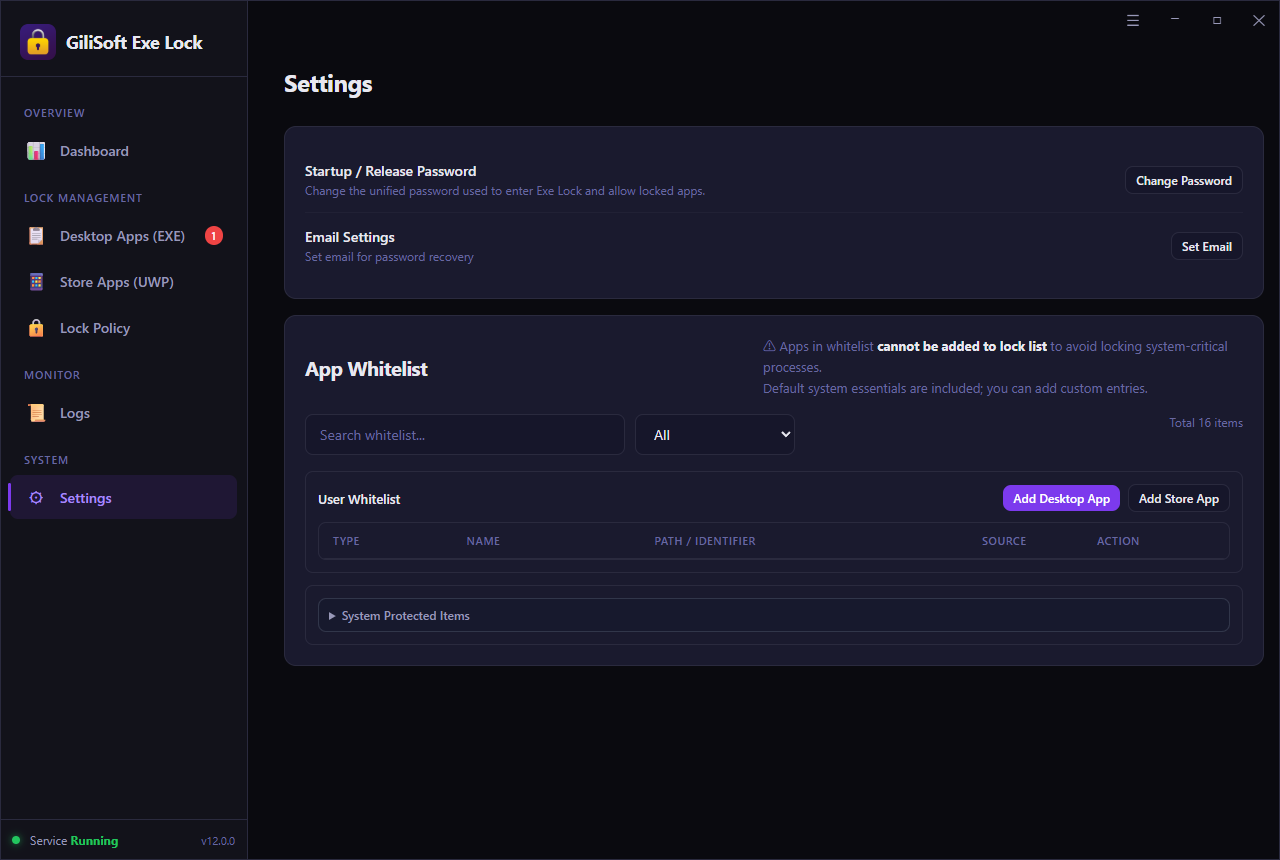 Prepare a recovery path before adding app restrictions.
Open Store Apps (UWP) and find the target
Choose Store Apps (UWP). Search by the app's displayed name and review the listed path or package identifier. Use the Locked and Unlocked filters when checking an existing rule.
- Select the exact app target, not a similarly named extension.
- Use the app icon and identifier together when names are ambiguous.
- For ordinary EXE software, return to Desktop Apps (EXE).
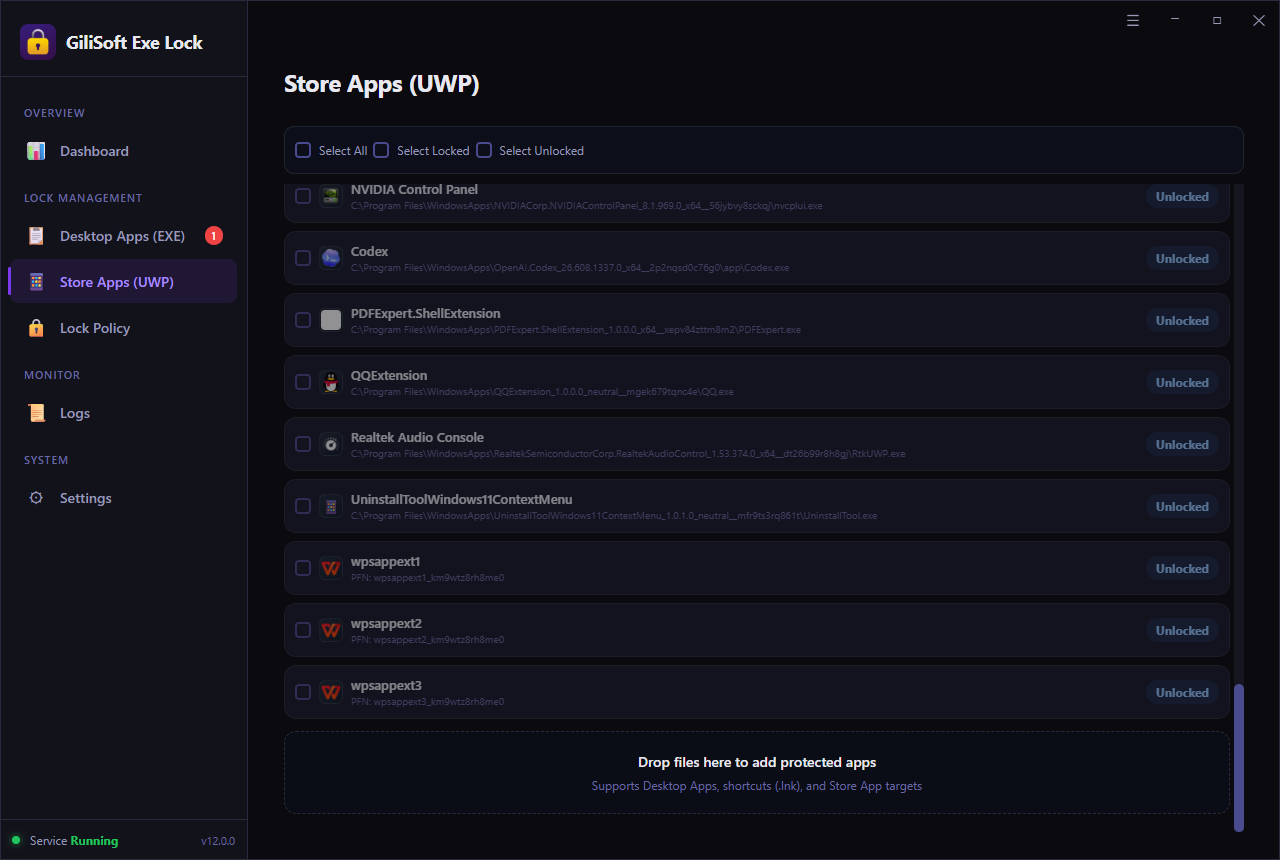 Store targets are displayed separately from traditional desktop programs.
Choose Direct Block or Password Verification
Use Direct Block when the app must not start. Use Password Verification when a parent, teacher, supervisor, or administrator may approve access without deleting the rule.
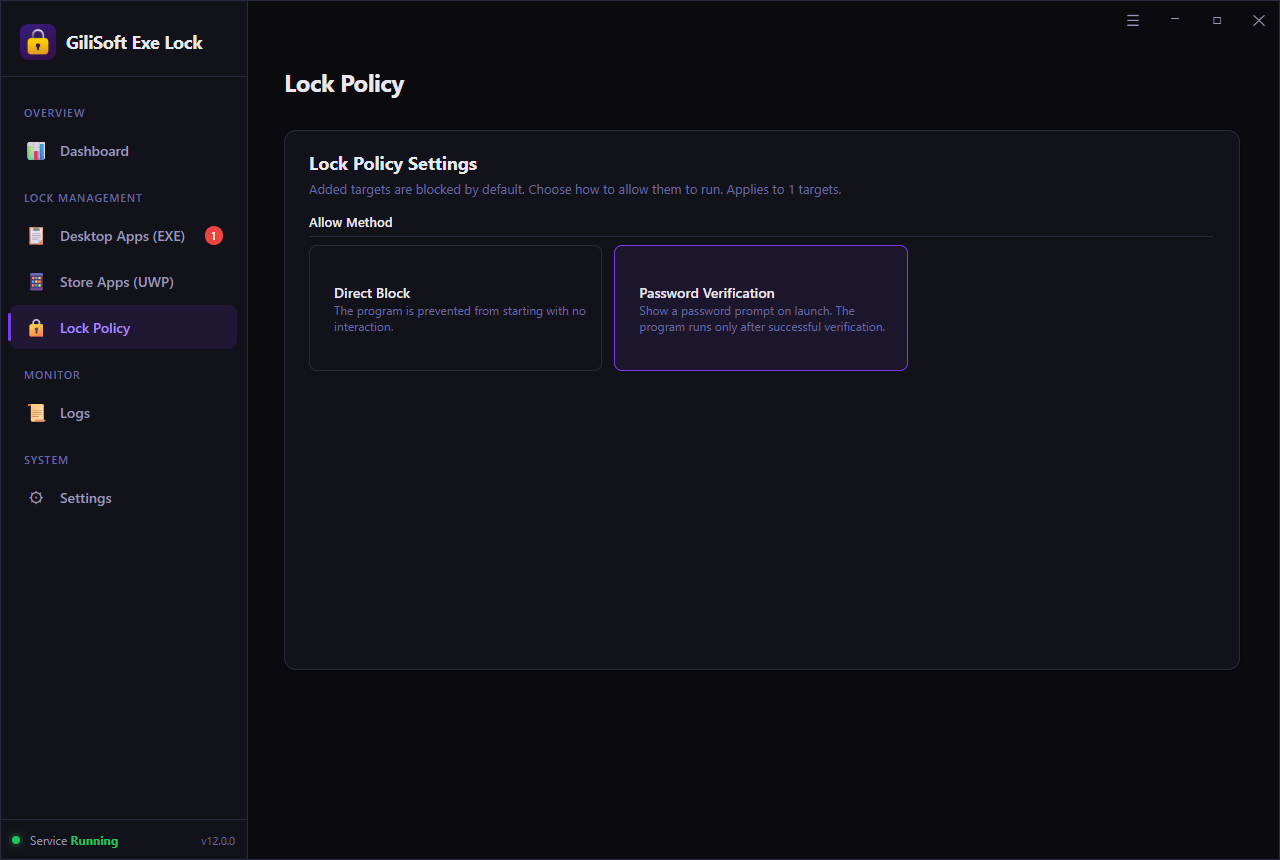 Apply the launch behavior that matches the actual access policy.
Test the app and review intercept activity
Launch the app from Start, search, its pinned icon, and any other available entry point. Check the dashboard and logs to confirm that the selected target was intercepted.
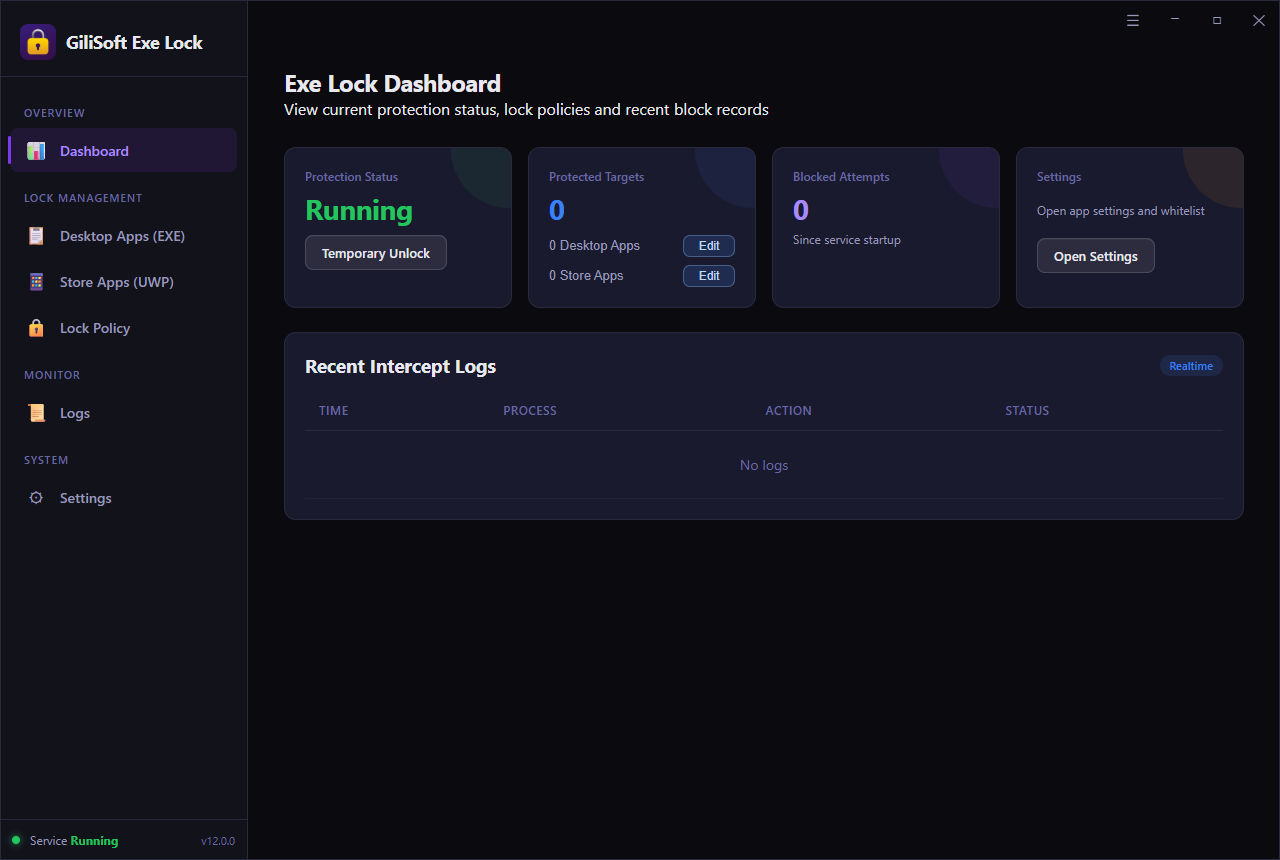 Testing confirms that the selected package target matches the app users open.
Choose the Right Store App Policy
Direct Block
Best for entertainment apps, games, unauthorized communication tools, or other Store apps that should not open on the computer.
No approval prompt is presented.Password Verification
Best when an authorized adult or administrator may occasionally open the app for supervised use, maintenance, or account management.
The app opens only after password approval.When a Different Windows Tool Fits Better
Microsoft Family Safety
Use Family Safety when children have separate Microsoft accounts and the goal is app blocking or daily app and game time limits rather than a local approval password on a shared session.
AppLocker packaged app rules
Organizations using managed Windows editions can create packaged app rules and target users or groups. This is appropriate for centrally planned application-control policy.
Uninstall the app
Uninstalling is simplest when nobody needs the app and its local data or configuration does not need to remain available.
Desktop Apps (EXE)
If the software was installed from the Store but launches as a conventional desktop executable, manage the actual EXE target in the desktop list.
Official references: Microsoft Family Safety app blockingMicrosoft app and game limitsMicrosoft AppLocker rules
Common Store App Lock Scenarios
Games on a family PC
Block selected Store games while keeping school, browser, and communication apps available.
Entertainment apps at work
Prevent unrelated media apps from opening on reception, support, meeting-room, and shared office computers.
Saved communication accounts
Require approval before a selected packaged messaging app can expose a signed-in account on a shared PC.
School and training computers
Keep approved education apps available while restricting Store apps that distract from lessons or lab work.
Common Store App Lock Mistakes
Looking only for an EXE path
Packaged apps may be easier to identify by package name or identifier. Use Store Apps (UWP) first.
Selecting a shell extension
A similarly named package can be an extension rather than the main app. Compare the name, icon, and identifier, then test it.
Skipping launch-path testing
Test Start, search, pinned icons, notifications, and protocol links when applicable. A rule is useful only if it intercepts the way users actually open the app.
Locking Windows components
Do not add system-critical targets casually. Preserve protected items and required apps in the whitelist.
Microsoft Store App Lock FAQ
Can I lock Microsoft Store apps on Windows?
Yes. EXE Lock includes a Store Apps (UWP) area for supported packaged app targets.
Can I require a password before a Store app opens?
Yes. Password Verification allows the selected app to open only after an authorized person enters the release password.
Can I block a Store app completely?
Yes. Direct Block prevents the selected supported target from launching.
Can I keep important system apps unlocked?
Use the whitelist and system-protected entries to keep approved and critical targets out of the lock list.