

How to Lock a Folder on Windows with File Lock Pro
This guide shows where to find the folder-locking controls in GiliSoft File Lock Pro and how to verify the result on Windows. Start with a noncritical copy, confirm which users and applications need access, and keep a separate backup. A folder lock applies to the selected content; it is not a substitute for whole-drive encryption.
Quick answer
In File Lock Pro, open Local Disk > Locking File, choose Lock Folder, select a test folder, and apply the lock. Close the program, then check access with the Windows user and applications that normally use the folder.
Before You Lock a Windows Folder
- Confirm the exact path.
Select only the folder that needs protection; avoid Windows and application folders unless you have verified the effect.
- Check active applications.
Save work and note any apps, sync tools, or backup jobs that read or write to this folder.
- Plan who needs access.
List the Windows accounts and normal workflows that should continue to open or update the content.
- Prepare a recovery copy.
Keep a separate backup and test recovery using noncritical files before protecting important data.
Prepare a Safe Test
- Make a sample folder.
Use copied, noncritical files that represent the content you plan to protect.
- Keep recovery details separate.
Confirm the available unlock and recovery method, and store its information away from the protected path.
Lock a Folder with GiliSoft File Lock Pro
Follow these controls in the installed Windows application. The screenshot shows the local file-locking workspace; test the sequence on a sample folder first.
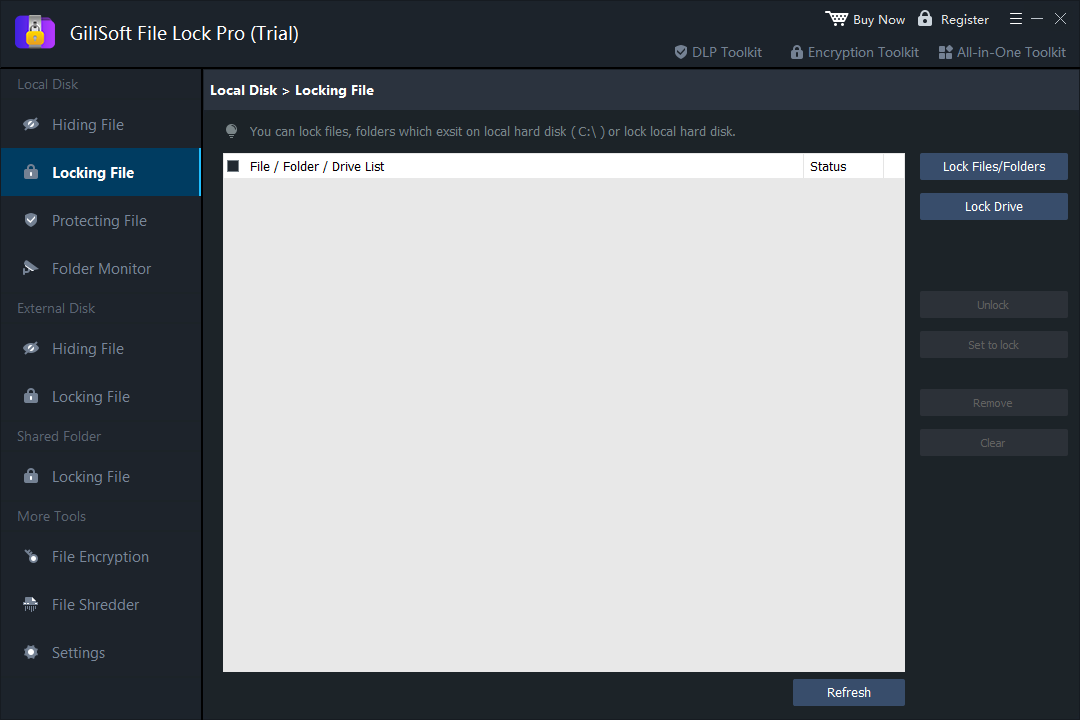
- Open the locking workspace.
Start GiliSoft File Lock Pro and choose Local Disk > Locking File.
- Select the folder.
Choose Lock Folder, browse to the intended path, and confirm that the selected folder is correct.
- Apply and check the listed state.
Complete the product prompt and confirm that the folder appears with the expected protection status.
- Close the program and test access.
Use File Explorer and the applications that normally access the folder to check the result.
- Verify recovery on the sample.
Unlock the test folder and confirm that its files remain usable before applying the workflow to important data.
Verify the Folder Lock
- Test the normal user path.
Close File Lock Pro and check the folder from the Windows account and applications that will use it.
- Check the required actions.
Try opening, editing, copying, renaming, moving, or deleting a sample file as relevant to your goal.
- Restore access deliberately.
Use the product controls to unlock the sample, then open the recovered files and compare them with the backup.
- Record the setup.
Note the protected path, intended users, tested application workflow, and recovery location.
Folder Locking Scope and Limits
A folder lock applies to the selected content. It is different from full-volume encryption, which protects an entire drive, and from Windows account permissions, which determine which accounts can access files. Keep independent backups and test the exact behavior on your PC before rollout.
For portable delivery, use a workflow designed to create a protected copy. For a lost-device risk, consider whole-drive encryption and confirm its recovery method separately.
How to Lock a Folder on Windows FAQ
Where is the folder-locking feature in File Lock Pro?
Open GiliSoft File Lock Pro and go to Local Disk > Locking File. Choose Lock Folder to select a folder.
How do I lock a folder on Windows with File Lock Pro?
Choose Local Disk > Locking File > Lock Folder, select the intended folder, apply the lock, then close the program and test access with a noncritical sample.
Does a folder lock encrypt the entire Windows drive?
No. This workflow applies to a selected folder. Use a full-volume encryption feature when the requirement is to protect an entire drive.
Should I make a backup before locking a folder?
Yes. Keep a separate, restorable backup and verify the unlock and recovery process with noncritical data before protecting important files.
What if I forget the password?
Check and verify the recovery options available in your product setup before relying on the lock. Keep recovery information separate from the protected folder.