
Free Deepfake Software Alternative for Windows
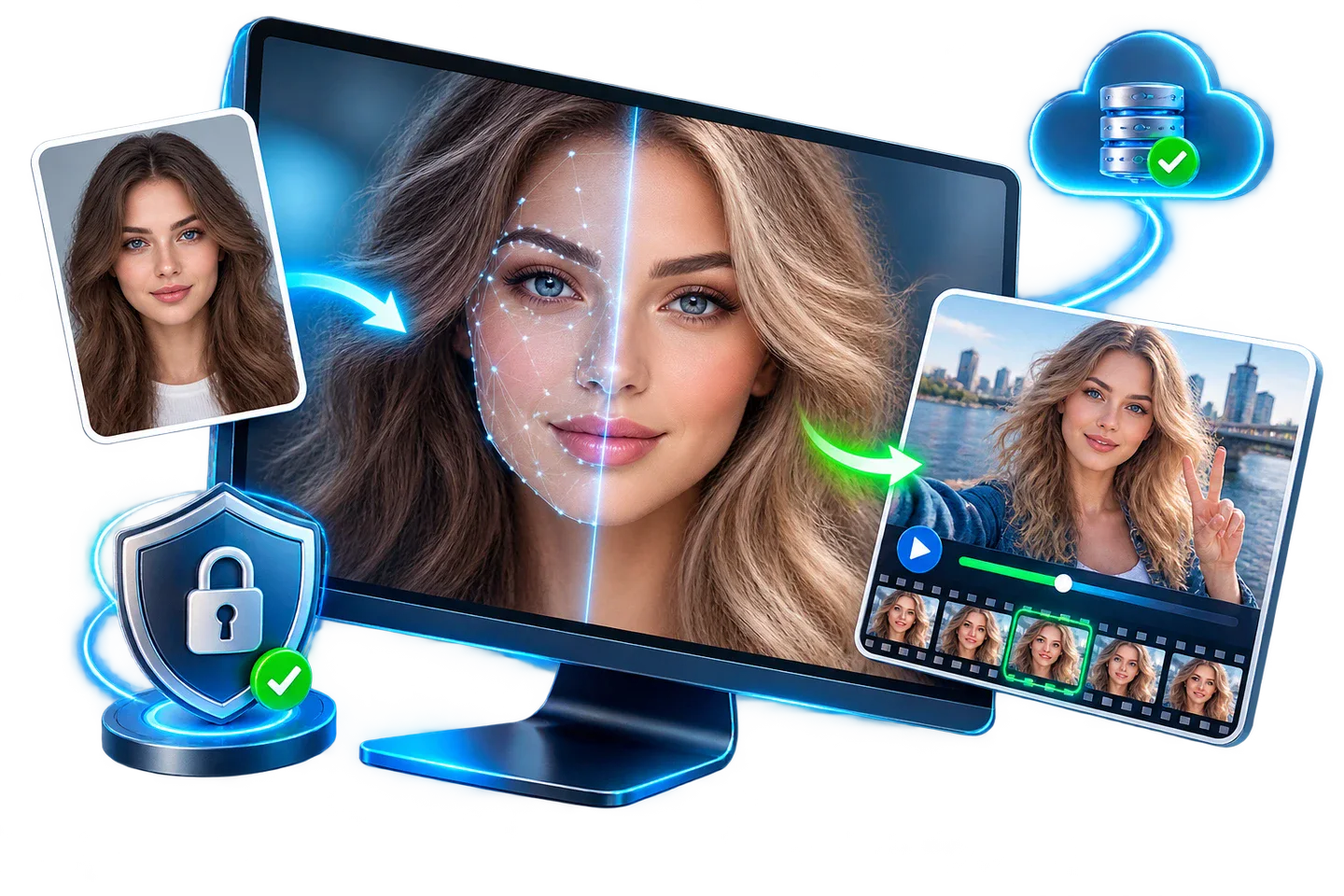
If you want to try face swapping on a PC, compare what you can test for free with what requires credits or a license. GiliSoft Face Swap supports photo and video projects on Windows, with a trial download, cloud processing and a separate offline option.
Quick answer
GiliSoft offers a trial download, not a promise of unlimited free exports. Its cloud option is usage-based; Offline FaceSwap Master is a paid license for local processing. Try a representative photo or short clip, inspect the exported file and check current trial limits before paying.
What does “free” cover?
“Free deepfake software” can mean a browser demo, a limited trial or an open-source project. These are not interchangeable. For GiliSoft Face Swap, the reliable starting point is the Windows trial; the product page lists a usage-based cloud workflow and a paid offline license.
| Option | Good for | Check before using it |
|---|---|---|
| Free online demo | Trying a quick photo effect without installing software | Upload policy, credits, watermark and export quality vary by service. |
| GiliSoft Windows trial | Testing the desktop photo and video workflow | Inspect the current app for export, watermark, duration or feature limits. |
| GiliSoft cloud mode | Occasional jobs when uploads are acceptable | Usage-based cost and the data you send for processing. |
| Offline FaceSwap Master | Repeated local work or projects that should stay on the PC | Paid license and the Windows hardware needed for your files. |
See the current cloud and offline options for licensing details. Do not assume a “free download” means every export is free.
Test a photo or short video before committing
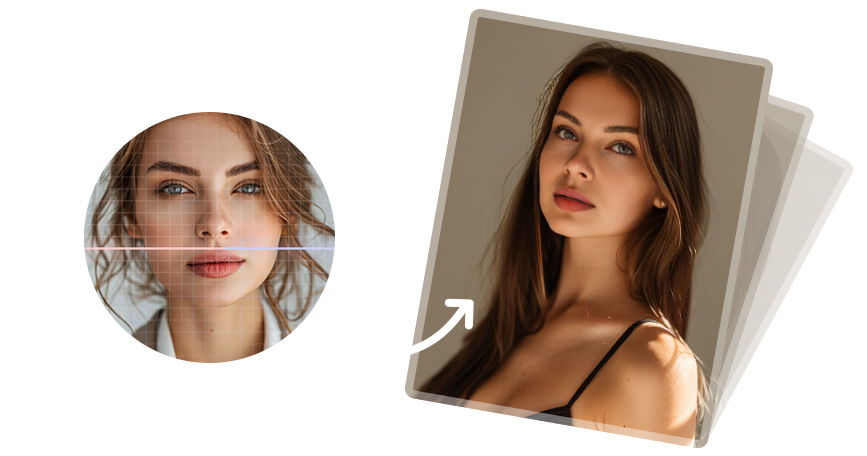
Use a clear source face and a target with a similar angle and lighting. For video, choose a short clip that includes a head turn, expression change or partial obstruction; an easy opening frame alone will not reveal stability issues.
- Download and open the trial
Check which photo and video options are available in your installed version.
- Load the source and target
Start with a sharp source face and a well-lit target photo or brief video.
- Choose the processing mode
Use cloud mode when upload-based processing fits the job; compare the paid offline option when local processing matters.
- Run a small sample
Preview the face boundary, expression and lighting. For video, watch several seconds continuously rather than judging one frame.
- Inspect the export
Open the saved file and confirm resolution, duration, watermark or other trial limits in the current build.
What improves face swap quality?
- Face angle: A source portrait close to the target pose usually blends more naturally than a front-facing image placed on a strong profile.
- Lighting: Match brightness and shadow direction so the swapped face does not look pasted on.
- Source detail: Use a sharp, unobstructed face; heavy compression and motion blur leave less detail to work with.
- Video continuity: Check turns, blinking, hair, glasses and objects that cross the face for flicker or identity drift.
If a video still looks unstable, use a shorter or clearer target segment and see the video stability guide.
When is the offline version worth it?
Choose the offline license when you regularly process larger batches or prefer the product’s local-processing path over upload-based cloud jobs. Cloud mode can be simpler for occasional work, but it uses a usage-based model. Compare cost, processing time and privacy requirements for your actual project rather than relying on the word “free.”
Use media you have permission to edit, and keep the original files separately so you can compare or revise the result.
Free deepfake software FAQ
Is GiliSoft Face Swap completely free?
GiliSoft offers a Windows trial download. Cloud processing uses a usage-based model, while Offline FaceSwap Master is a paid license. Check the current app and pricing page for trial and export limits.
Can it swap faces in both photos and videos?
Yes. GiliSoft Face Swap supports photo and video face-swap workflows on Windows. Test a short video before committing to a longer export.
Does the offline version upload my source files?
Offline FaceSwap Master is the local-processing option described on the product page. Cloud mode is upload-based, so choose the mode that fits your project and review the current settings.
Why does a face swap look unnatural?
Large differences in face angle, lighting, resolution or expression, plus motion blur and occlusion in video, can weaken the result. Start with a clearer source and test the hardest frame or clip.