Keep company files from leaving through unapproved USB devices. Control storage access while keeping trusted drives and essential work equipment available.
Block USB storage or manage reading and writing separately
Allow approved drives and USB network adapters
Reuse trusted storage lists and review access activity
For company Windows PCs, start with the transfer you need to control: files copied to USB, files read from unknown storage, or unapproved network connections. Build and test that rule before expanding it across departments.
Block the Data Channel, Not Every USB Peripheral
Use USB storage write restrictions to stop copying files out, read restrictions to limit access to files on unknown media, or both for PCs that should not exchange USB files. Register approved company drives and verify that required keyboards, mice, docks, and other work equipment remain usable.
Choose the Rule by Business Need
Business need
Control to test
Stop copying company files to personal USB drives
Deny USB writing while retaining reading when required for the job.
Prevent access to files on unreviewed media
Deny reading from the affected storage, with approved-drive exceptions where needed.
No file exchange through unknown USB storage
Restrict both reading and writing.
Keep reviewed company drives available
Use a trusted storage-device whitelist and review its permissions.
Restrict phones or USB network adapters
Configure their separate data-transfer or USB Ethernet controls.
Keep essential peripherals working
Target the required device categories instead of disabling every hub or controller.
Record which devices each department uses and who can approve an exception. USB restrictions are one part of endpoint protection; they do not control every other way files can leave a computer.
1. Pilot USB Storage Restrictions with GiliSoft USB Lock
Install USB Lock on a representative company PC, protect its management settings with a password, and select the USB storage read/write restrictions required for that workstation.
Prepare a representative pilot PC
Use an administrator account, configure the management password and recovery details, and keep the original settings recorded. Close files open on removable storage.
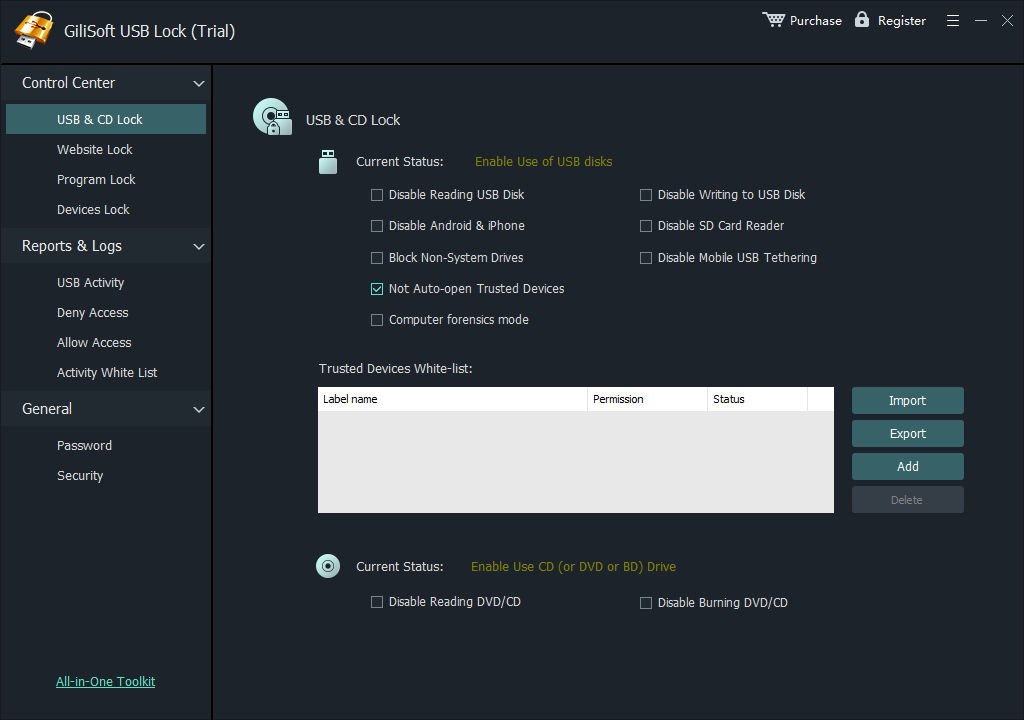
Open Control Center > USB & CD Lock
Select Disable Writing to USB Disk to stop file copy-out while keeping reading available. Also select Disable Reading USB Disk when both directions should be denied.
Reconnect and test a noncritical drive
Try opening a sample file and saving a new file to the device. Leave unrelated device categories unchanged for the first test.
USB & CD Lock separates USB disk read/write restrictions from phone, SD reader, tethering, and optical-media settings.
Additional channels: phone transfers and USB tethering have their own options. USB Wi-Fi and Ethernet adapters use USB Ethernet Lock with a separate adapter whitelist. See the USB Lock user guide for those interfaces.
2. Register Approved Company USB Drives
Insert each reviewed drive, use Add under Trusted Devices White-list, confirm its identity and Permission, and test the approved exception against the default storage rule.
Register the reviewed physical drive
Insert the company drive, click Add, and select it in Select USB Drive.
Review identity and access
Check the drive, label, and Permission, then confirm with OK. Reconnect it to verify the exception.
Maintain a company approval record
Record the owner, business purpose, approver, and review date in your IT inventory. Keep this approval record separately from the app's trusted-device list.
Review the selected company drive and its permission before confirming a storage whitelist entry.
Remove retired or lost devices from affected PCs. A drive being encrypted or company-owned does not automatically register it in USB Lock.
Check the complete policy: a USB Lock whitelist does not override an independent Windows or endpoint restriction. Test the approved drive under all rules actually deployed on the pilot PC.
3. Verify Access and Review the Matching Events
Test approved and unknown drives with the everyday Windows account, verify required peripherals, and review USB Lock's access reports alongside the actual read/write result.
Acceptance test
Pass condition
Unknown USB storage
The selected reading or writing restriction is enforced.
Write-only rule
A sample file can be read from USB, but saving a new file to it fails.
Approved company drive
Its reviewed access works after reconnection and restart.
Required work equipment
Keyboard, mouse, printer, dock, scanner, and specialist devices still perform their intended jobs.
Phone or USB adapter policy
Each separately configured transfer or networking channel behaves as intended.
Support and recovery
The administrator can reverse the specific restriction or update the approved-device entry.
Use USB Activity for usage history, and the separate Deny Access or Allow Access views for access results.
Under Reports & Logs, enable the required monitoring, repeat the test, and refresh the relevant view. Record the PC and test time in your rollout record so support can compare the event with the observed result. An empty history is not a substitute for a read/write test.
4. Expand the Policy and Maintain Device Exceptions
Export the reviewed storage whitelist, import it on the next managed PC, configure that PC's restrictions separately, and repeat the pilot checks before expanding to more computers.
Define the next deployment group
Group PCs by actual work needs, such as office desks, reception, classrooms, or production stations. Assign a policy owner and a support contact.
Reuse the approved storage list
Use Export on the pilot PC and Import on the next PC. This reuses storage whitelist entries, not every program setting.
Apply and verify each PC's settings
Check read/write rules, phone and media restrictions, security settings, and any USB Ethernet exceptions separately. Repeat the acceptance tests with the usual user account.
Maintain and revoke exceptions
Review ownership and purpose when a drive is replaced or lost. Remove obsolete entries explicitly on affected PCs; do not assume importing an updated list automatically removes every old entry.
A responsible administrator reviews the physical drive and its required access, adds the appropriate entry, and verifies that unknown devices remain restricted. Keep the business approval and review date in the IT record.
Temporary password for one device
In an enterprise-customized USB Lock deployment, a user can request an administrator-issued temporary password for an identified device. Agree on access duration, how access ends, and reporting as part of the custom project.
Large deployment or special policy requirements? GiliSoft can assess licensing and customization. Send the endpoint count, Windows versions, device inventory, administrator roles, access rules, and rollout needs to GiliSoft Sales.
Windows Management Options for Larger Environments
Organizations already using Windows management tools can evaluate these approaches alongside the local product workflow. Keep policy ownership and licensing clear rather than treating every control as a standard USB Lock feature.
For organizations using Defender for Endpoint or Defender for Business, device control can use allow, deny, and audit rules with device groups. Plan the default enforcement and existing licensing; Intune is a separate management product. See Microsoft's device-control policy documentation.
Device installation restrictions
Installation restrictions determine which hardware Windows can install; they are not identical to storage read/write permissions. Plan identifier matching, rule precedence, and already installed devices before rollout. See the Windows 11 device-policy overview.
For Group Policy troubleshooting, IT can inspect effective policy with gpresult /h gp-report.html, change the governing policy, refresh it with gpupdate /force, and retest. Changing one local setting will not cancel an enforced domain rule.
Company USB Port Blocking FAQ
Can a company block USB storage without disabling keyboards and mice?
Yes. Apply storage-focused read/write rules instead of disabling every USB controller or hub. Keep unrelated device settings unchanged, then test keyboards, mice, printers, docks, and the specialist hardware each department needs.
Can approved company USB drives remain usable?
Yes. Add reviewed drives to USB Lock's Trusted Devices White-list and confirm their permitted access. Test both approved and unknown drives. Separate Windows or endpoint policies may still deny access even when a drive is approved in USB Lock.
Can the company block writing but still allow reading?
Yes. In USB & CD Lock, select Disable Writing to USB Disk while leaving USB reading permitted. A sample file should open from the drive, but copying a new file from the PC to USB should fail.
Should the policy start on every computer at once?
Start with representative pilot PCs and approved test devices. Record the intended rule, exception owner, and rollback steps. Expand only after approved work and unknown-device blocking have both been verified.
Does blocking USB storage encrypt files already on a drive?
No. USB Lock controls device access on the configured Windows PC; it does not encrypt the drive's existing files. Use a separate encryption workflow when portable files need password protection on the drive itself.
Where can administrators review blocked attempts?
In USB Lock, use Reports & Logs and review Deny Access or Allow Access as appropriate. USB Activity is a separate usage-history view with Monitor USB and Refresh controls. Compare records with an actual device test rather than relying on an empty log.
Does importing the storage whitelist configure every company PC automatically?
No. Importing reuses trusted storage entries. Configure the destination PC's read/write restrictions and other device settings separately, and check its actual access behavior. Do not treat the list as a full policy backup or assume it provides centralized fleet management.
Can employees request a temporary password for one USB device?
That device-specific workflow is available through GiliSoft USB Lock enterprise customization. The user requests a temporary password from an administrator for the identified device. Confirm the access duration, how it ends, and reporting requirements when scoping the project; it is not a standard whitelist entry.
Pilot clear read/write rules, register reviewed devices, and verify approved work before expanding. Use GiliSoft USB Lock to manage the local device-access policy.