
How to Convert Office, PDF, Image, and eBook Files
A good conversion starts with the intended use, not merely a file extension. Decide whether the output must remain editable, preserve visual layout, support printing, feed a spreadsheet, or work on an eBook reader. Then choose the matching Formathor module and verify the result.
Quick answer
Open the module that matches the source and target, add one representative file, choose the output folder and conversion options, convert, then inspect text, tables, page breaks, images, links, and fonts before running the full batch.
Choose the Output by Task
| Goal | Suggested output | Verify |
|---|---|---|
| Preserve a fixed page for review or print | Page size, margins, links, fonts, and image quality | |
| Continue editing text | DOCX or another editable document | Headings, tables, lists, and OCR accuracy |
| Reuse tabular data | XLSX or CSV where supported | Merged cells, formulas, dates, decimal separators |
| Read on an eBook device | A compatible eBook format | Navigation, cover, chapter breaks, and device support |
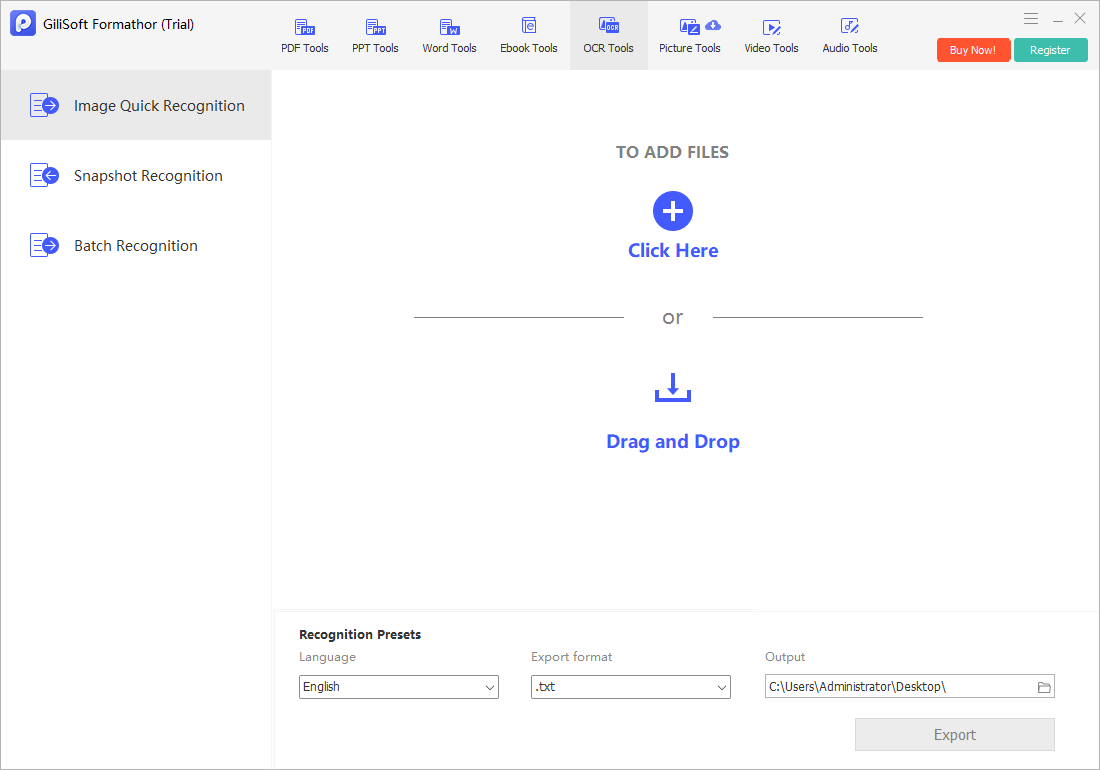
| Extract text from scans or photos | OCR to text or document output | Names, numbers, punctuation, and reading order |
Step-by-Step Workflow
- Identify the source and final use
List the input format, recipient software, editing needs, print requirements, and any sensitive-data handling rules.
- Choose the matching Formathor module
Select PDF, Office, image, OCR, or eBook conversion rather than forcing every file through one generic path.
- Test one representative file
Use a document that includes the hardest elements in the batch, such as tables, images, columns, formulas, or scanned text.
- Set output and conversion options
Choose a separate destination folder and review page range, image quality, OCR language, and other available controls.
- Convert and inspect the result
Open the output in the target application and compare structure, text, links, layout, and file size with the source.
- Run the batch and spot-check again
After the test passes, process the remaining files and inspect samples from the beginning, middle, and end of the batch.
For complete product controls, see the Formathor guide.
Product Interface

Important Limits and Checks
Frequently Asked Questions
Can one output preserve every source feature?
No. File formats support different structures and behaviors. Test the elements that matter before deleting or archiving the source.
When should I use OCR?
Use OCR when the source contains pixels rather than selectable text, such as a scan, screenshot, or photographed page.
Should I convert directly over the original file?
No. Save results to a separate folder and retain the source until the converted files have been verified.
Can I batch-convert immediately?
Test one representative file first. A batch can repeat the same layout or recognition problem across hundreds of outputs.