

How to Make a Windows Data Drive Read-Only
A read-only rule can protect reference data from ordinary edits and deletion while still allowing users to open files. It can also block synchronization, indexes, metadata, backups, and applications that save temporary data to the drive.
Quick answer
Create a verified backup and apply the planned restriction to a test location before the entire drive. Back up the target first, apply the narrowest useful rule, and test both authorized access and the action that should be blocked.
Check Whether Read-Only Access Fits
| Situation | Recommended approach | Check carefully |
|---|---|---|
| Reference or archive data drive | Allow reading and deny ordinary writes | Indexing, backup, and metadata updates |
| Removable presentation drive | Use a tested read-only or controlled delivery workflow | Behavior on another PC |
| Shared active workspace | Protect only stable folders instead | Users and applications need write access |
| Windows system drive | Do not apply a broad read-only rule | Windows requires continuous writes |
Step-by-Step Workflow
- Confirm the target drive and workflow
Verify the drive letter, contents, applications, users, and whether the drive is local, external, or removable.
- Back up and test a representative folder
Create a verified backup and apply the planned restriction to a test location before the entire drive.
- Choose the drive protection rule
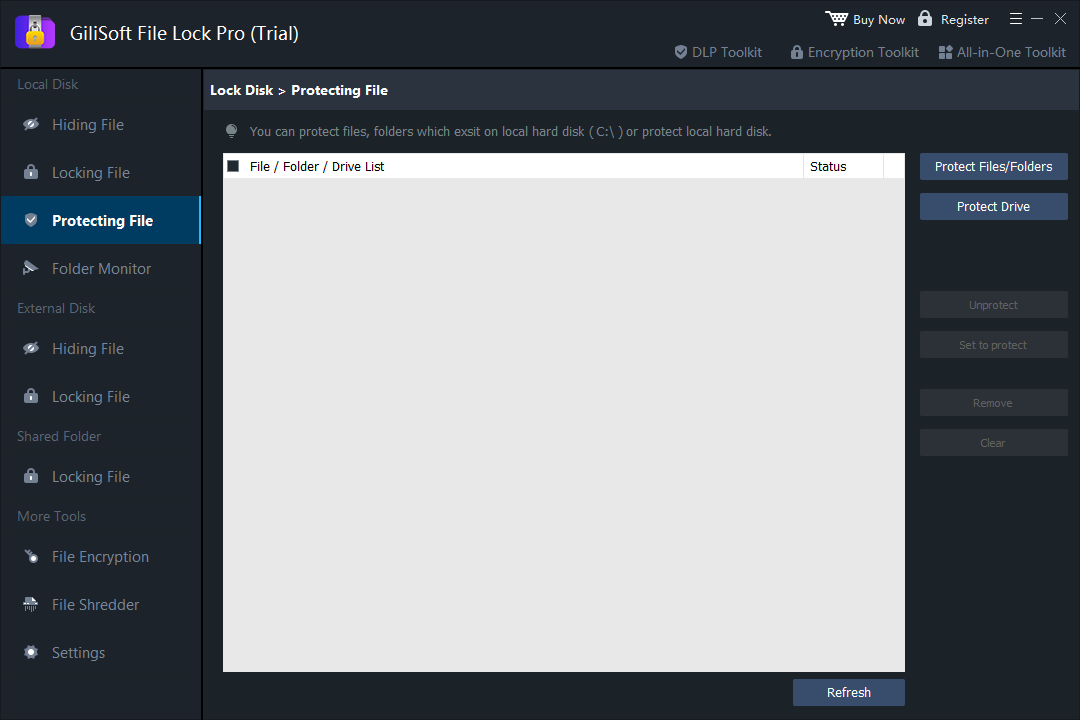
In GiliSoft File Lock Pro, select the intended data drive and enable the supported no-write or read-only behavior.
- Test all required operations
Open files, try saving a copy, run approved applications, verify backup and indexing behavior, and confirm deletion is blocked as intended.
- Document temporary write access
Record how an administrator safely removes and reapplies the rule when legitimate updates are required.
See the File Lock Pro user guide for every workspace, password recovery, and related protection task.
GiliSoft File Lock Pro Interface
These product screenshots connect the workflow to the relevant local Windows controls.

Review the Protection Boundary
- Keep a verified backup before applying broad access or write restrictions.
- Use a standard user account to test both the permitted workflow and the blocked action.
- Protect the administration password and document how authorized recovery works.
- Keep Windows Security enabled and use encryption when offline data exposure is in scope.
Frequently Asked Questions
Can users still open files?
A read-only rule is intended to allow reading while blocking changes, but verify the exact product options and application behavior.
Why did an application stop working?
Some applications write temporary, index, lock, or metadata files beside the document. Move that work or narrow the rule.
Can I use this on C drive?
No. Windows and installed software require writes to the system volume.
Does read-only access protect confidentiality?
No. It controls modification, not viewing. Use locking or encryption when the contents must remain confidential.