

Can USB Storage Be Blocked Without Turning Off Every USB Port?
USB ports carry power and several different device functions. Storage access, phone data, input devices, printers, security keys, and network adapters should not automatically receive the same policy. Define the risky channel first, then protect the policy and test every required exception.
Step-by-Step USB Access Workflow
Inventory essential peripherals
List every keyboard, mouse, printer, security key, camera, and approved storage device used on the PC.
Choose storage-specific controls
Open USB & CD Lock and apply the required USB read or write restriction rather than disabling the complete USB bus.
Handle phones and card readers separately
Enable Android/iPhone data or SD-reader restrictions only when those channels are outside policy.
Register approved company drives
Add trusted storage devices and verify whether each one needs read-only or read-write access.
Run a complete hardware test
Reconnect required peripherals, test unknown media, and check composite devices that expose more than one USB function.
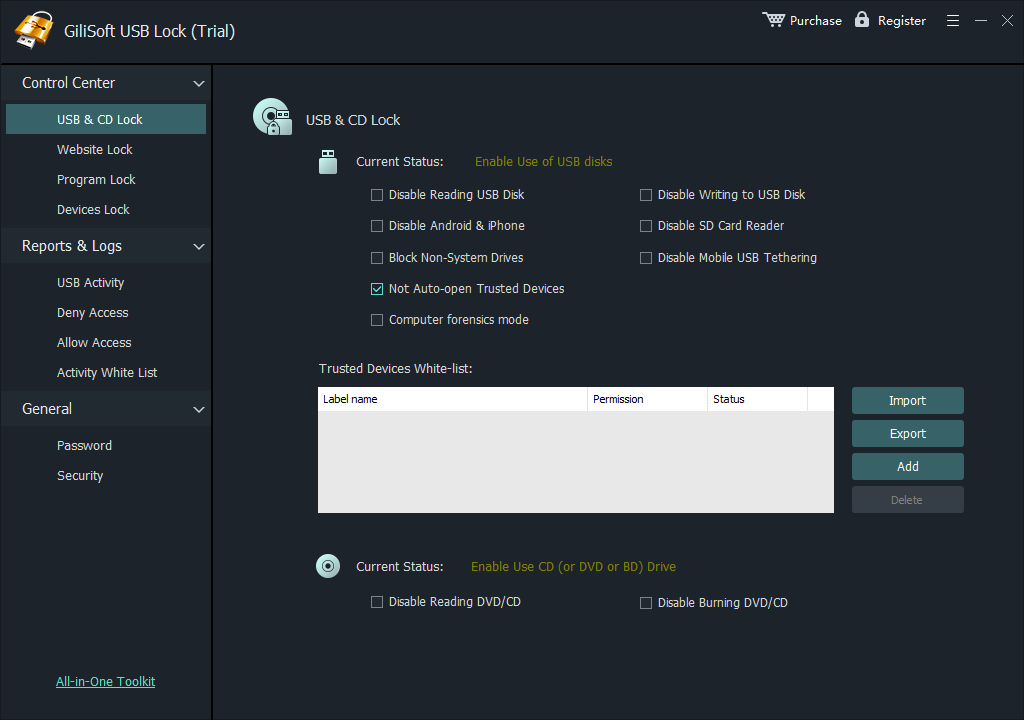 Configure the relevant USB Lock control, protect administration, and verify both approved and blocked behavior.
Build a Policy People Can Maintain
Input devices
Keyboards and mice should remain available when storage-specific policy is used.
Composite hardware
Docking stations, printers, cameras, and security devices can expose several functions and must be tested.
Approved storage
Use the whitelist instead of weakening the restriction for every removable drive.
Use GiliSoft USB Lock for Selective Device Control
GiliSoft USB Lock controls removable storage, phone transfer, SD cards, optical media, USB tethering, and selected USB network adapters from a Windows application protected by administrator credentials. Trusted-device rules keep reviewed company hardware available while unknown devices follow the restricted policy.
Deployment Checks
- Keep an administrator recovery route that ordinary users cannot change.
- Test every required keyboard, mouse, printer, security key, docking station, phone, and approved drive.
- Verify blocked behavior with unknown media instead of assuming the policy is active.
- Document approved devices, owners, permissions, exceptions, and replacement dates.
- Repeat testing after major Windows, driver, phone, or hardware changes.
Frequently Asked Questions
Will blocking USB storage disable my mouse?
It should not when the policy targets storage rather than the complete USB controller, but test the exact PC and peripherals.
What about a keyboard with a built-in USB hub?
Treat it as composite hardware and test both the keyboard and anything connected through its hub.
Can company USB drives still work?
Yes. Add approved drives to the trusted-device list and assign the minimum necessary access.
Should I disable USB in the BIOS instead?
A BIOS-level shutdown is broader and can disable useful peripherals. Use it only when the entire interface must be unavailable.