
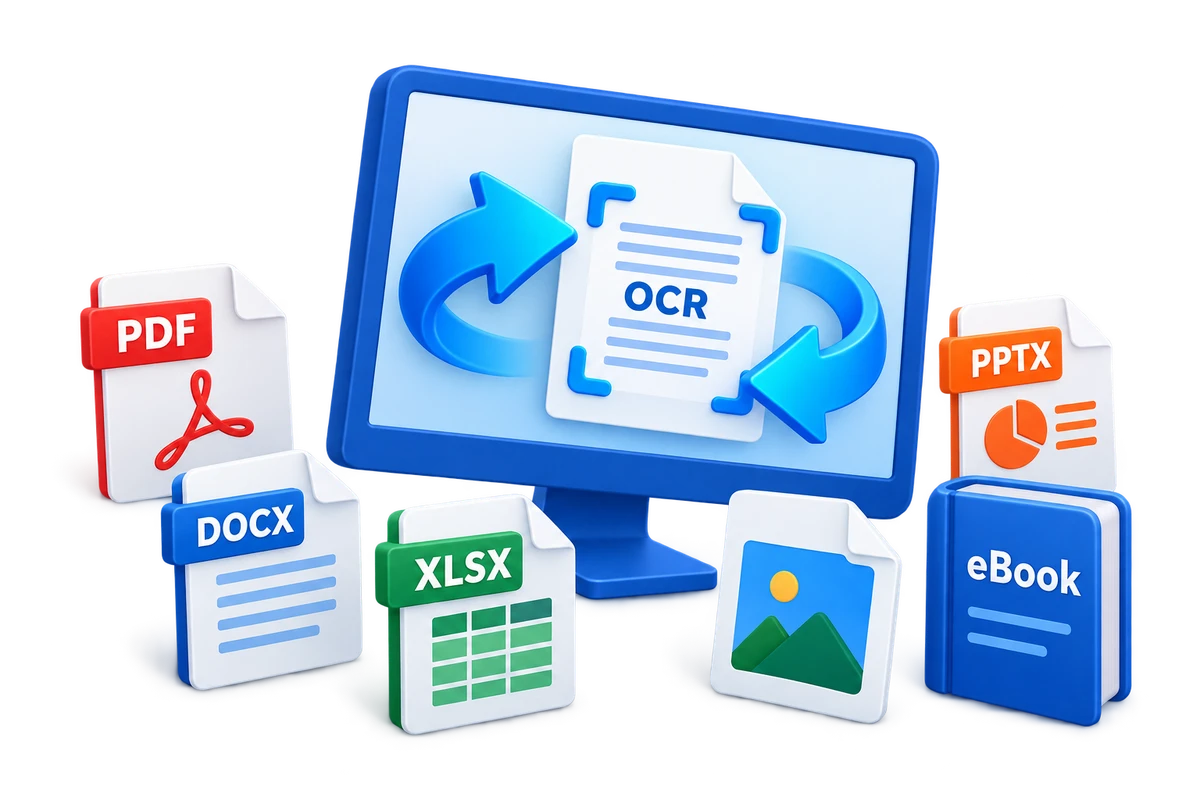
PDF Converter Alternatives for Windows: Choose by Workflow
A PDF converter can be a built-in export command, an online single-task utility, a dedicated PDF editor, or a multi-format desktop suite. The right alternative depends on source formats, confidentiality, OCR, batch volume, editing depth, and the output application.
Quick answer
Choose by the complete workflow rather than one conversion label. Built-in Office export fits simple native documents, online tools fit low-risk occasional files, dedicated PDF editors fit detailed PDF-centric work, and GiliSoft Formathor fits recurring offline conversion across PDF, Office, image, eBook, and OCR-oriented files plus practical PDF preparation.
Compare the Main Types of PDF Converter
| Type | Best for | Watch for |
|---|---|---|
| Built-in Office export | Creating PDF from an original Office file | Limited PDF-to-editable conversion |
| Online converter | Occasional low-risk, simple files | Upload policy, size limits, retention, and connectivity |
| Dedicated PDF editor | Editing, forms, annotation, signing, redaction, and PDF review | Edition differences and broader file-family needs |
| Format-specific converter | Repeated work with one source or destination | Extra applications for mixed workflows |
| Multi-format desktop suite | Offline PDF, Office, image, eBook, OCR, and batch preparation | Specialist PDF features may be outside its focus |
Use Practical Selection Criteria
- List the source and output formats.
Include PDF, Word, Excel, PowerPoint, image, text, HTML, eBook, and scanned sources actually used.
- Classify document sensitivity.
Check whether browser upload is permitted for contracts, customer data, finance, HR, or regulated material.
- Separate OCR from ordinary conversion.
Image-only scans need recognition before their text can be reused.
- Measure batch volume.
Review queue handling, naming, output folders, overwrite rules, and failed-file reporting.
- Define specialist PDF requirements.
Forms, signatures, redaction, accessibility remediation, and collaboration can require a dedicated editor.
When GiliSoft Formathor Fits
Formathor is designed for users who repeatedly move between PDF, Office, images, eBooks, OCR, and related outputs, then need merge, split, compression, encryption, or authorized decryption before delivery.

- Local desktop processing is preferred for routine document work.
- Both PDF-to-file and file-to-PDF directions are required.
- One week may include Word, Excel, PowerPoint, image, eBook, and scanned files.
- Representative files can be tested before a larger batch.
Run a Fair Conversion Test
- Choose representative files.
Include tables, images, uncommon fonts, page breaks, columns, and a scanned document.
- Use the same source for every candidate.
Do not compare one product on a simple file and another on a difficult file.
- Open output in the destination app.
Review Word, Excel, PowerPoint, PDF, image, or eBook output where it will actually be used.
- Record correction work.
Count missing content, broken tables, font changes, misplaced images, and manual cleanup time.
- Check privacy, licensing, and support.
Use current official terms for every product and edition.
Know When a Converter Is Not Enough
Conversion does not automatically provide accurate OCR, compliant redaction, digital signatures, advanced forms, accessibility remediation, collaborative review, or guaranteed layout identity. Choose a specialist tool when those tasks are central.
PDF Converter Alternatives FAQ
What is the best PDF converter alternative for Windows?
There is no universal best choice. Match the tool to source formats, output formats, document sensitivity, OCR needs, batch volume, editing depth, and verification requirements.
Are online PDF converters safe for confidential files?
That depends on organizational policy and the service terms, retention, location, access controls, and security. Use an approved local workflow when files should not be uploaded.
Can Microsoft Office replace a PDF converter?
Office applications can export their native documents to PDF and may open some PDFs, but complex PDF-to-editable conversion, OCR, eBooks, image workflows, and batch preparation can require another tool.
When should I choose a dedicated PDF editor?
Choose one when detailed PDF editing, annotation, forms, e-signatures, redaction, accessibility, or collaborative review is more important than broad multi-format conversion.
When does Formathor fit better?
It fits recurring offline conversion across PDF, Office, images, eBooks, and OCR-oriented files, especially when practical PDF merge, split, compression, and password tools are also needed.
How should I evaluate conversion quality?
Test representative difficult files, open outputs in destination applications, and compare text, fonts, tables, images, page order, links, OCR accuracy, and correction time.