
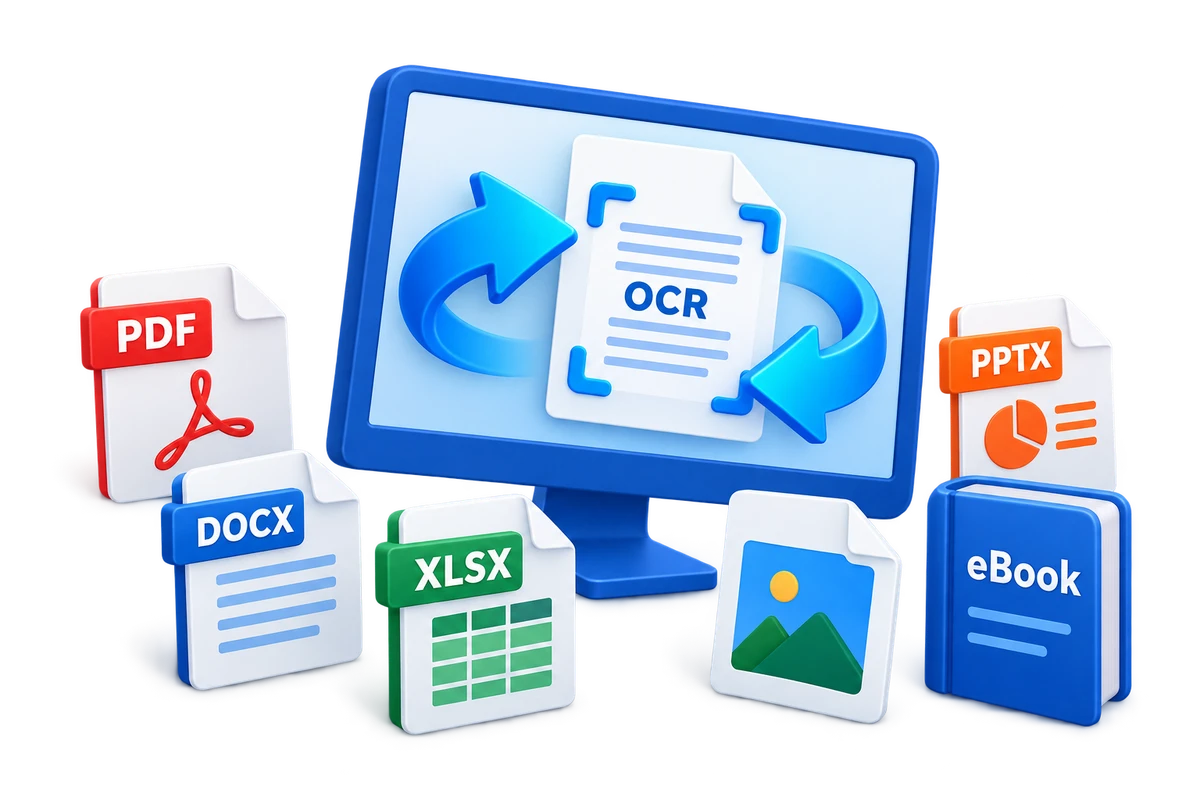
PDFelement Alternative for Windows File Conversion
PDFelement and Formathor overlap in parts of PDF work, but they are not identical products. The useful comparison is not which tool has the longest feature list; it is whether your daily work centers on detailed PDF editing or repeated conversion across many document families.
Quick answer
Choose GiliSoft Formathor when the main requirement is converting and preparing PDF, Office, image, eBook, and OCR-oriented files from one Windows application. A dedicated PDF editor such as PDFelement may fit better when advanced annotation, forms, signatures, or detailed PDF-only editing dominate the job. Test representative files in both the source and destination applications before switching.
Compare the Workflow Focus, Not Just the Product Category
| Requirement | Formathor fit | Dedicated PDF editor fit |
|---|---|---|
| Convert PDF to Word, Excel, PowerPoint, image, text, or eBook | Core multi-format workflow | Check the exact supported outputs and edition |
| Create PDF from Office, image, text, HTML, or eBook sources | Core multi-format workflow | Often available, but verify source coverage |
| Convert PowerPoint, Word, eBook, and image files outside PDF | Strong reason to choose Formathor | May be secondary to PDF work |
| OCR and searchable scanned PDFs | Available through OCR and text-layer workflows | Common PDF-editor requirement; test language and layout |
| Detailed annotation, forms, signatures, or collaborative review | Not the main reason to choose Formathor | A specialist PDF editor may fit better |
| Merge, split, compress, encrypt, or decrypt authorized PDFs | Included document-preparation workflow | Common in full PDF editors |
Feature names can hide important differences in supported formats, batch behavior, OCR language, layout retention, security settings, and licensing. Verify the current edition of every product rather than assuming two similarly named tools behave the same.
When GiliSoft Formathor Is the Better Fit
- Your weekly work moves among PDF, Word, Excel, PowerPoint, images, text, HTML, and eBooks.
- You need both PDF-to-file and file-to-PDF conversion in one Windows application.
- Scanned documents need OCR or searchable text-layer output before reuse.
- Converted PDFs often need merging, splitting, compression, encryption, or authorized decryption before delivery.
- You prefer to process local business files in a desktop workflow rather than uploading them to a browser service.
Test Formathor with a Real Conversion Workflow
Use representative files rather than a simple one-page sample. Include a document with the fonts, tables, images, page sizes, and OCR conditions that normally cause trouble.

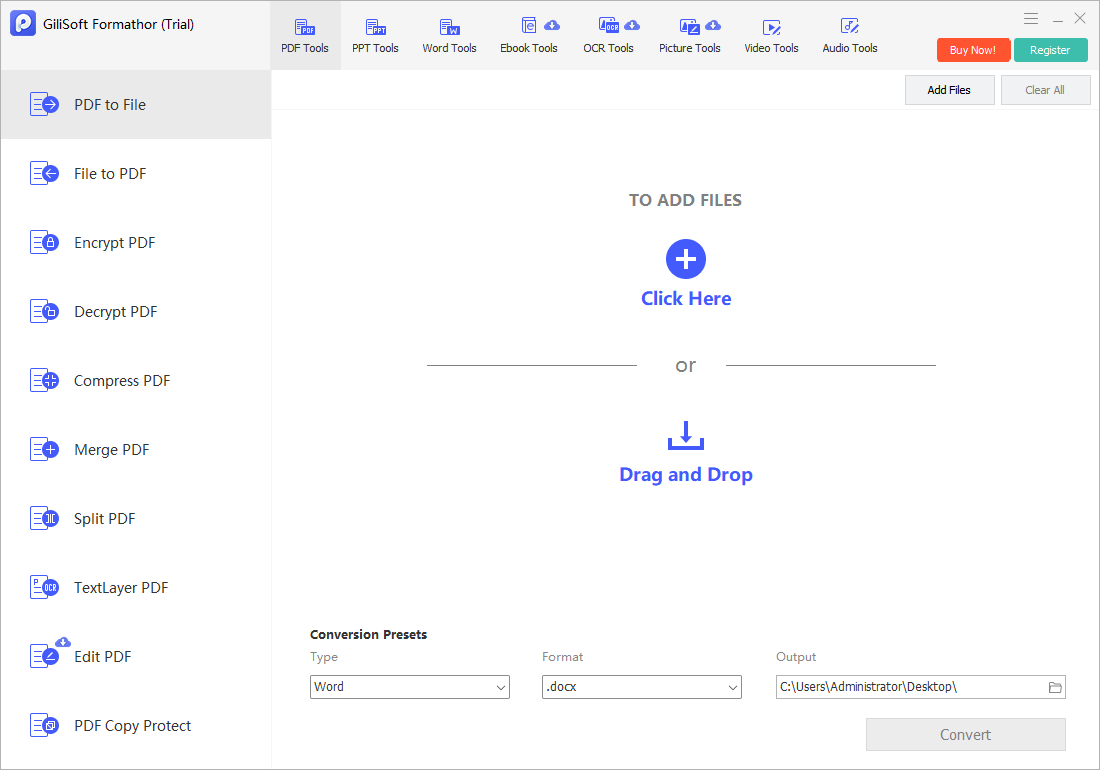
- Choose the source and destination formats.
Confirm that the intended application can open the output format.
- Add one representative file.
Start with a document containing typical tables, images, fonts, headers, or scanned pages.
- Select a separate output folder.
Keep the original untouched while evaluating the result.
- Run the conversion.
Do not begin a large batch until the first output is reviewed.
- Open the result outside Formathor.
Check it in Word, Excel, PowerPoint, a PDF reader, an image viewer, or the intended eBook application.
Prepare the PDF After Conversion
A successful conversion may still need document preparation. Merge related outputs in the correct order, split pages for separate recipients, compress a delivery copy, or protect the final PDF with an appropriate password.

Check These Points Before Replacing Existing PDF Software
- List the features actually used.
Separate must-have editing, OCR, conversion, form, signature, annotation, and security tasks.
- Test difficult files.
Include scans, complex tables, uncommon fonts, large documents, protected PDFs, and mixed page sizes.
- Verify batch behavior.
Check naming, overwrite rules, output folders, failure handling, and whether partial results are obvious.
- Review security requirements.
Password protection is not the same as redaction, signing, certificate security, or access governance.
- Confirm licensing and support.
Use current official product terms for the edition, device count, updates, and business use you need.
PDFelement Alternative FAQ
Is Formathor a complete replacement for PDFelement?
It can be an alternative when the main work is multi-format conversion, OCR-oriented document handling, and practical PDF preparation. It is not presented as a feature-for-feature clone, so test any specialist PDF editing, annotation, form, or signature requirement separately.
What is the main difference between Formathor and a PDF-focused editor?
Formathor centers on conversion across PDF, Office, image, eBook, text, and related formats, with PDF preparation tools included. A PDF-focused editor may devote more of its workflow to detailed editing and PDF-only productivity.
Can Formathor convert scanned PDFs?
Use OCR or text-layer processing for image-based pages, then choose a suitable output. Recognition accuracy and reconstructed layout must be checked against the original scan.
Does Formathor include PDF merge, split, compression, and password tools?
Yes, it provides practical PDF preparation tasks alongside conversion. Use decryption only on documents you are authorized to modify and can legitimately unlock.
Should I uninstall my current PDF editor before testing Formathor?
No. Test Formathor with copies of representative files first. Keep the existing application until every required conversion, OCR, security, and specialist editing workflow has been verified.
How should I compare PDF software fairly?
Use the same difficult source files, record output quality and processing time, check all required features and formats, and review current licensing and support terms from each vendor.