

Remove Burned-In Captions Before Video Localization
A separate subtitle track can often be switched off or replaced. Burned-in captions are pixels inside the exported video, so covering them requires a new edit and can leave artifacts over moving backgrounds.
Quick answer
First request a clean source or disable a separate subtitle track. Only when captions are baked into the only authorized video, mark the caption region in GiliSoft Watermark Remover, preview motion, export, and prepare new localized captions.
Identify the Caption Type
| What you have | Best next step | What to verify |
|---|---|---|
| Editable caption or sidecar track | Replace or disable the track | No image reconstruction needed |
| Clean master available | Re-export from the clean master | Best quality for localization |
| Only a caption-burned export exists | Clean the caption band carefully | Text shadows, scene changes, and motion artifacts |
Clean the Authorized Source Step by Step
- Check the source package
Look for the original project, a clean export, SRT or VTT files, and publisher permission. Do not process a separate track as though it were burned in.
- Mark the full caption region
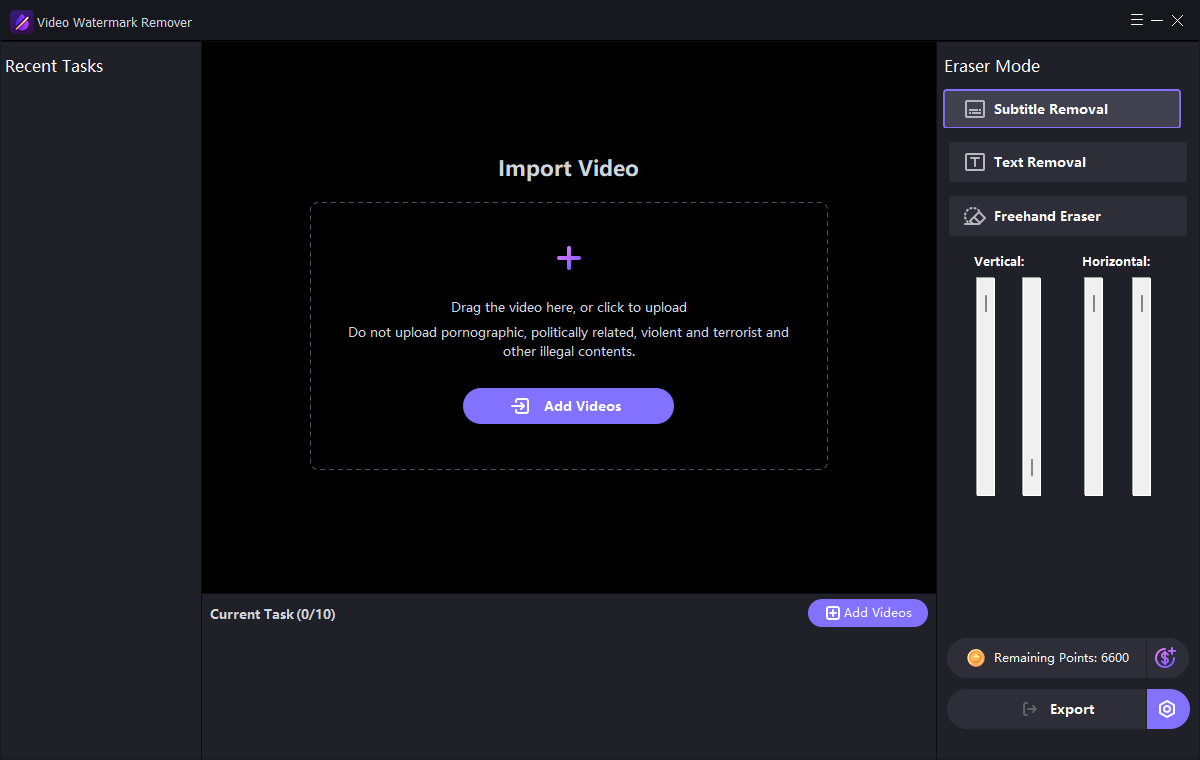
Open the subtitle removal task in GiliSoft Watermark Remover. Include outlines and shadows, but avoid faces or important on-screen labels near the caption band.
- Preview a difficult sample
Inspect long lines, scene cuts, bright and dark frames, and moving backgrounds. Split the task or refine the region if the caption position changes.
- Export and localize responsibly
Save a separate cleaned video. Add the new-language captions as a suitable track or authorized burn-in and verify timing, readability, and accessibility.
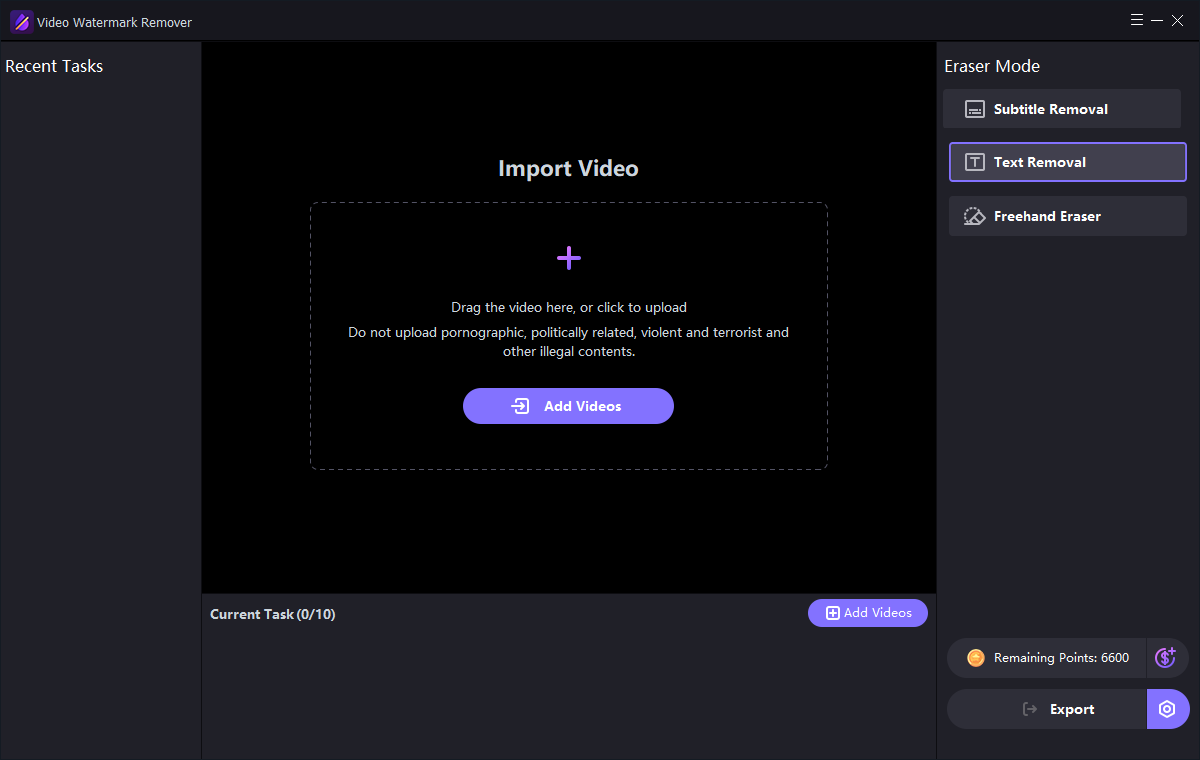
The Watermark Remover user guide shows the matching image, text, subtitle, quick video, and freehand controls.
GiliSoft Watermark Remover Interface
Use the actual task screenshots to locate the selection and preview controls for this workflow.
Review the Export Before Reuse
- Compare the edited result with the untouched source and the current approved version.
- Check edges, shadows, text remnants, and detailed or moving backgrounds.
- For video, inspect the beginning, middle, end, and any scene transition.
- Export a separate copy and keep proof of authorization to edit the source.
Frequently Asked Questions
Can I simply turn off burned-in captions?
No. Burned-in captions are part of the image. Only a separate caption track can be disabled without altering video frames.
Will cleanup restore the original background perfectly?
Not necessarily, especially across moving or detailed scenes. Preview a representative sample before processing the full video.