

How to Remove an Unwanted Object from Video
A stationary mark over a plain background is not the same problem as a person or object moving across scenes. Video cleanup has to look consistent over time, not just convincing in one paused frame.
Quick answer
For an authorized clip, test GiliSoft Watermark Remover’s freehand video eraser on a short representative section. Trace the object carefully and inspect moving frames before running a full export.
Match the Tool to the Motion
| What you have | Best next step | What to verify |
|---|---|---|
| Fixed small overlay | Try quick video region cleanup | One tight region and active time range |
| Irregular or nonrectangular mark | Use freehand video eraser | Selection shape over multiple frames |
| Large moving subject | Test a short difficult section first | Occlusion, shifting background, and visible artifacts |
Clean the Authorized Source Step by Step
- Choose a representative sample
Work from a copy you are authorized to edit. Find a short span showing the hardest background, motion, and object edges.
- Trace the unwanted region
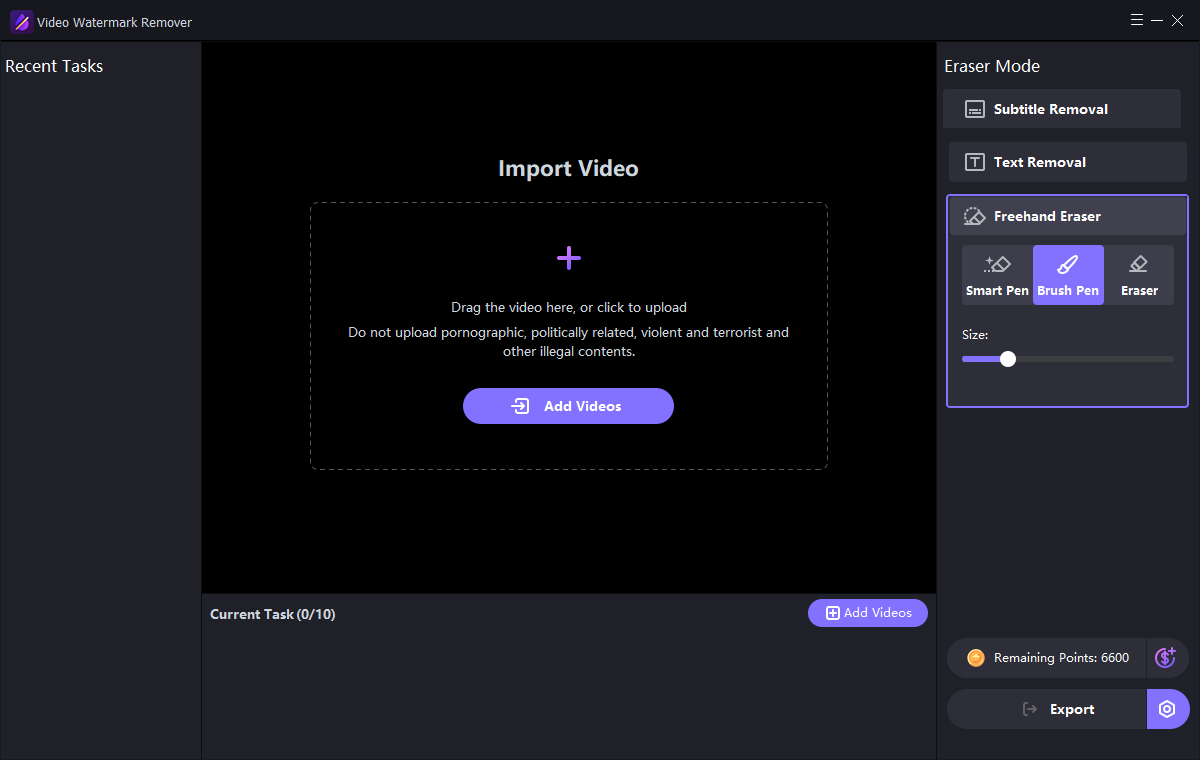
Open the freehand video eraser in GiliSoft Watermark Remover. Use Smart Pen or Brush Pen, then correct any over-selection with Eraser.
- Preview motion, not one frame
Review entry and exit frames, scene changes, faces, edges, and fast movement. Reduce the selection or divide the job if one mask causes artifacts.
- Export and compare
Process the short test first. Only then export the full clip and review the edited region at normal playback speed and frame by frame.
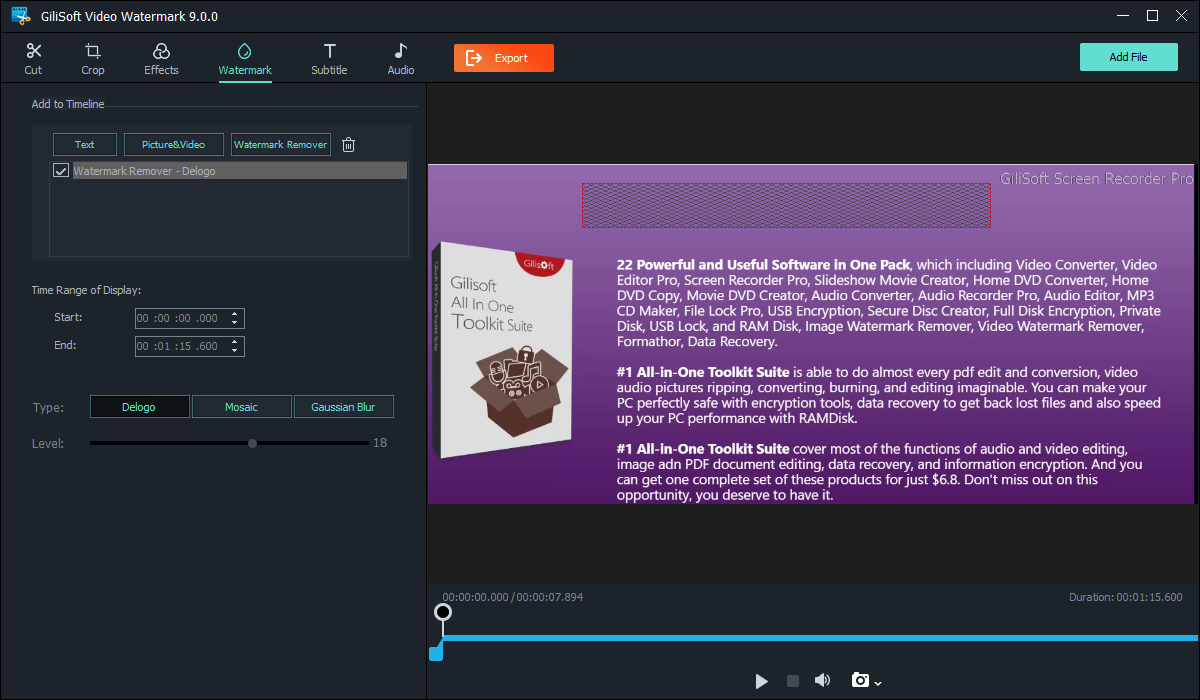
The Watermark Remover user guide shows the matching image, text, subtitle, quick video, and freehand controls.
GiliSoft Watermark Remover Interface
Use the actual task screenshots to locate the selection and preview controls for this workflow.
Review the Export Before Reuse
- Compare the edited result with the untouched source and the current approved version.
- Check edges, shadows, text remnants, and detailed or moving backgrounds.
- For video, inspect the beginning, middle, end, and any scene transition.
- Export a separate copy and keep proof of authorization to edit the source.
Frequently Asked Questions
Does the tool track every moving object automatically?
This guide does not assume automatic tracking. Test the selected region across motion and use separate edits when necessary.
Why does the result look good in one frame but bad in playback?
Temporal inconsistency can make reconstructed pixels flicker as the background changes. Review a representative moving sample.