
Match the Script Workflow to the Project
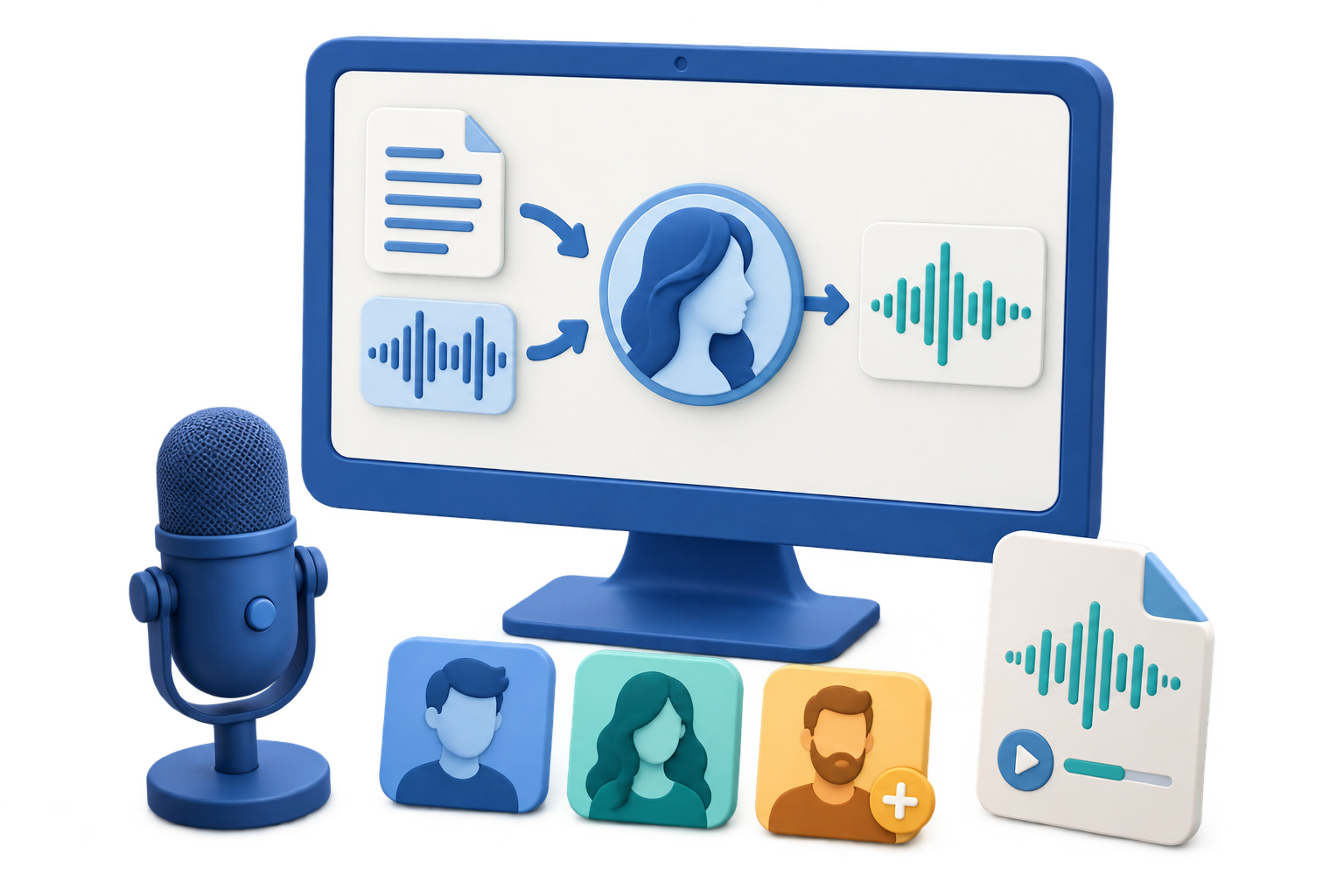
Quick answer: Use VoiceLab Text to Speech for written scripts that need spoken audio. Use Voice Conversion when timing and performance already exist in a recording, and use a human narrator when acting, emotional nuance, or contractual voice direction is central to the project.
| Project | Recommended approach | Production note |
|---|---|---|
| Training lesson or internal explainer | Text to Speech in named sections | Easy to update when one policy or step changes |
| Product-demo draft | Generate by scene or screen action | Simplifies timing against visual edits |
| Audiobook or long report | Chapter-based generation and review | Improves navigation and correction |
| Performance already recorded | Voice Conversion | Retains the source timing and delivery |
| High-emotion advertisement or character role | Directed human performance | Requires acting choices beyond a basic generated read |
Rewrite Page Copy as Spoken Copy
Scripts for synthetic speech should show how a listener will hear structure, emphasis, names, numbers, and transitions. Keep a clean approved source and create a separate production copy for generation.
Use spoken sentences
Replace dense clauses and visual shorthand with direct language that works without a screen.
Mark section boundaries
Create one clearly named block for each scene, lesson, chapter, or revision unit.
Standardize terminology
Write names, acronyms, dates, currencies, and measurements consistently across the script.
Estimate timing early
Generate a representative section before locking video, slide, or lesson timing.
Turn a Script into Voice Audio in 6 Steps
Lock the message, not the punctuation
Approve the meaning first, then create a narration copy whose punctuation and paragraph breaks support speech.
Divide the script into production sections
Use stable IDs or filenames for scenes, lessons, chapters, and alternate takes.
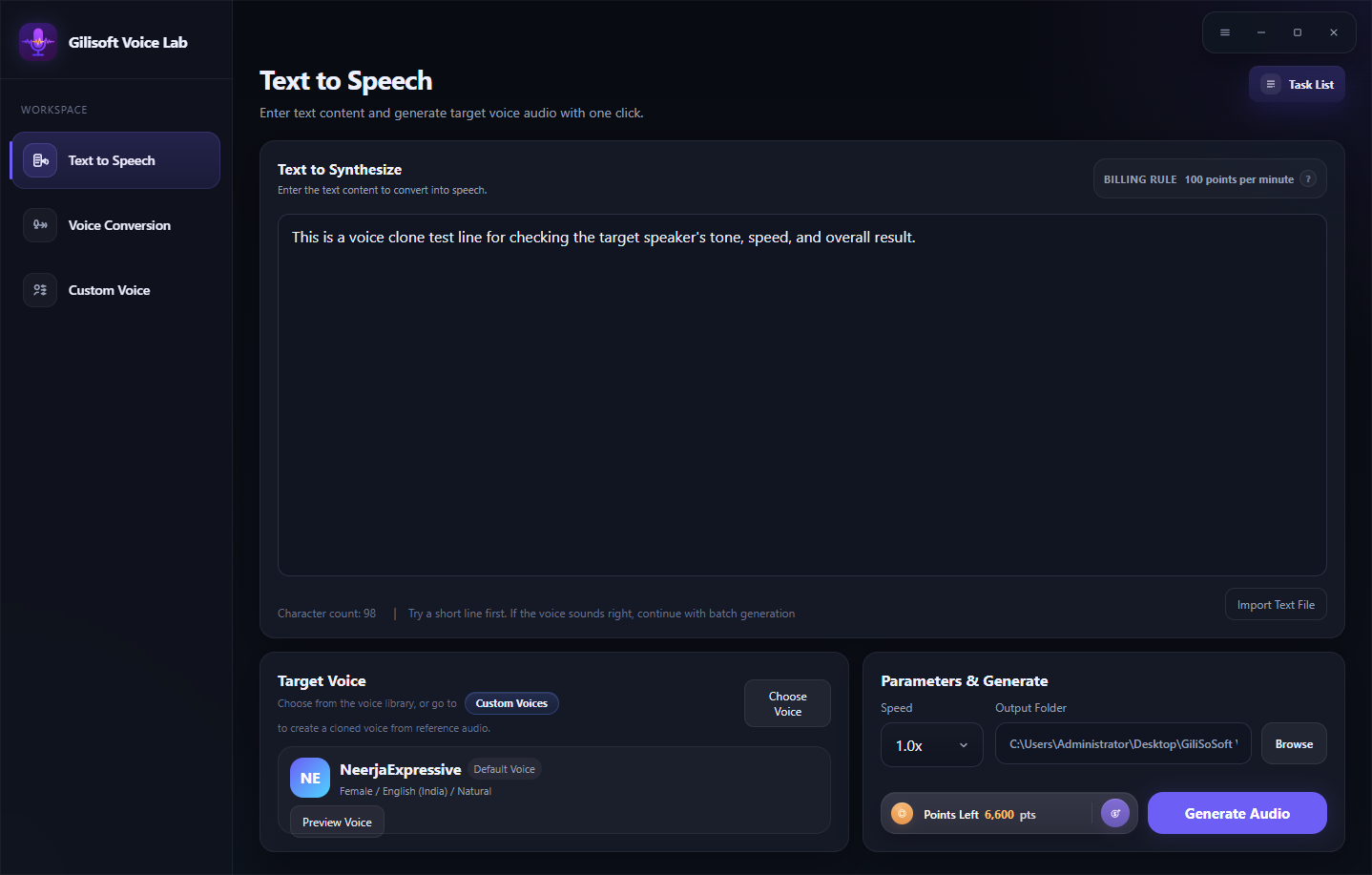
Open VoiceLab Text to Speech
Enter or import the first section and confirm that no notes, comments, or stage directions will be spoken accidentally.
Choose and preview the voice
Compare voices with the same representative lines and select the language and style that fit the audience.
Adjust speed and generate a timing test
Use the available speed control, choose the output folder, check point information, and process a short section.
Generate, assemble, and quality-check
Follow Tasks, verify every section against the approved script, and listen to transitions in the final playback order.
Review the Script and Audio Together
Words
Check names, acronyms, numbers, technical terms, and any line changed during production.
Timing
Measure real generated sections rather than estimating from word count alone.
Continuity
Keep voice, language, speed, loudness, and naming consistent across sections.
Delivery package
Provide the approved script or transcript with the audio and maintain version history.
Important: Do not add markup or unsupported control codes unless the VoiceLab interface explicitly accepts them. For this workflow, improve pacing through the available speed setting and careful script editing.
Produce Scripted Voice Audio with GiliSoft VoiceLab
VoiceLab Text to Speech combines script input, searchable voices, previews, speed control, output selection, point information, and task tracking. It is especially useful for repeatable section-based work such as lessons, explainers, product demos, and narration drafts.
- Keep the approved script separate from the speech-production copy.
- Name each generated section so revisions can replace one file cleanly.
- Listen in the final playback order rather than reviewing clips only in isolation.
Troubleshoot Common Voice Workflow Problems
- Stage directions are being spoken: Remove editor notes, camera cues, timestamps, and brackets from the narration copy.
- The voice rushes through a dense paragraph: Split the sentence, add a paragraph break, and retest with a lower speed if needed.
- Acronyms sound inconsistent: Choose one spoken form and write it consistently in every section.
- Audio no longer matches the edited video: Generate by scene or revision unit so individual sections can be retimed and replaced.
- Different sections sound mismatched: Verify that they use the same target voice, language, speed, and script conventions.
- The full project is difficult to review: Use a manifest listing section ID, script version, filename, duration, and approval status.
Keep the Approved Script as the Source of Truth
The script or transcript supports review, search, accessibility, localization, and future correction. Store it with the generated audio, disclose synthetic speech where required, and never use a selected or custom voice to imply an unauthorized real-person endorsement.
Frequently Asked Questions
Can VoiceLab turn a written script into voice audio?
Yes. Text to Speech lets you enter or import text, choose a voice, adjust speed, select an output folder, and generate the result.
Should I include stage directions in the text?
Only include words that should be spoken. Keep camera cues, editor notes, and timestamps in a separate production document.
How should I handle a long script?
Divide it into stable sections such as scenes, lessons, or chapters and use descriptive filenames for generated audio.
Can VoiceLab help with script timing?
A short generation test gives a practical timing reference. Final duration still needs to be checked against the complete approved script and media edit.
What if I need to keep an existing performance?
Use Voice Conversion when a recorded performance already contains the desired delivery and timing.
Should the script be delivered with the audio?
Keeping the approved script or transcript supports quality review, accessibility, search, translation, and later updates.