
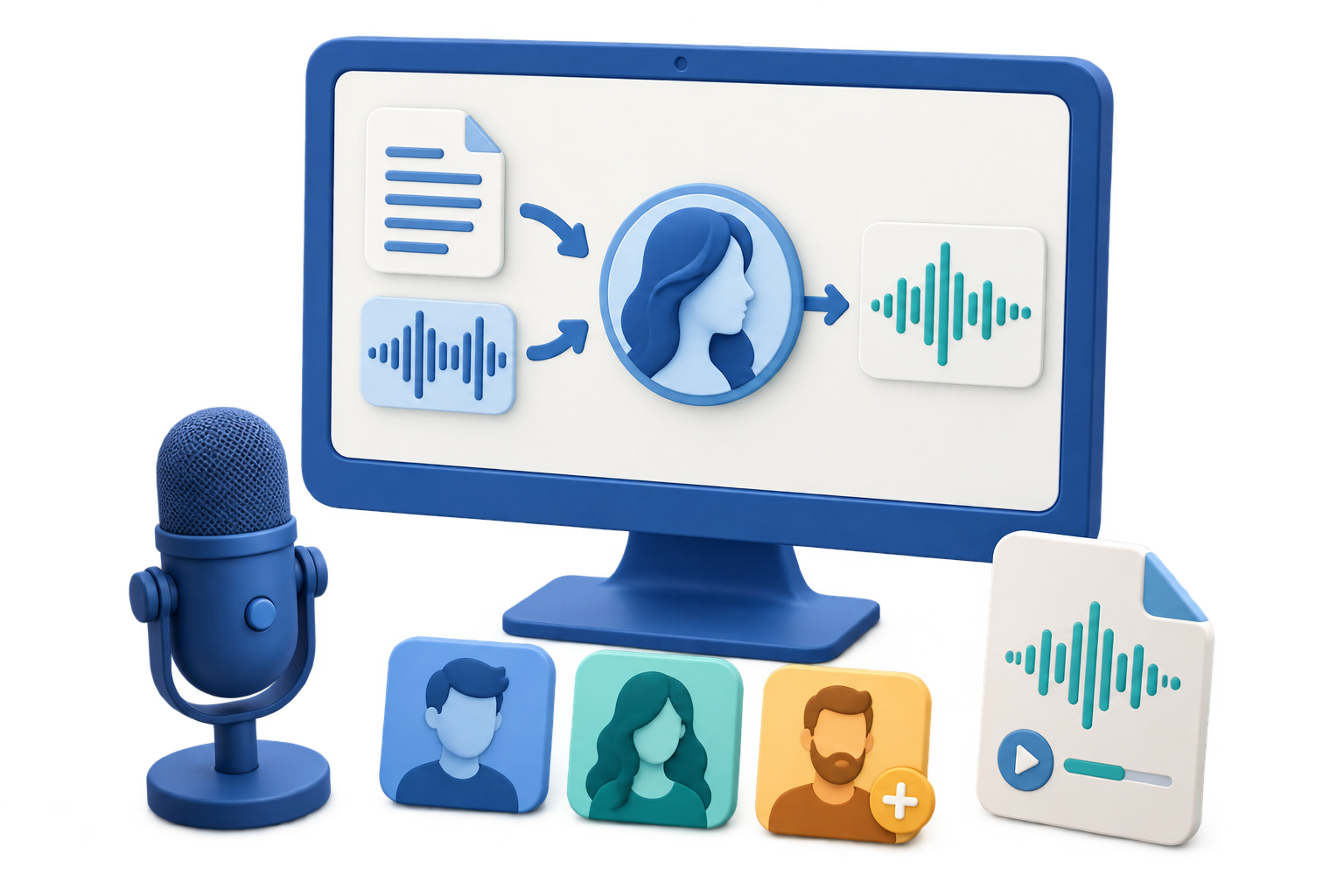
Choose the Right Windows Text-to-Speech Setup
Quick answer: Use GiliSoft VoiceLab when you have a written script and need voice previews, speed control, and task history. Use the simpler Text to Speech tool in Audio Toolbox when you want to continue directly into trimming or converting the generated file. Already have spoken audio? Follow the separate voice-conversion guide instead.
| Need | Best starting point | Check before generating |
|---|---|---|
| Narration or product demo | VoiceLab with a voice suited to the audience | Brand names, timing, and energy |
| Training or instructions | Clear, steady voice with moderate speed | Steps, numbers, acronyms, and pauses |
| Accessibility listening draft | Voice and language that match the source text | Reading order and missing labels |
| Audio that needs more editing | Audio Toolbox Text to Speech | Final format and later cut/join work |
| Existing spoken recording | VoiceLab Voice Conversion | Source clarity and target voice |
Prepare Text for Spoken Delivery
Text that reads well on a page does not always sound natural aloud. Speech synthesis standards treat sentence structure, pauses, pronunciation, language, and speaking rate as separate controls; even with a plain-text interface, the same editorial principles improve the result.
Write for the ear
Break long sentences into shorter spoken ideas. Replace visual references such as “see above” with wording a listener can understand.
Remove ambiguity
Spell out uncommon abbreviations, clarify dates and numbers, and rewrite names phonetically when the first preview is wrong.
Plan pauses
Use punctuation and paragraph breaks deliberately. Generate sections separately when a long script needs precise timing or easier revisions.
Convert Text to Speech on Windows: Step by Step
Prepare the script for listening
Shorten dense sentences, add punctuation where a listener needs a pause, and write numbers or abbreviations in the form you want spoken.
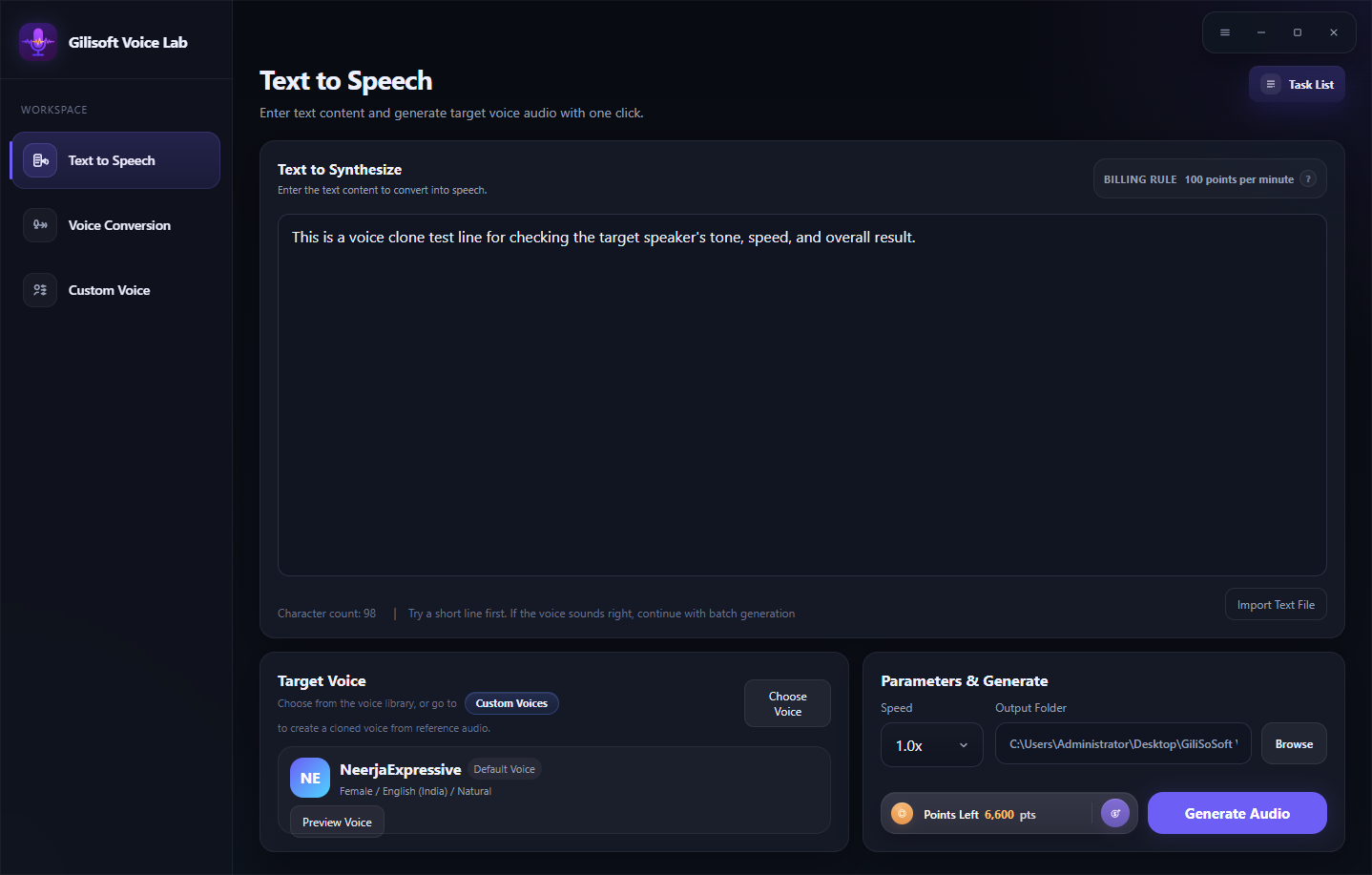
Open Text to Speech in VoiceLab
Enter or import the prepared text, then confirm that headings, stray symbols, and notes that should not be spoken have been removed.
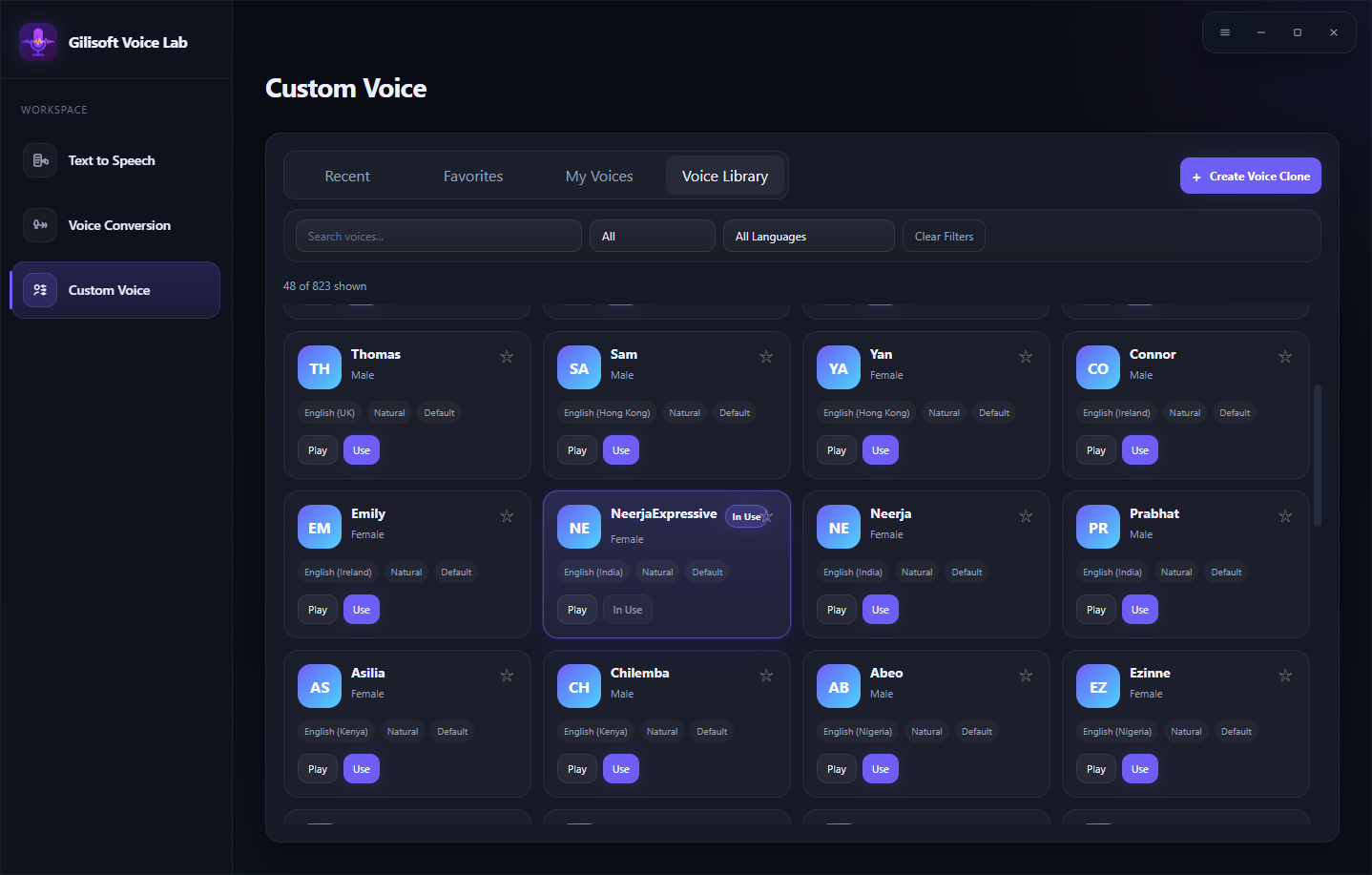
Choose and preview a suitable voice
Search or filter the voice library, match the voice language to the script, and listen to previews before selecting a target voice.
Test the speed with a short passage
Use a representative paragraph containing names, numbers, and important terms. Adjust speaking speed and preview again before processing the complete script.
Choose the output folder and generate
Keep drafts in a separate project folder, review the point information shown by VoiceLab, and generate the spoken audio.
Review the result from beginning to end
Open Tasks when needed, listen for mispronunciations, abrupt pauses, missing text, and an incomplete ending, then correct and regenerate only the affected section.
Make Generated Speech Sound More Natural
Match voice and language
A voice should match the written language and intended locale. Mixed-language text and unexplained names often need separate testing.
Preview difficult lines first
Test names, product terms, URLs, dates, abbreviations, and numbers before committing points to the complete script.
Use moderate speed changes
Faster is not automatically clearer. Training and instructions usually benefit from enough space for the listener to follow each action.
Revise sections, not everything
Split long scripts into logical files so one bad pronunciation or changed paragraph does not require rebuilding all narration.
Recommended Windows Tool: GiliSoft VoiceLab
GiliSoft VoiceLab is the stronger fit for this search because its dedicated Text to Speech workspace connects script entry, target-voice selection, voice preview, speaking speed, output location, generation points, and task review. The searchable voice library also helps compare choices before processing. For simpler text-to-audio work that must continue directly into trimming, joining, conversion, or cleanup, GiliSoft Audio Toolbox remains a practical alternative.
- Use the real preview before generating a long script.
- Keep approved voices in Favorites for recurring projects.
- Check Tasks for processing status, results, details, or retry actions.
- Use only scripts and custom voice material you own or are authorized to use.
Fix Common Text-to-Speech Problems
| Problem | Likely cause | What to change |
|---|---|---|
| Name or acronym sounds wrong | Spelling is ambiguous to the voice | Write the spoken form, separate letters, or use a phonetic replacement |
| Speech sounds rushed | Dense sentences or speed is too high | Shorten sentences, add punctuation, and lower the speaking speed |
| Pauses feel unnatural | Paragraph structure does not match spoken ideas | Move punctuation and split the script into shorter sections |
| Voice does not fit the script | Language, locale, or delivery style is mismatched | Preview alternatives in the Voice Library before generating again |
| Long output is hard to revise | The entire document was generated as one job | Work by scene, lesson, chapter, or paragraph group |
Use Synthetic Voice Responsibly
Confirm that you have permission to use the script and any custom voice reference. Do not impersonate a person, mislead listeners about who is speaking, or use generated audio for fraud. Disclose synthetic narration when the context, platform, employer, client, or applicable rules require it.
Frequently Asked Questions
What is the best text-to-speech workflow on Windows?
Prepare a script for listening, choose a voice that matches its language and audience, preview a short passage, correct pacing or pronunciation, generate the full audio, and review the saved result.
Can I turn a long document into speech?
Yes, but divide long material into logical sections. Shorter sections are easier to preview, correct, regenerate, and combine later.
How can I make text-to-speech sound more natural?
Write for the ear, use clear punctuation and paragraph breaks, spell out ambiguous abbreviations, choose the correct voice language, and test the speaking speed before generating the full script.
Why does a name or acronym sound wrong?
The synthesizer may interpret the spelling differently than a person would. Rewrite the term phonetically, add spaces between letters, or replace the abbreviation with the spoken form, then preview it again.
Does GiliSoft VoiceLab include multiple voices?
VoiceLab provides a searchable voice library with language and category filters, previews, favorites, and direct voice selection. Available choices can change, so check the current library in the application.
Is generated speech ready to publish immediately?
It should always be reviewed first. Check names, numbers, pauses, volume, pacing, the beginning and end of the file, and whether you have the rights needed for the script and intended use.
More Text-to-Speech and Voice Guides
Continue with the guide that matches the next part of the voice workflow.