
Write the cleaned result to a separate folder so the source remains available if the selected area or output settings need adjustment.
GiliSoft Subtitle Remover User Guide
How to Remove Hardcoded Subtitles from Video on Windows
Learn how to load a video, choose the correct cleanup task, mark visible subtitle or text regions, set the active time range, and export a cleaner video for authorized reuse.
Before you remove subtitles from a video
First confirm that the unwanted subtitle is visibly burned into the picture. A selectable subtitle track is normally disabled in the player or removed with a subtitle-track tool instead.
Check whether the subtitle stays in one lower band or changes position between scenes. This determines how carefully the cleanup region must be prepared.
Choose a short part containing typical motion, subtitle changes, faces, and detailed backgrounds before processing a long video.
Only remove subtitles, text, logos, or overlays from video that you own, created, licensed, or are authorized to edit.
1Load video2Choose task3Mark region4Set time range5Export video
1. Load the video into the cleanup workspace
Start with the correct source clip
- Open GiliSoft Subtitle Remover.
- Add the video that contains the burned-in subtitles or visible text.
- Open the clip in the main cleanup workspace.
- Move through several points on the timeline and confirm where the unwanted text appears.
- Check whether its position remains fixed throughout the source.
- Choose a representative scene for preparing the first cleanup region.
Subtitles near faces, hands, moving objects, or detailed textures need a tighter selection and more careful preview than captions over a simple background.
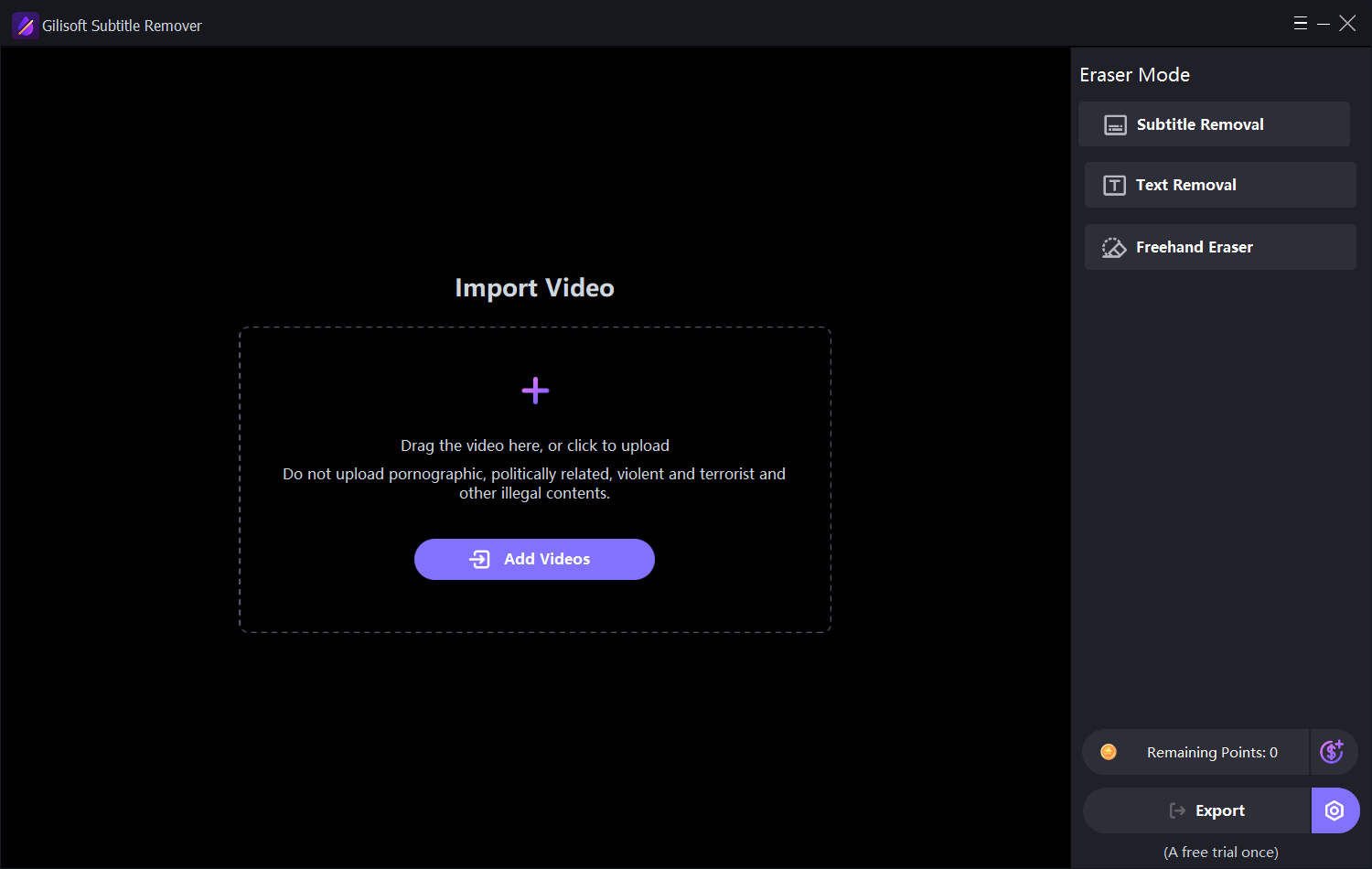 Open the source video and inspect where the burned-in text appears
2. Choose the subtitle removal task
Select the cleanup method that matches the visible text
- Select Subtitle Removal for a fixed burned-in caption band.
- Use Text Removal when the unwanted item is a title, label, ticker, or other visible text.
- Use the freehand eraser controls when a precise manual region is more suitable.
- Add the source video to the current task list.
- Keep videos with different layouts as separate tasks.
- Open the prepared video and move to a frame where the complete subtitle is visible.
Choose the tool from what is actually visible in the frame. A subtitle track that can be switched off does not need picture reconstruction.
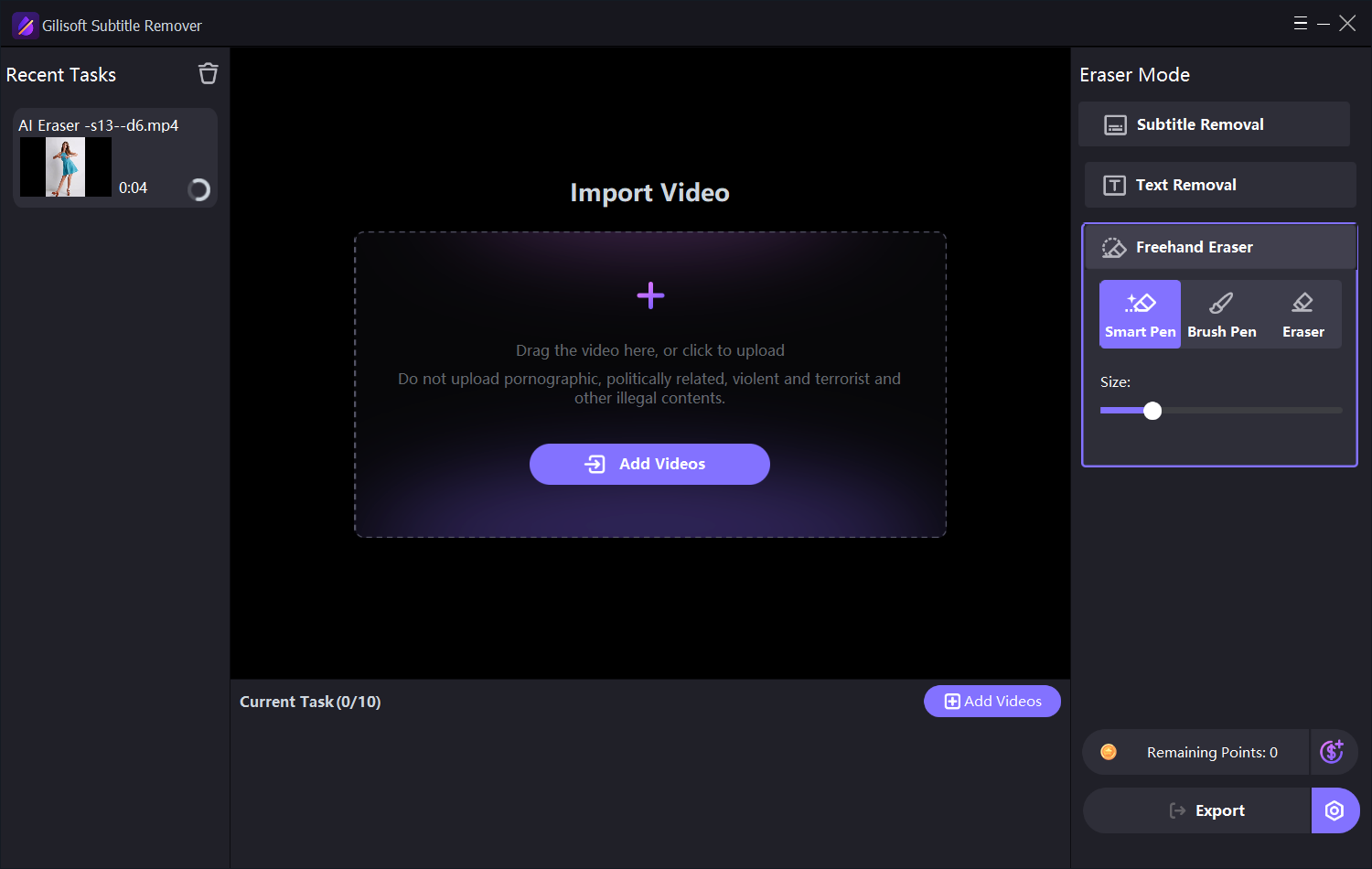 Select Subtitle Removal, Text Removal, or a freehand eraser and prepare the task
3. Mark the subtitle area and preview the frame
Cover the unwanted text without selecting unnecessary picture detail
- Move to a frame that shows the complete subtitle line.
- Adjust the subtitle area so letters, outlines, shadows, and caption boxes are covered.
- Keep the region as narrow as possible without cutting off the longest line.
- Avoid faces, products, or unrelated moving objects whenever possible.
- Check the selected region at several timeline positions.
- Preview the cleaned area and refine the selection when letter edges or patches remain.
The subtitle-removal panel provides vertical and horizontal controls for adjusting the affected area. Check the complete video frame, not only one subtitle line.
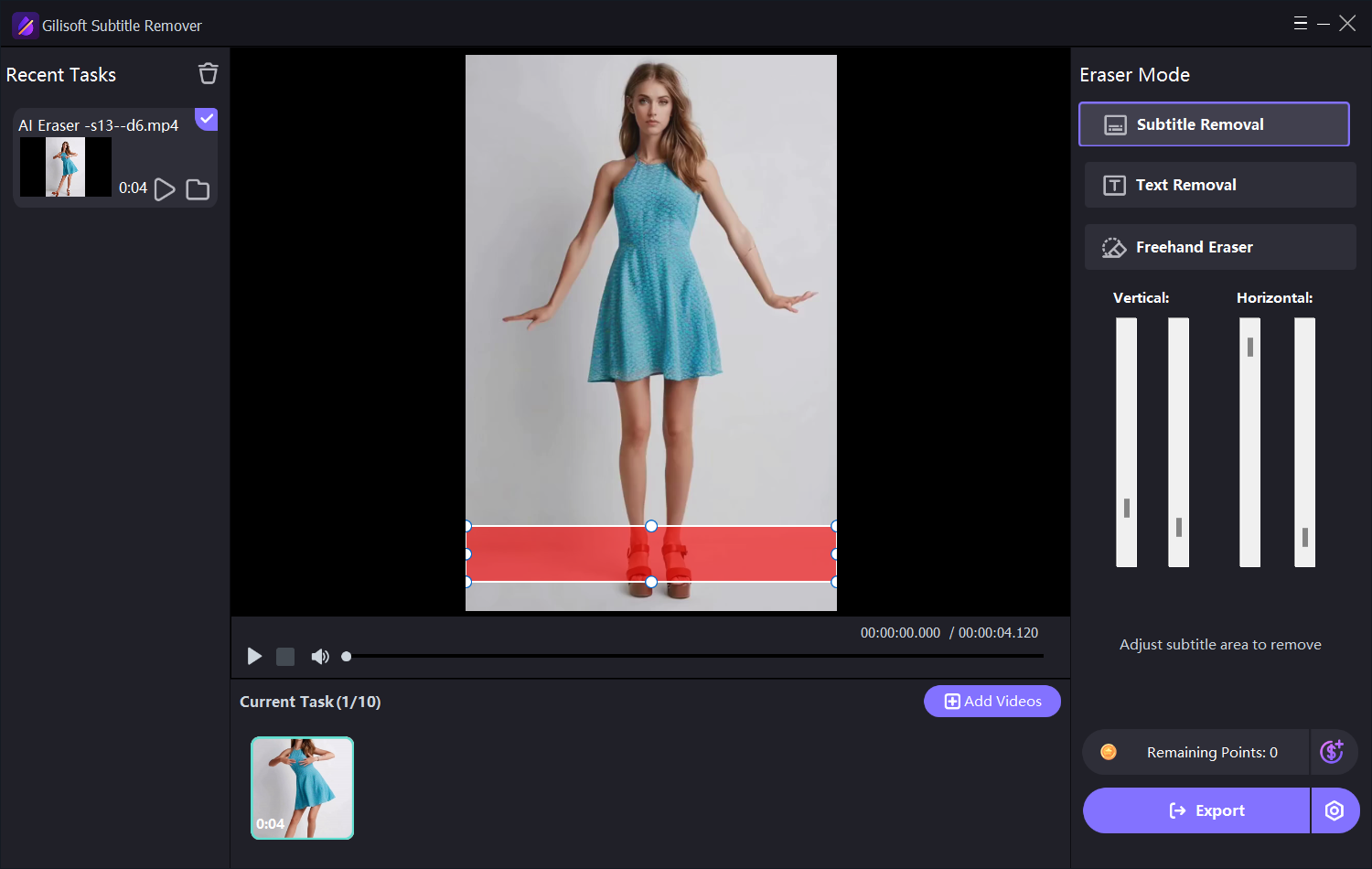 Adjust the subtitle area and review it against the video frame
4. Set the active time range for the cleanup
Limit processing to the part where the subtitle or text is present
- Open the time-range or crop-time dialog for the current video.
- Move the playhead to the first frame that needs cleanup and set the start time.
- Move to the last affected frame and set the end time.
- Keep the original aspect ratio unless the video itself also needs a framing change.
- Confirm the selected duration and return to the main workspace.
- Preview the entry and exit frames so the cleanup does not begin late or continue too long.
Use separate tasks or ranges when the subtitle position changes between sections. One oversized region across the complete video usually produces a less natural result.
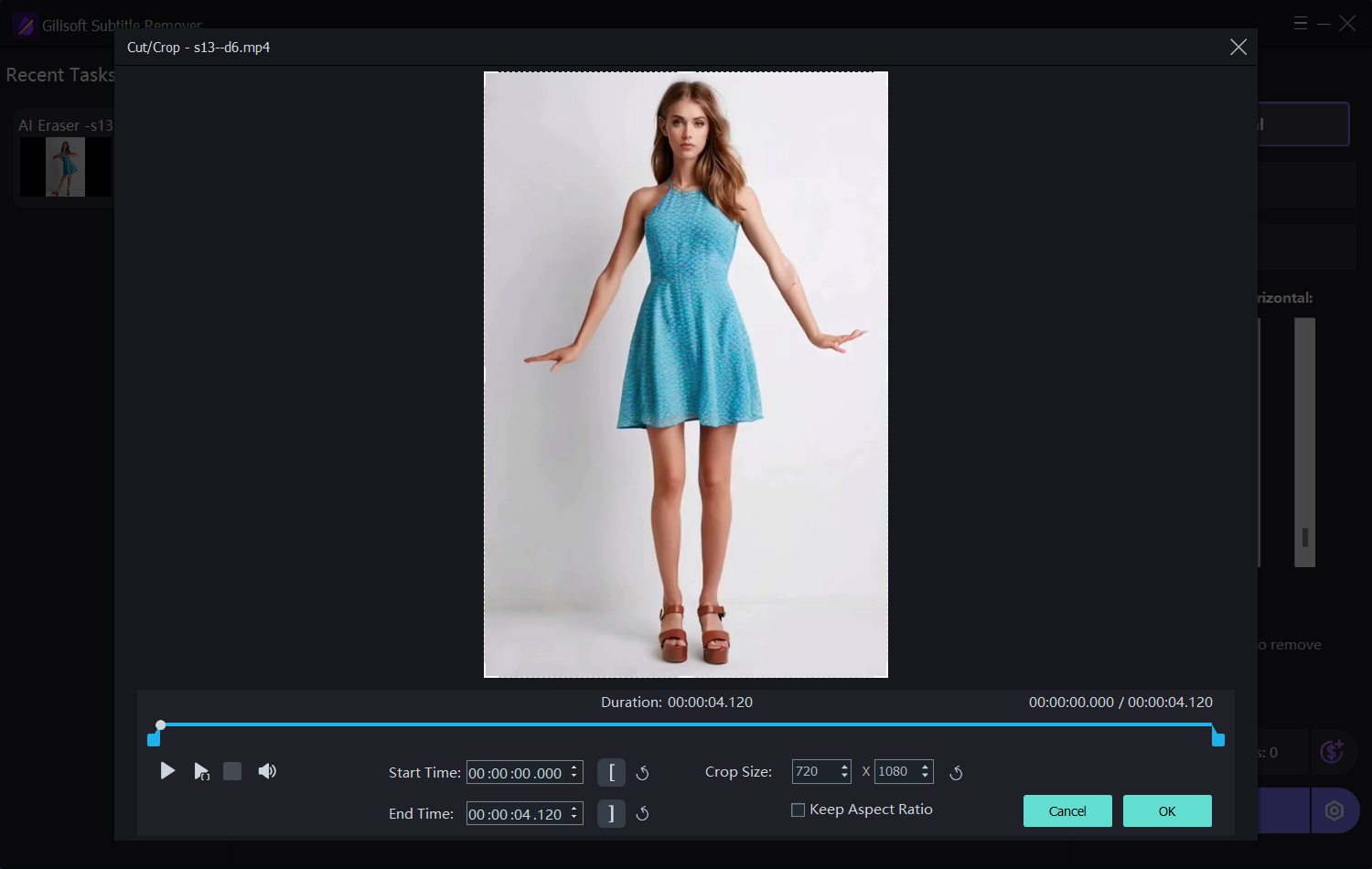 Choose the exact section of the video that needs subtitle cleanup
5. Check processing points, export, and verify the video
Confirm the task before spending points on the complete export
- Review the remaining processing points shown in the workspace.
- If the points window is open, confirm the available balance or close it to return to the task.
- Check the selected video, cleanup mode, marked area, and active time range once more.
- Click Export to process the prepared task.
- Open the finished video in a normal media player.
- Inspect several subtitle changes, scene cuts, and high-motion moments before delivery.
Test a short representative section first when the background is difficult. This avoids spending processing points on a long export before the cleanup setup has been verified.
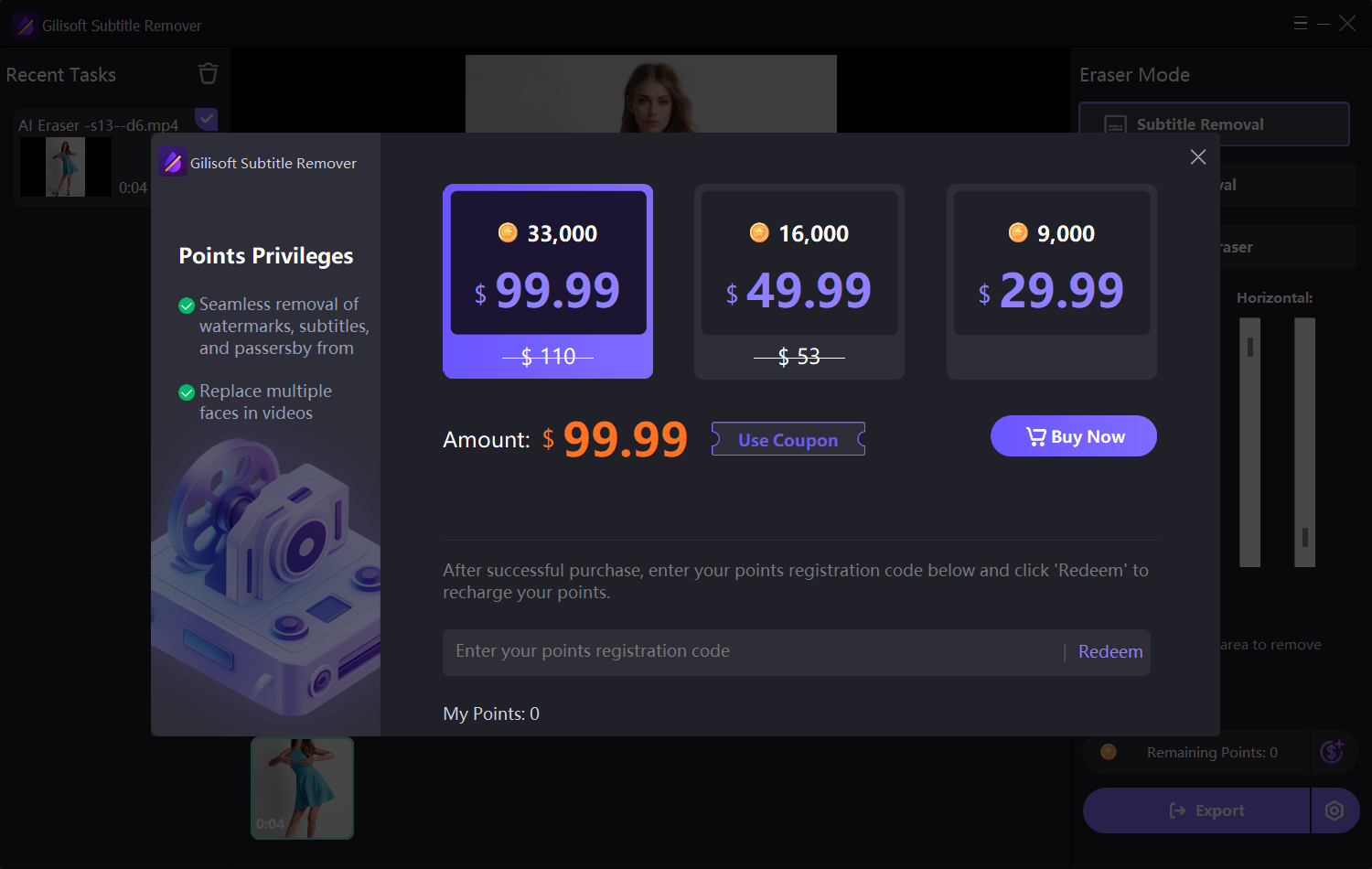 Review the available processing points, return to the task, and export after verification
How to get a cleaner subtitle removal result
Most visible artifacts come from an incomplete region, an unnecessarily large region, or a background that changes significantly while the text is present.
Cover outlines and shadows
Include the complete character edge, glow, stroke, shadow, or colored caption box so fragments are not left behind.
Keep the region focused
Do not select a large part of the frame when only a narrow subtitle band needs reconstruction.
Check long subtitle lines
Move through the timeline and make sure the widest line still fits inside the marked area.
Watch moving backgrounds
Preview scenes where people, objects, textures, or camera movement pass behind the subtitle.
Separate different layouts
Prepare different cleanup regions when captions move, the video changes aspect ratio, or another subtitle style appears.
Verify at normal playback
Inspect still frames closely, then play the result at normal speed to judge whether the cleaned area remains visually consistent.
Final Subtitle Remover checklist
Confirm these six points before delivering or republishing the cleaned video.
Subtitle removal troubleshooting and FAQ
What is a hardcoded subtitle?
It is text rendered directly into the video picture. It cannot be disabled like a selectable subtitle track because the letters are part of every affected frame.
Why is part of a subtitle still visible?
The selection may not cover the full letter outline, shadow, or longest subtitle line. Enlarge it slightly, then preview another representative section.
Why does the cleaned area look blurred or patched?
The selected region may be larger than necessary or the background may contain strong motion and detail. Tighten the region and test a shorter section containing that scene.
What if subtitles move to different parts of the video?
Treat the different positions as separate cleanup setups rather than forcing one large region to cover the entire frame.
Can I prepare several videos?
Add source videos to the task list, then check the cleanup mode, marked area, and active time range for each item before export.
How do I preserve video quality?
Start with the best available source, keep the cleanup region focused, use the available output settings appropriate for the source, and inspect the exported file before delivery.
Clean hardcoded subtitles and visible text from authorized videos
Use GiliSoft Subtitle Remover to choose the cleanup task, mark burned-in subtitle regions, set the active time range, and prepare cleaner video for new captions, dubbing, or editing.


