

3 Ways to Lock a Folder in Windows 11 Without Software
Windows 11 provides account permissions, EFS encryption on supported editions, and BitLocker-protected storage. These methods solve different security problems, but none adds a separate password directly to an ordinary folder.
Quick answer
Use NTFS permissions to separate Windows accounts, EFS to encrypt files for a Windows identity, or a BitLocker VHDX to place folders inside an encrypted container. If one ordinary folder needs its own password, hide rule, or protection against copying and deletion, use a dedicated folder-locking tool such as GiliSoft File Lock Pro.
Choose the Method by the Result You Need
| Protection goal | Best-fit method | Important limitation |
|---|---|---|
| Keep another local Windows account out | NTFS permissions | Does not encrypt files or add a folder password |
| Encrypt files for your Windows account | EFS | Requires a supported edition, NTFS, and certificate recovery |
| Protect a detachable folder container | BitLocker-protected VHDX | Protects a virtual drive rather than the original folder |
| Give one folder a direct password or hide rule | GiliSoft File Lock Pro | Dedicated software is required |
Method 1: Restrict a Folder with NTFS Permissions
This method is appropriate when people use separate Windows accounts on the same PC. It does not help when everyone shares one sign-in.
- Confirm separate user accounts.
Each person must sign in with a different Windows account before permissions can separate access.
- Open the Security settings.
Right-click the folder, choose Properties, and open the Security tab.
- Edit the allowed users.
Select Edit and grant only the access each intended account needs. Avoid broad Deny rules unless you understand inheritance.
- Test from another account.
Sign in as the other user and confirm the folder is blocked while legitimate applications continue to work.
Method 2: Encrypt the Folder with EFS
EFS encrypts files for a Windows identity on an NTFS drive. It is not available in every Windows edition and does not create a separate password prompt for the folder.
- Open Advanced Attributes.
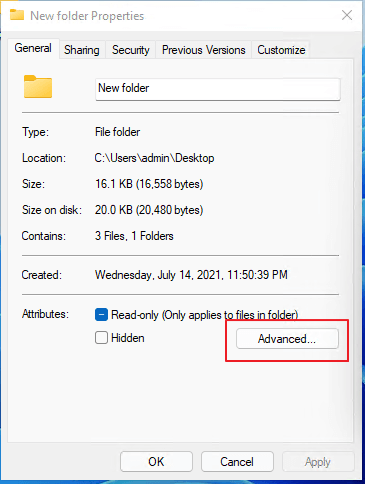
Right-click the folder, choose Properties, and select Advanced on the General tab.
- Enable file encryption.
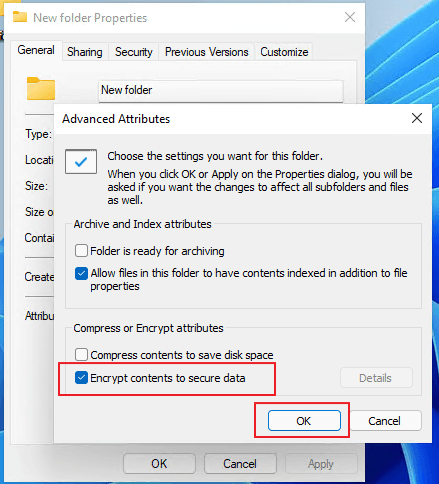
Select Encrypt contents to secure data and apply the setting to the folder, subfolders, and files as required.
- Back up the certificate.
Export the EFS certificate and private key to protected storage before relying on the encrypted files.
- Verify account access.
Confirm your account can open the files and another ordinary account cannot.
Method 3: Put the Folder in a BitLocker VHDX
A virtual hard disk creates a detachable container that can be encrypted as a drive. This is broader than locking one folder, but it can provide strong protection against offline access.
- Create a VHDX.
Open Disk Management as administrator, choose Action > Create VHD, select VHDX, and set its location and size.
- Initialize and format it.
Create a partition, format it with NTFS, and assign a drive letter.
- Turn on BitLocker.
Enable BitLocker for the virtual drive, choose a strong unlock method, and save the recovery key separately.
- Test and detach the container.
Move a test copy into it, confirm access, close open files, and detach the VHDX when it is not needed.

Understand What the Built-in Methods Do Not Do
- Windows File Explorer does not add password encryption when it creates a normal ZIP archive.
- A hidden folder can be revealed by enabling Hidden items.
- A batch-file folder locker exposes its commands and should not protect sensitive information.
- EFS and BitLocker availability depends on the Windows edition and configuration.
- Encryption and folder locking do not replace an independent, tested backup.
Lock One Folder Directly with GiliSoft File Lock Pro
When the desired result is a direct password, hidden folder, or restrictions against reading, writing, copying, renaming, moving, and deletion, GiliSoft File Lock Pro provides a more direct workflow than rebuilding permissions or creating a virtual disk.
- Prepare a test folder.
Use copied files rather than the only copy of important data.
- Add the folder.
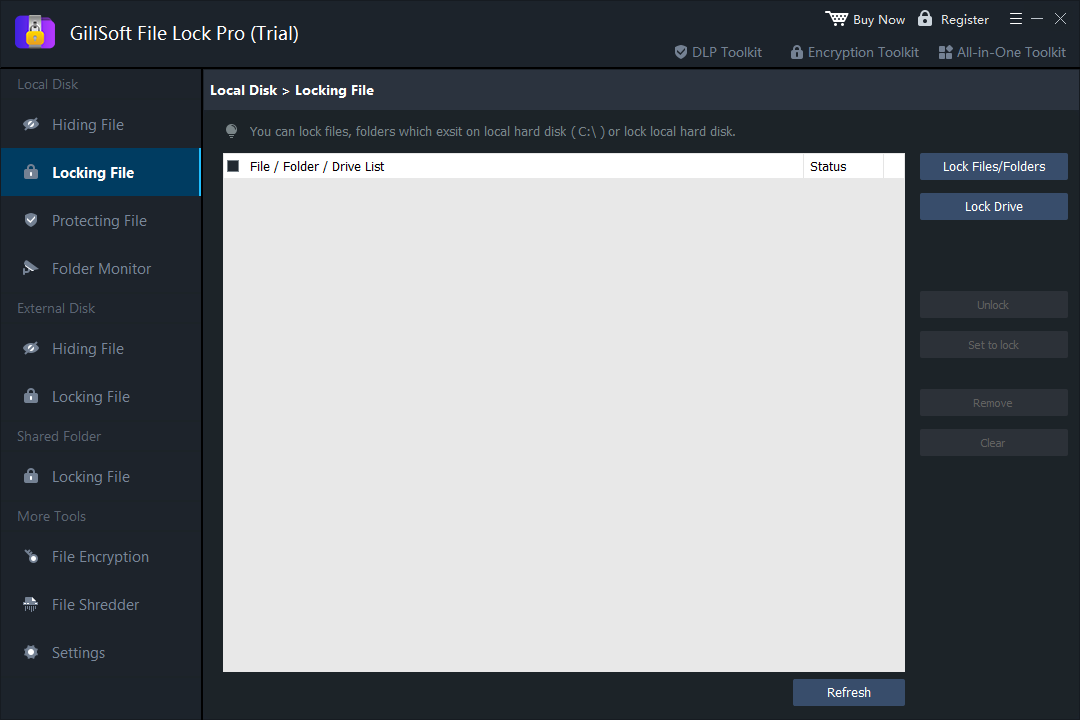
Open File Lock Pro, choose the appropriate folder protection function, and select the test folder.
- Apply and verify the rule.
Test opening, copying, renaming, moving, and deleting according to the protection you selected.
- Confirm recovery.
Unlock the folder successfully and keep the product password and backup information in a separate secure location.
Windows 11 Folder Protection FAQ
Does Windows 11 have a built-in password button for folders?
No. Windows provides permissions and encryption tools, but an ordinary folder does not receive its own independent password prompt.
Can File Explorer create a password-protected ZIP?
No. File Explorer creates ordinary ZIP archives without password encryption.
Is EFS the same as a folder password?
No. EFS ties encrypted files to a Windows identity and certificate instead of asking for a separate folder password.
Does BitLocker lock an individual folder?
Not directly. You can put the folder inside a BitLocker-protected drive or VHDX container.
Which approach is easiest for one frequently used folder?
Permissions may be enough between separate Windows accounts. When the folder itself needs a direct password or hide rule, dedicated folder-locking software is easier to manage.