
Why Convert Word Documents to PDF
Word is designed for editing and reflow; PDF is designed to preserve a page presentation across devices. A PDF is useful for final delivery, but it is not automatically uneditable or a substitute for access controls.
Before conversion, decide whether comments or tracked changes should appear, update fields and tables of contents, and confirm the document uses available fonts and final page settings.
Convert Word to PDF with GiliSoft Formathor
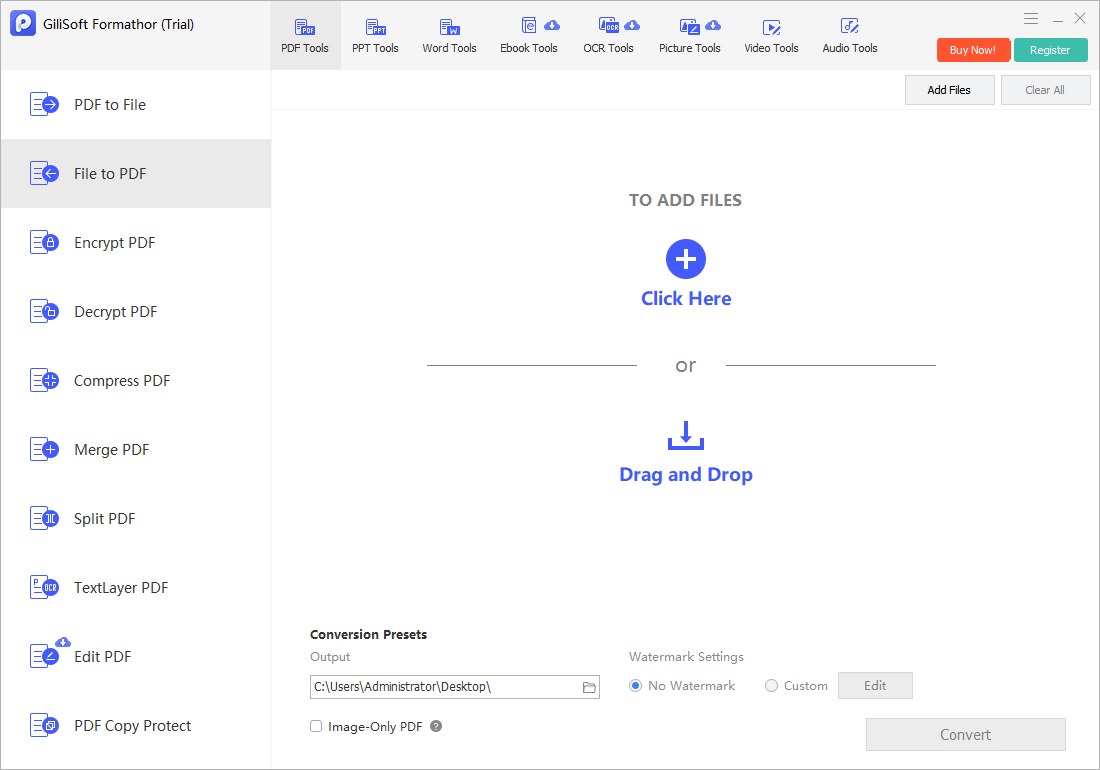
Use File to PDF in GiliSoft Formathor for local DOC and DOCX conversion alongside other Office, image, and PDF preparation tasks.
- Finalize the Word document.
Update fields, page numbers, references, and the table of contents, then save a reviewed copy. - Inspect markup and hidden content.
Decide whether comments and tracked changes belong in the published version. - Open File to PDF.
Add the intended DOC or DOCX and select a clear destination. - Convert the document.
Keep the source file separate for future edits. - Review the PDF.
Check every page, link, heading, image, table, footer, and font before delivery.
Prepare Word Content for Reliable PDF Output
| Document element | Risk during conversion | Review step |
|---|---|---|
| Custom fonts | Substitution changes line and page breaks | Confirm fonts are available and inspect the final pages |
| Tracked changes | Markup may appear or sensitive edits may remain | Choose the approved publishing state |
| Tables and floating images | Objects can move near page boundaries | Check all multi-page tables and anchored objects |
| Fields and references | Values may be stale | Update fields, page numbers, and contents before conversion |
| Hyperlinks and bookmarks | Interactive behavior can vary | Test important links in the final PDF |
Common Word to PDF Converter Workflows
Approved contracts
Distribute a stable review copy while retaining the signed or editable source correctly.
Reports and proposals
Preserve the intended page design for clients and management.
Resumes and applications
Reduce layout changes across recipient devices.
Policies and manuals
Publish versioned PDF copies while maintaining the source document separately.
GiliSoft Formathor keeps PDF, Office, image, OCR, and related document conversion tools in one Windows application. Test a representative copy before processing important originals or a large batch.
Fix Common Conversion Problems
| Problem | Likely cause | Practical check |
|---|---|---|
| Page breaks move | Fonts, printer settings, or object wrapping changed | Compare page setup and verify installed fonts |
| Comments appear unexpectedly | The source was published with markup | Create an approved clean copy and convert again |
| Links do not work | The link was malformed or not carried into output | Test each important link and recreate it if needed |
| Images look soft | Source images were compressed or low resolution | Use suitable originals and review at intended zoom |
| Table rows split badly | Pagination rules do not fit the table | Adjust row splitting and headings in Word first |
Word to PDF Converter FAQ
Can Formathor convert DOC and DOCX files to PDF?
Yes. Add a supported Word file in File to PDF, choose an output folder, convert it, and review the resulting PDF.
Will a PDF prevent recipients from editing the document?
Not necessarily. PDF reduces casual editing but does not guarantee it cannot be changed. Use appropriate permissions, signatures, and access controls when authenticity matters.
Do tracked changes appear in the PDF?
That depends on the publishing state and settings. Accept or reject changes intentionally and inspect the PDF before sharing.
Why did the Word document gain an extra page?
Font substitution, page settings, paragraph spacing, tables, or floating objects can alter pagination. Compare the source and output page by page.
Should I keep the original Word file?
Yes. Keep the approved editable source because the PDF is a delivery copy, not a replacement for future revision.
Related File Conversion Guides
- Excel to PDF converter
- Image to PDF converter
- PDF to Word converter
- Office file converter
- Batch Office file converter
- Formathor User Guide
Create Reviewed PDF Copies from Word Files
Finalize the DOCX, convert locally, and inspect fonts, markup, links, and pagination before sharing.