
Different Noise Needs Different Treatment
| Noise type | Examples | Practical response |
|---|---|---|
| Steady broadband noise | Fan, air conditioner, preamp hiss | Good candidate for conservative denoise |
| Low-frequency hum | Power or electrical interference | Fix the source when possible and target the hum carefully |
| Changing background | Traffic, crowd, wind, moving machinery | Use lighter processing and region-specific edits |
| Transient noise | Click, bump, keyboard strike, door slam | Repair or cut the event rather than denoising the entire file |
| Room echo | Distant reflective room sound | Denoise has limited effect; microphone placement matters more |
| Clipping | Distorted flattened peaks | Not background noise; use a cleaner take when possible |
Denoise an Audio Recording on Windows
Keep the original file
Create a working copy and avoid overwriting the only recording.
Identify the noise type
Listen to speech and pauses and decide whether the problem is steady, changing, transient, echo, or clipping.
Choose a representative test section
Include both voice and background noise rather than testing silence alone.
Apply light noise reduction
Begin conservatively and compare intelligibility, consonants, breath, and tone.
Check several moments
Noise may change after a speaker moves, a fan starts, or the room changes.
Export and compare
Listen at matched volume on normal playback equipment before accepting the cleaned file.
Protect the Voice While Reducing Noise
Use less reduction first
A quieter background is not useful if consonants and natural voice texture disappear.
Compare at equal volume
Processing can change level; matched loudness makes the comparison more reliable.
Treat problem regions
If noise changes only in one section, avoid processing already-clean audio unnecessarily.
Improve the next recording
Closer microphone placement and a quieter source usually outperform aggressive repair.
Recommended Windows Tool: GiliSoft Audio Recorder Pro
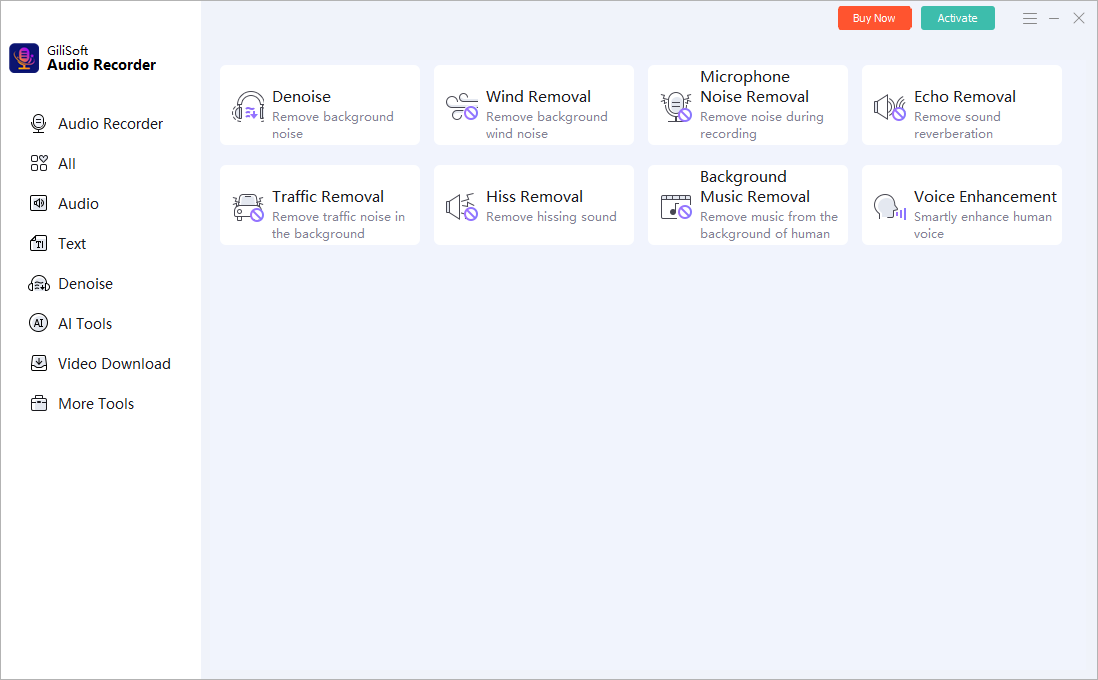
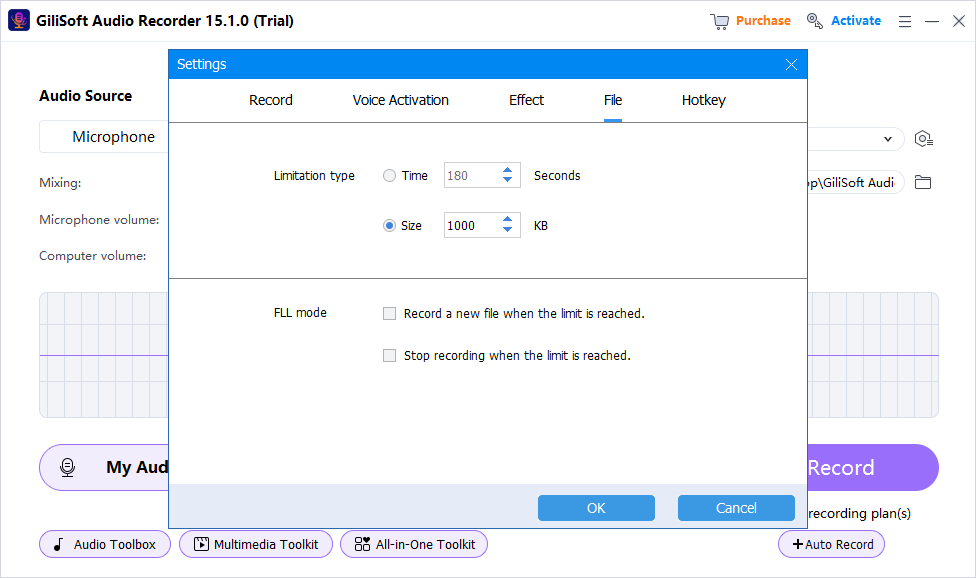
GiliSoft Audio Recorder Pro includes noise reduction for recorded files alongside source selection, voice activation, and file management. It is a focused Windows choice for recording and light cleanup; preserve the original and use modest settings.
Choose the source first
Record computer sound, microphone input, or both instead of repairing the wrong source later.
Test before the full session
A short saved sample catches silence, clipping, echo, and device mistakes early.
Use practical cleanup tools
Voice activation, silence handling, noise reduction, and recorded-file management support a cleaner workflow.
Keep the original recording
Preserve an untouched source before cleanup, effects, conversion, or destructive trimming.
What Audio Denoise Cannot Reliably Fix
- Speech covered by another loud voice or sound cannot simply be reconstructed.
- Clipping removes waveform detail and may remain distorted.
- Strong room echo requires different treatment and may not disappear cleanly.
- Rapidly changing noise is harder to reduce without affecting speech.
- Missing words and muted sections cannot be restored by denoise.
Frequently Asked Questions
What noise is easiest to reduce?
Steady fan noise, hiss, and similar consistent backgrounds are generally easier than changing traffic, crowd sound, or overlapping voices.
Why does denoised audio sound metallic?
The reduction is probably too aggressive or the noise overlaps important speech frequencies. Use less processing and compare with the original.
Is denoise the same as removing silence?
No. Denoise lowers unwanted background sound; silence removal shortens regions below a selected level and duration.
Can denoise repair clipping?
No. Clipping is overload distortion, not background noise. A cleaner rerecording is preferable when available.
Should I capture a noise-only section?
A representative noise section can help some workflows, but always judge the result on speech as well.
Does Audio Recorder Pro include noise reduction?
Yes. It provides a noise-reduction workflow for recorded files, along with source capture and file management.
More Windows Audio Guides
Continue with the recording, cleanup, or troubleshooting guide that matches the next task.