
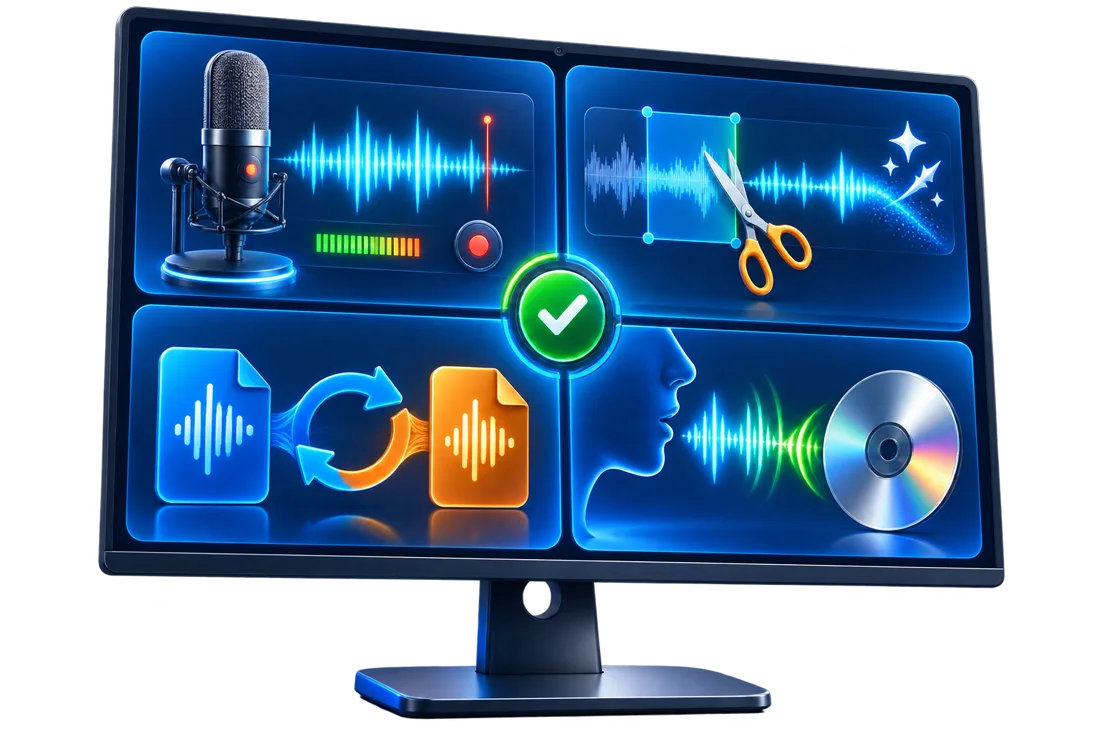
Audio Suite for Spoken Content
people producing narration, interviews, and spoken lessons rarely need every audio process at once. Start with the source and destination, then choose only the recording, editing, cleanup, or conversion steps that improve the final file.
Quick answer
For people producing narration, interviews, and spoken lessons, a useful workflow is to keep the original, make a short test, complete capture or import clear speech, remove distractions while preserving words, export a speech-friendly copy, and verify the exported file on its destination. GiliSoft Audio Toolbox brings these focused Windows utilities together without requiring a full multitrack production environment.
Before You Start
- Keep an unchanged source file and work from a copy.
- Confirm permissions, ownership, privacy, and destination requirements before processing.
- Test a short representative sample before a long recording, conversion, or batch.
Match the Source to the Task
| Starting point | Recommended action | Review checkpoint |
|---|---|---|
| capture or import clear speech | Work from a copy and define the exact result | The source remains available for another pass |
| remove distractions while preserving words | Preview the changed section before export | Speech and important details remain clear |
| export a speech-friendly copy | Choose format and quality for the destination | The exported file opens and plays correctly |
Step-by-Step Workflow
- Define the delivery target
Decide whether the result is for people producing narration, interviews, and spoken lessons, review, upload, archiving, or playback. The destination determines format, channel, and size choices.
- Keep the source intact
Duplicate the original recording or audio file and use a clear project name. Avoid repeated conversion of the only source copy.
- Use capture or import clear speech
Open the appropriate tool in GiliSoft Audio Toolbox, select the intended source, and test a short representative section before processing the full file.
- Continue with remove distractions while preserving words
Preview boundaries and levels with headphones and ordinary speakers. Make one purposeful change at a time so a poor result is easy to trace.
- Finish with export a speech-friendly copy
Export a new file, listen to the beginning, middle, and ending, and confirm compatibility on the actual player or service.
Review the Result Before Delivery
- Speech, music, and transitions are complete with no clipped beginning or ending.
- The file format, size, and metadata match the destination rather than a generic preset.
- The original and final versions are clearly named and stored separately.
Know the Limits
An all-in-one toolbox is useful for focused utility work, but it is not a substitute for a multitrack digital audio workstation when a project requires complex mixing, automation, plug-in chains, or collaborative session files. Never record people or reuse copyrighted audio without the required permission.
Frequently Asked Questions
Should I convert before or after editing?
When possible, edit a suitable source or working copy first and convert the approved result once. Repeated lossy conversion can reduce quality.
Why should I make a short test?
A short test reveals the wrong input, permission problem, poor level, or incompatible output before a long workflow is processed.
Is GiliSoft Audio Toolbox suitable for people producing narration, interviews, and spoken lessons?
It fits focused recording, trimming, joining, conversion, cleanup, speech, tag, and CD tasks. Choose only the tools needed for the current project.
How should I verify an export?
Play the start, a representative middle section, and the ending on the destination device or service.