

Clean App Store Screenshots Without Misrepresenting the App
An outdated annotation may need to go, but the screenshot must still show the app as it actually runs. If the UI, feature, device frame, or product state has changed, take a fresh capture instead of painting over the difference.
Quick answer
Recapture first when the app itself changed. For an otherwise accurate screenshot with a removable publisher-added label or stray mark, use GiliSoft Watermark Remover on a duplicate and review every edited pixel against the current app.
Choose Recapture or Local Cleanup
| What you have | Best next step | What to verify |
|---|---|---|
| The app interface changed | Capture the current app again | No cleanup can make an old UI truthful |
| Only your added label is obsolete | Select that label on a copy | Keep buttons, text, and screen state unchanged |
| Private test account appears | Use a fictional account and recapture | Do not treat visual cleanup as certified redaction |
Clean the Authorized Source Step by Step
- Audit the listing image
Compare the screenshot with the current app build, device type, locale, and store listing. Separate app UI from later promotional overlays.
- Keep the original and pick a safe source
Export a fresh capture when possible. If only your own overlay needs removal, work on a duplicate with permission to edit it.
- Select the unwanted overlay
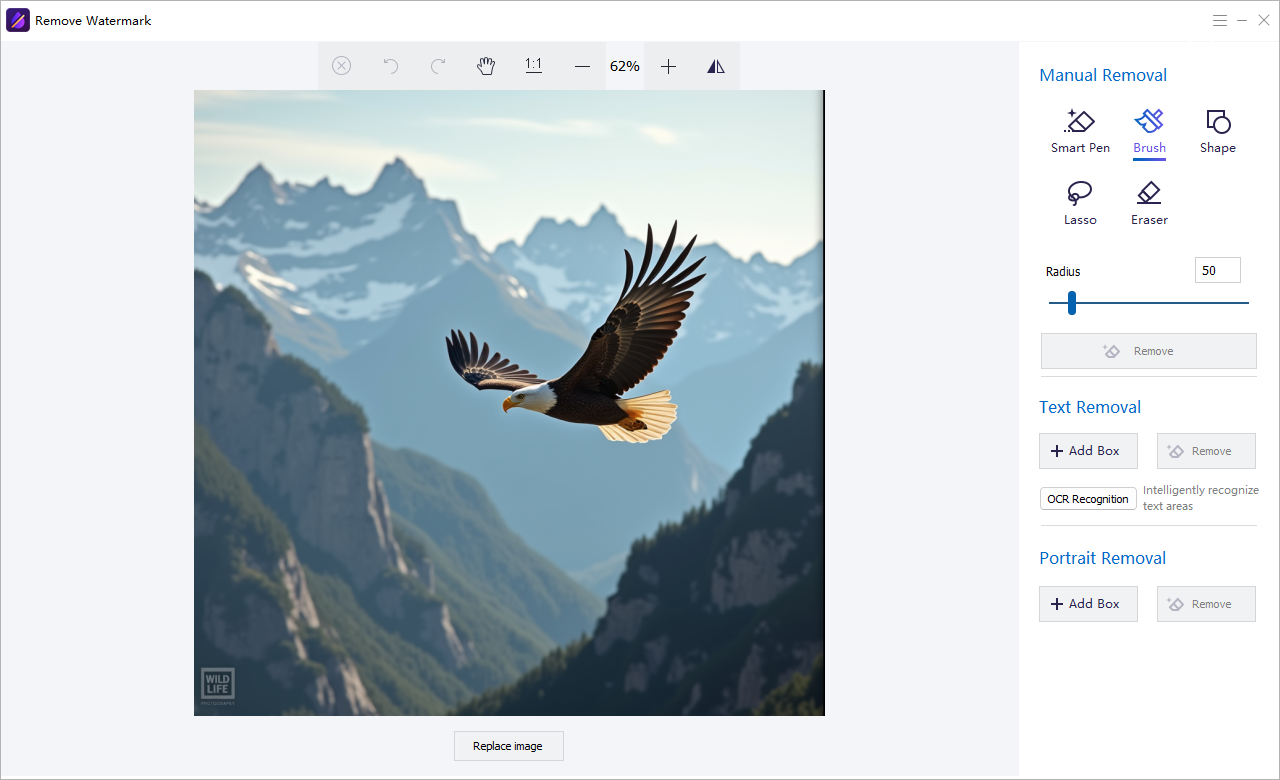
Open the image cleanup task in GiliSoft Watermark Remover and trace only the old label or mark with the image eraser tools.
- Check every store-sized crop
Zoom in on repaired text edges and UI controls. Confirm the result still reflects the real feature, then export separately and review at the target listing dimensions.
The Watermark Remover user guide shows the matching image, text, subtitle, quick video, and freehand controls.
GiliSoft Watermark Remover Interface
Use the actual task screenshots to locate the selection and preview controls for this workflow.
Review the Export Before Reuse
- Compare the edited result with the untouched source and the current approved version.
- Check edges, shadows, text remnants, and detailed or moving backgrounds.
- For video, inspect the beginning, middle, end, and any scene transition.
- Export a separate copy and keep proof of authorization to edit the source.
Frequently Asked Questions
Can I erase an old app button from a screenshot?
If the app button really changed, recapture the current interface. Painting it out can misrepresent the product.
Can I use this to hide real customer details?
Use fictional test data or a deliberate privacy-redaction workflow; visual cleanup alone is not a verified redaction method.