

Disk Error Repair Tool: Check and Fix Windows Drive Errors Safely
A disk error can mean damaged file-system records, an interrupted write, a loose connection, a driver problem, or failing storage hardware. Protect data first and identify which kind of problem you have before allowing any tool to modify the volume.
Quick answer
Back up readable files before repairing a disk. If the drive is stable and Windows reports a logical file-system error, start with a read-only check or the drive's Properties > Tools > Error checking workflow. Use chkdsk X: /f only when you intend to repair the selected volume. If the drive disconnects, makes unusual noises, reports hardware-health warnings, or becomes progressively less readable, stop repair attempts and treat it as possible hardware failure.
Distinguish Logical Errors from Hardware Failure
| Symptom | Likely direction | First action |
|---|---|---|
| Windows says the volume needs scanning | File-system inconsistency | Back up, then run a Windows error check |
| Files disappeared after an unsafe shutdown | Interrupted metadata or write operation | Stop new writes and preserve readable data |
| Drive disconnects or vanishes repeatedly | Connection, power, controller, or hardware fault | Check hardware and copy data before repair |
| Unusual clicking or repeated read retries | Possible mechanical failure | Power down and seek specialist recovery |
| Windows will not boot but the drive is detected | Boot files, update, driver, or file-system damage | Use Windows Recovery Environment |
| Drive is simply full | Capacity issue, not necessarily corruption | Analyze storage before deleting files |
Protect Data Before Running a Repair
- Stop unnecessary writes.
Do not install software, copy large files onto the affected drive, or repeatedly retry unreadable folders.
- Copy important readable files elsewhere.
Use a separate healthy drive or approved backup destination. A restore point is not a personal-file backup.
- Record the exact error.
Capture the drive letter, Windows message, Event Viewer or Reliability Monitor context, and when the problem began.
- Check physical basics.
For an external drive, inspect its cable, port, power, enclosure, and behavior on another appropriate system.
- Decide whether repair is safe.
Do not run write-intensive scans on a drive showing strong signs of physical failure.
Check and Repair the Volume with Windows
For a stable local drive, open File Explorer, right-click the drive, select Properties > Tools, and use Error checking. Advanced users can run CHKDSK from an Administrator Command Prompt.
| Command | Purpose | Important detail |
|---|---|---|
| chkdsk X: | Display the volume status | Without repair parameters, it does not fix errors |
| chkdsk X: /scan | Run an online NTFS scan | Supported on NTFS volumes |
| chkdsk X: /f | Fix supported logical errors | The volume may need to be locked or checked after restart |
| chkdsk X: /r | Locate bad sectors and attempt to recover readable data | Includes /f behavior and can take much longer |
Replace X: with the correct drive letter. Confirm it twice before pressing Enter. Let a scheduled check finish and read the final status or event log instead of assuming every completed scan found a problem.
Review Storage and Related Symptoms with GiliSoft Total Repair
Total Repair can help explain disk usage, inspect hardware information, and connect the storage symptom with supported cleanup or Windows repair categories. It complements the diagnostic workflow; it does not turn failing hardware into a healthy drive.
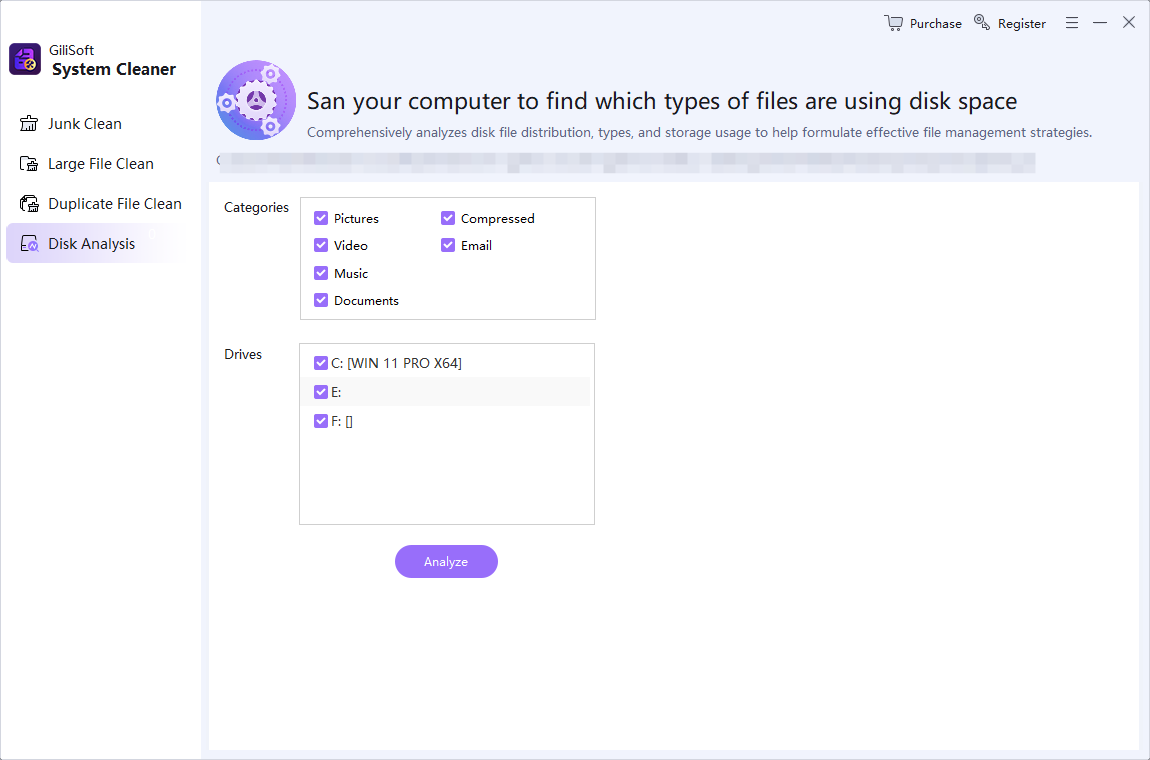
- Open Disk Analysis.
Review the affected drive's file types and large locations without deleting anything first.
- Check Hardware Info.
Confirm that Windows detects the expected storage device and record its identifying details.
- Review related Windows symptoms.
Use System Repair only when errors point to supported Windows components, DLLs, runtimes, or application faults.
- Apply one relevant change at a time.
Retest the original read, write, boot, or update action after each step.

If Windows Does Not Start
Use the Windows Recovery Environment rather than repeatedly forcing ordinary startup. Startup Repair targets supported boot problems, while Command Prompt, uninstall updates, System Restore, recovery media, and reinstall options serve different situations. An encrypted system may require its BitLocker recovery key.
If the drive is not consistently detected, reports hardware failure, or contains irreplaceable data, avoid repeated repair and reinstall attempts. A professional recovery service may have a better chance before the media deteriorates further.
Verify the Result After Disk Repair
- Read the final repair status.
Record whether Windows found no errors, fixed errors, or could not complete the check.
- Open representative files.
Test documents, media, archives, and application data rather than checking only folder names.
- Review Windows logs.
Look for repeated disk, NTFS, controller, or unexpected-removal events.
- Back up again.
A repaired file system does not prove that the underlying storage will remain healthy.
- Replace unreliable hardware.
Recurring errors after repair are a warning, not a reason to schedule endless scans.
Disk Error Repair FAQ
What does CHKDSK repair?
CHKDSK checks a volume's file system and metadata. Without repair parameters it reports status. The /f parameter fixes supported logical file-system errors, while /r also looks for bad sectors and attempts to recover readable information.
Can a disk error repair tool fix a failing hard drive?
No software can make failing hardware reliable. If the drive disconnects, makes unusual noises, reports health warnings, or develops repeated unreadable areas, stop unnecessary writes, back up readable data, and replace or professionally assess the drive.
Should I run CHKDSK /r first?
Not routinely. It can take a long time and performs a more extensive scan. Start by protecting data and identifying the symptom. Use the parameter that matches the documented need, and avoid stressing a drive that may be physically failing.
Why does Windows schedule a disk check after restart?
The active system volume cannot always be locked while Windows is running. When a repair requires exclusive access, Windows may offer to check the volume during the next restart.
Is a restore point enough before disk repair?
No. A restore point is not a backup of all personal files. Copy important data to a separate healthy destination before any repair that may modify the file system.
How does GiliSoft Total Repair help with disk errors?
Total Repair can help review disk usage, hardware information, cleanup pressure, and related Windows repair categories. Use Windows disk-checking and recovery tools for the actual file-system or startup repair, and use hardware service when the drive itself is failing.