
How to Recover Files from a RAW Drive Without Formatting
Windows reports your drive as RAW or asks you to format it before use. That describes a file system Windows cannot recognize or read; it does not establish that the drive is empty. Protect the source before trying to make it usable again.
Quick answer
Cancel the format prompt. Check that Windows detects the storage with a plausible capacity, and stop if hardware appears unstable. If GiliSoft Data Recovery can access the device, evaluate a Deep Recovery scan and save useful results to another physical drive. Do not convert, initialize, or format the source first.
RAW Is a Symptom, Not a Diagnosis
A damaged file system is one possible cause. Unsupported formats, connection faults, and inaccessible encrypted storage can also complicate access. Do not assume every unreadable volume needs formatting.
| Windows reports | What to distinguish | Next step |
|---|---|---|
| RAW volume with expected capacity | File-system access problem | Check whether recovery software can read the source |
| Unallocated space | A missing partition rather than an ordinary RAW volume | Review lost-partition recovery; do not create a new volume |
| No Media or zero capacity | A detected controller may not expose storage | Check the connection and seek help if persistent |
| Locked or unsupported storage | Access may require its original environment or a key | Use legitimate access before considering a scan |
Check the Drive Without Changing It
- Cancel format and initialization prompts.
Do not run DiskPart clean, create a new volume, or format the device to make it appear in File Explorer.
- Inspect Disk Management.
Right-click Start and open Disk Management. Note the disk model, capacity, volume status, and any drive letter without applying changes.
- Check a stable connection.
For external storage, use a known working port and suitable cable. Stop if it repeatedly disconnects, clicks, or shows physical damage.
- Prepare healthy storage for output.
Keep software installation and recovered files off the affected device. Check existing backups before scanning.
Recover Files with GiliSoft Data Recovery
GiliSoft's main screen includes Deep Recovery. Use it to evaluate a readable source when normal file-system access is unavailable. Keep the source unformatted and confirm that the correct device appears before starting.
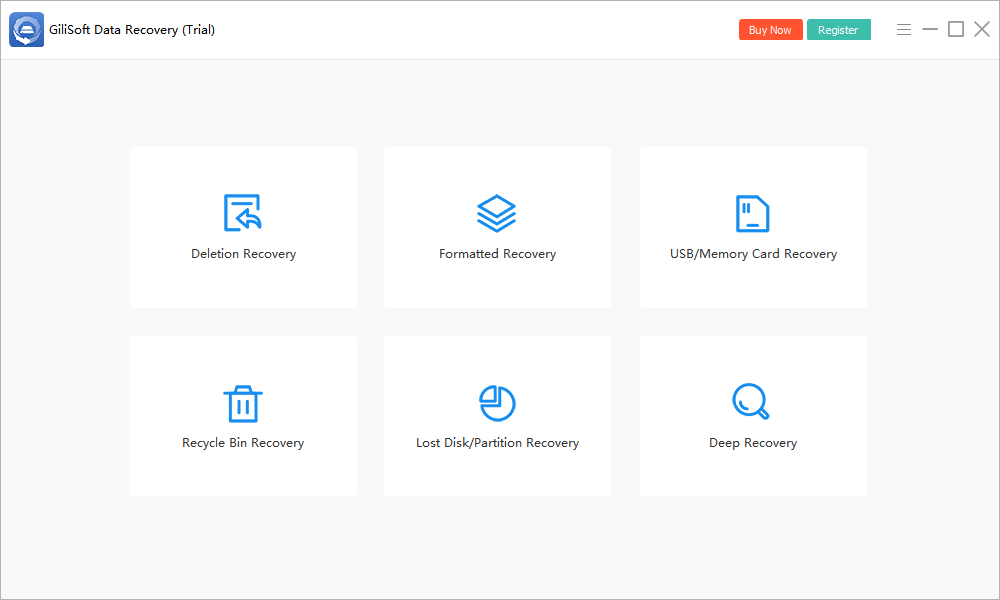
- Open Deep Recovery.
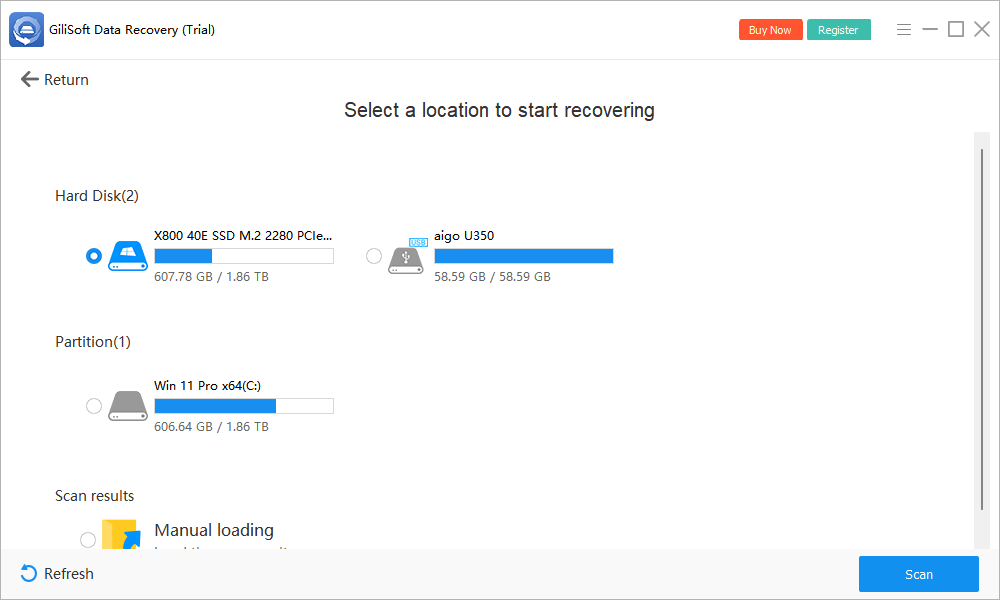
Launch the software from healthy storage and inspect the available disks and partitions.
- Identify the affected source.
Match model and capacity to your notes. Do not rely only on a drive letter, which may be missing. If the expected device is absent, stop and investigate access.
- Scan the readable device.
Start the scan and maintain a stable connection. Stop if repeated errors or hardware instability appear.
- Review found files.
Search by names or file types where available. Preview supported candidates; original folders may not survive damaged metadata.
- Save to another physical drive.
Recover priority files away from the source, then open them in their normal applications and back up verified results.
Check the trial's current recovery limits. If the correct source cannot be accessed, do not initialize it to force a scan. See the complete user guide or consult support with the exact disk status.
Recover the Files First, Decide About Repair Later
The goal here is usable copies on another device. It is not to restore the source's original partition layout or make an in-place conversion without risk.
- Verify documents, images, video playback, and archives independently of the scanner.
- Create a second copy of irreplaceable output before considering any source changes.
- Do not treat a successful file recovery as proof that the drive is healthy.
- Only consider formatting for reuse after recovery is complete and the cause of the problem has been evaluated.
When RAW Recovery May Not Work
Readable records do not guarantee complete files
Metadata and content can be damaged differently. A familiar filename may point to incomplete data, while unnamed results may contain useful content. Preview and verify both.
Encryption requires legitimate access
A recovery scan cannot substitute for an encryption password or recovery key. Check the original system or device's supported unlock process rather than resetting it.
Hardware is unavailable or unstable
Persistent zero capacity, repeated disconnections, or an undetected disk can make ordinary software recovery inappropriate. Stop repeated attempts for valuable files and seek professional help.
RAW Drive Recovery FAQ
Does RAW mean my files are gone?
Not necessarily. RAW means Windows cannot recognize or read the file system. Data may remain, but recovery depends on storage access, damage, encryption, and whether content has been overwritten.
Should I format a RAW drive to scan it?
No. Formatting changes the source and is not a requirement for recovery. If a scanner cannot access the device, investigate that limitation rather than formatting to force access.
Can recovery software convert RAW to NTFS?
Recovering files to another drive is different from repairing or rebuilding a file system. This workflow retrieves file copies; it does not promise an in-place RAW-to-NTFS conversion.
Should I run CHKDSK on a RAW drive?
Do not use file-system repair as the first step when files are irreplaceable. CHKDSK may not support the unrecognized file system and repair attempts can change the source. Prioritize recovery and a backup first.
Why are original filenames missing?
Damaged file-system records can prevent name and folder recovery even when some file content is found. Review supported previews and verify exported candidates rather than relying only on filenames.