
How to Recover Files from an Unreadable Drive
An unreadable drive may appear in Disk Management but refuse to open, show a RAW file system, ask to be formatted, or disappear intermittently. The correct response depends on whether Windows can still access the physical storage. Protect the source first, then recover files before attempting repair.
Quick answer
Do not format, initialize, repartition, or write test files to the unreadable drive. If it remains stable and Windows reports a plausible capacity, scan it with GiliSoft Data Recovery and save recoverable files to a different physical drive. If it is absent, shows No Media or 0 B, overheats, clicks, or repeatedly disconnects, ordinary software recovery may be inappropriate.
Identify What “Unreadable” Means
Open Disk Management only to observe the device. Do not accept prompts to initialize or format it. Match the physical disk by model and capacity rather than relying only on a drive letter.
| What Windows shows | What it may mean | Safer next step |
|---|---|---|
| Drive letter exists but access is denied or unavailable | Permissions, encryption, or file-system damage | Check legitimate access; scan only if the storage is stable |
| Windows asks to format or labels the volume RAW | The file system cannot be mounted | Cancel the prompt and recover before repair |
| Disk appears with normal capacity but no usable volume | Lost partition or damaged partition metadata | Record the disk identity and evaluate deep or lost-partition recovery |
| No Media, 0 B, or implausible persistent capacity | The controller may be visible without accessible storage | Stop modification attempts; software may not have media access |
| Clicking, overheating, or repeated disconnection | Possible hardware or connection failure | Stop repeated scans and consider professional recovery |
Protect the Source Before Recovery
- Stop using the affected drive and minimize activity on the PC if it is the system disk.
- Do not initialize the disk, create a volume, format it, defragment it, or copy anything onto it.
- Install recovery software on healthy storage and prepare another physical drive for the output.
- For an external drive, check one known-working port and cable without repeatedly power-cycling unstable hardware.
- Preserve passwords or recovery keys for encrypted storage; recovery software does not bypass encryption.
Recover Files with GiliSoft Data Recovery
Use this workflow only when Windows can access the physical device consistently enough for a scan. Start with the route matching the symptom: Deep Recovery for an unreadable file system, or Lost Disk/Partition Recovery when the former volume is missing.
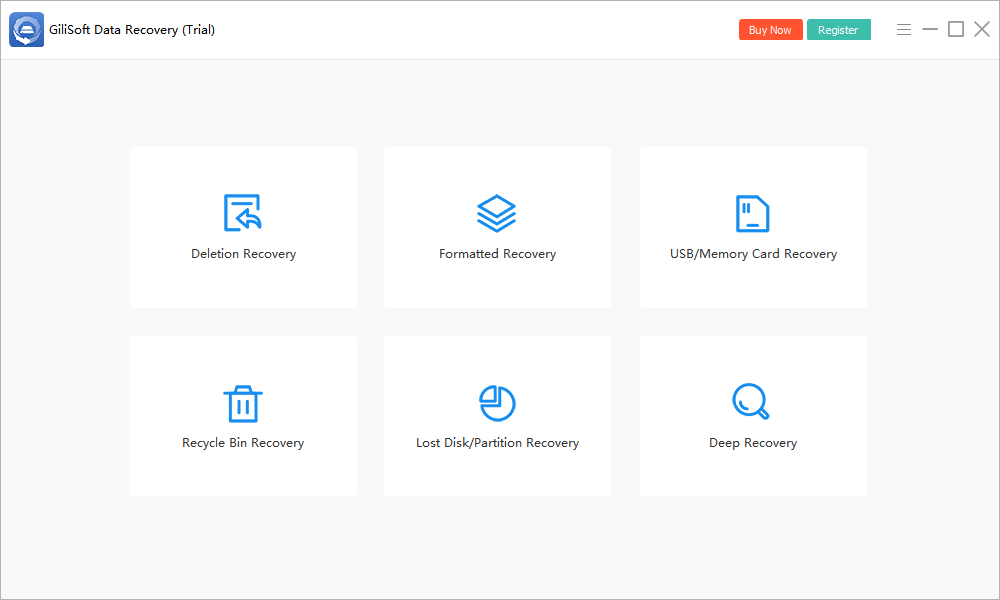
- Launch from an unaffected drive.
Do not download or install the program onto the unreadable source.
- Select the correct physical disk.
Match its model and capacity to the details recorded in Disk Management. Do not choose a healthy disk just because the old drive letter is missing.
- Run one stable scan.
Allow the scan to inspect accessible storage. Stop if the device disconnects, overheats, clicks, or begins reporting inconsistent capacity.
- Preview and prioritize important files.
Review supported documents, photos, and media. Damaged metadata can remove original names or folders, so inspect alternate results too.
- Recover to another physical drive.
Choose healthy destination storage, then verify the recovered files before attempting any repair of the source.
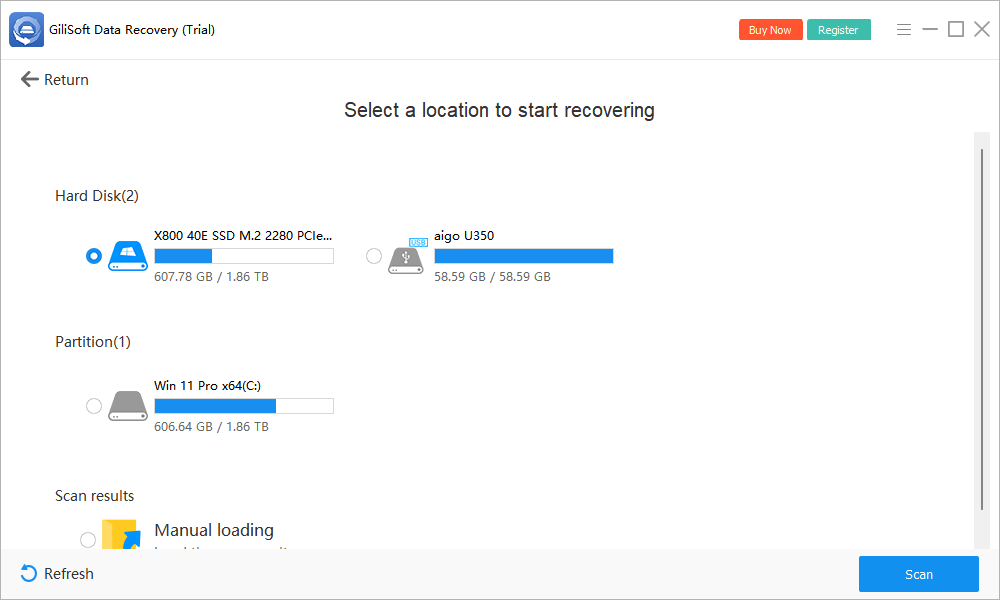
Check current trial limits before a long scan. A scan can locate only data the storage still exposes; it cannot restore hardware access that Windows does not have.
Verify Recovered Files Before Repair
Open important recovered files from the destination drive. For documents, check multiple pages, tables, images, and attachments. For photos and videos, confirm full resolution, duration, seeking, picture, and audio rather than trusting a thumbnail alone.
Keep the first recovery output unchanged and make a second copy of irreplaceable files. Only after verification should you decide whether to repair, reformat, replace, or retire the original drive.
When to Stop DIY Recovery
Stop when the disk is not detected in Windows or firmware, reports zero capacity, clicks, overheats, smells burned, or disconnects repeatedly. Continued scans can stress failing hardware and may reduce the options available to a specialist.
Also pause when the data is uniquely valuable, the drive is encrypted without a working key, or the storage belongs to a RAID/NAS configuration that must be reconstructed correctly. Recovery software is not a substitute for hardware repair, decryption credentials, or array expertise.
Unreadable Drive Recovery FAQ
Should I format an unreadable drive before recovery?
No. Cancel the format prompt while files matter. Formatting creates or replaces file-system structures and changes the source before you have recovered important files.
Can files be recovered if the drive appears in Disk Management but not File Explorer?
Possibly. If the physical disk appears with a plausible capacity and remains stable, recovery software may be able to scan it even when Windows cannot mount the volume. Do not initialize it or create a new volume first.
Can software recover a drive that is not detected at all?
Ordinary recovery software needs the storage device to be accessible to Windows at the hardware level. If it is absent, reports zero capacity, overheats, or repeatedly disconnects, stop repeated attempts and consider professional recovery.
Should I run CHKDSK on an unreadable drive?
Not as the first step when the files are important. CHKDSK is a repair tool that can change file-system structures. Recover or image the source before repair, or seek specialist advice for valuable data.
Where should recovered files be saved?
Save them to a different physical drive with enough free space. Writing recovered files back to the unreadable source can overwrite other recoverable content and makes verification harder.
Does successful recovery make the original drive safe to reuse?
No. Recovery copies accessible files; it does not certify the original hardware or repair the cause of unreadability. Back up the results and separately diagnose or replace an unreliable drive.