
What Is Image Matting?
Image matting estimates how much each boundary pixel belongs to the foreground subject. This makes it more suitable than a hard outline for hair, fur, motion blur, translucent material, soft shadows, and other edges that are only partly opaque.
In compositing research, the visible image is commonly described as a mixture of foreground color, background color, and an alpha value. The challenge is that one finished pixel does not reveal those three components by itself. Software can estimate them, but low resolution, compression, blur, reflections, and similar foreground and background colors can still require inspection or a better source photo.
Image Matting vs Background Removal, Cropping, and Clipping Paths
These methods solve different problems. Choose according to the subject boundary and the output you actually need.
| Method | What it does | Best suited to | Main limitation |
|---|---|---|---|
| Image matting | Estimates partial transparency along the foreground boundary. | Hair, fur, smoke, glass, soft edges, defocus, and realistic compositing. | Difficult scenes can retain background color or lose fine detail. |
| Background removal | Separates the main subject and removes the surrounding scene. | Fast product, portrait, profile, and presentation cutouts. | An automatic result may still need edge review. |
| Cropping | Removes rectangular areas from the outer frame. | Reframing, trimming empty space, and changing aspect ratio. | It does not follow the subject outline. |
| Clipping path | Uses a hard vector-like boundary around an object. | Products with crisp, solid edges such as boxes or devices. | It is not a natural fit for soft or translucent boundaries. |
Choose a Source Photo That Gives Matting a Fair Chance
Edge quality begins before the software is opened. The source should contain enough information to distinguish the subject from the background.
How to Use Image Matting in GiliSoft Image Editor
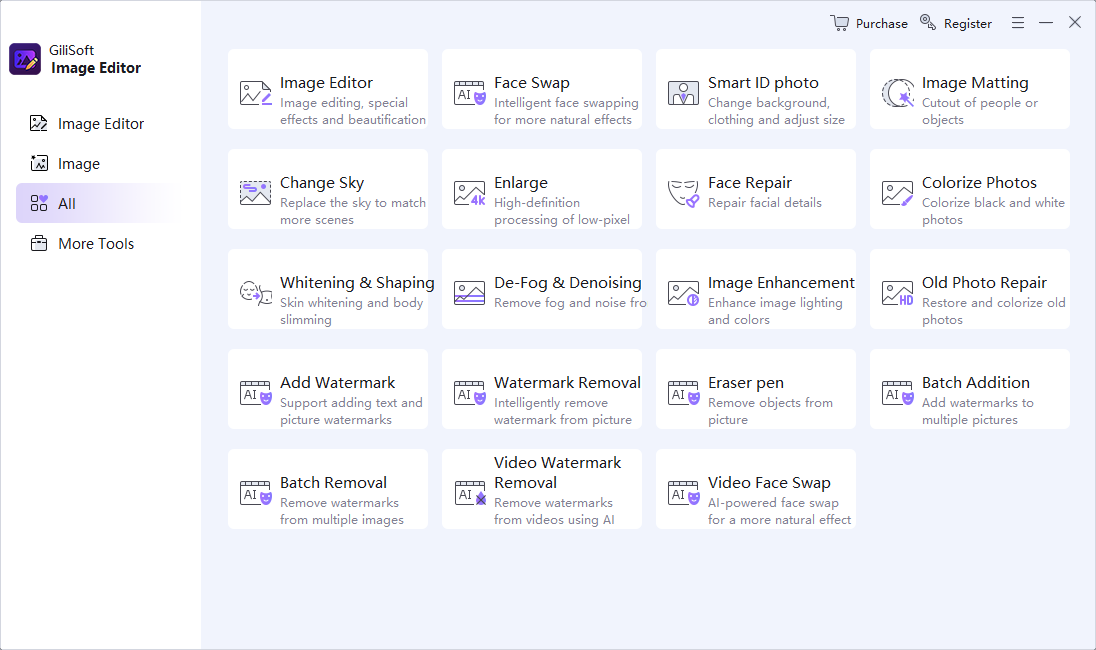
The current GiliSoft Image Editor home screen includes an Image Matting tool described as a cutout workflow for people or objects. The exact controls can vary by version, so the steps below stay with the confirmed workflow instead of inventing interface options.
- Protect the originalDuplicate the source photo or work from a separate project folder. Keep the untouched camera file available.
- Open Image MattingLaunch GiliSoft Image Editor and select the Image Matting tile on the home screen.
- Load the highest-quality sourceChoose the original or best available photo, then inspect the complete subject before processing.
- Create the foreground cutoutUse the matting workflow available in your installed version to separate the person or object from the background.
- Inspect difficult boundariesZoom into hair, fur, fingers, fabric holes, glass, motion blur, shadows, and areas where subject and background colors are similar.
- Test the result over different backgroundsView the cutout over light, dark, and contrasting colors so halos, missing pixels, and unwanted transparency are easier to see.
- Export a separate resultUse a transparency-capable format when a reusable cutout is required, or create a flattened copy after the new background has been approved.

Test the matting workflow on a representative photo
Download GiliSoft Image Editor and start with one image that contains the most difficult edge in the set. Approve that result before preparing the remaining photos.
Edges That Need More Care
Hair and fur
Fine strands can be partly transparent and may cross several background colors. Inspect for clipped strands, solid clumps, and color contamination.
Glass and translucent fabric
These materials reveal the old background through the subject. A believable composite needs partial transparency, not a completely opaque fill.
Motion blur and soft focus
The boundary covers several pixels instead of one hard line. An overly sharp mask produces a cut-paper appearance; an overly soft one creates a halo.
Thin structures and holes
Fingers, jewelry, bicycle spokes, mesh, plant stems, and gaps between limbs are easy to erase or fill accidentally.
Similar colors
A dark jacket against a dark wall or light fur against a bright sky gives the software less evidence about the true boundary.
Shadows and reflections
Decide whether a shadow or reflection belongs to the subject, the old scene, or the new composite. Keeping the wrong one can make the placement look false.
Check the Matte on More Than One Background
A cutout can look acceptable over transparency and fail as soon as it is placed over a different color. Adobe's selection guidance recommends changing viewing modes while refining a selection; the same principle is useful when reviewing any exported matte.
Inspect these failure signs
- Halo: a light or dark rim from the old background remains around the subject.
- Color spill: hair, fur, or transparent material retains the previous background color.
- Jagged edge: a diagonal or curved boundary appears stair-stepped at normal output size.
- Missing fine detail: hair strands, lace, mesh, whiskers, or thin product parts disappear.
- Filled holes: spaces between fingers, handles, spokes, or clothing are treated as foreground.
- False transparency: solid areas become partially see-through after extraction.
Choose the Right Matting Output
| Output | Use it when | What to verify |
|---|---|---|
| Transparent PNG | The subject will be reused in layouts, slides, product graphics, or several background versions. | The exported file preserves transparency and no unwanted pixels remain around the subject. |
| Flattened JPEG | The replacement background is final and a smaller broadly compatible image is needed. | Transparency has been composited correctly before export; JPEG itself does not preserve an alpha channel. |
| New background composite | A portrait, product photo, campaign image, or presentation needs a controlled setting. | Scale, perspective, light direction, edge color, sharpness, and shadows agree with the new scene. |
| Layered working file | Another editor or designer needs to adjust the matte and background later. | The chosen format preserves the required layers or mask information and opens correctly in the destination tool. |
When a New Photo Is Better Than More Repair
Reshoot when the original is severely compressed, the subject is out of focus, important parts are hidden, transparent material has no recoverable contrast, or the subject and background have merged across a large area. For products, use a clean background, stable lighting, enough resolution, and space around the complete object. For portraits, avoid background colors that match hair or clothing when possible.
Image matting should also preserve the truth of the image. Do not use a new background to misrepresent product condition, scale, included accessories, evidence, identity documents, or another fact the viewer depends on.
Research Sources
The workflow and troubleshooting guidance above draws on official selection documentation and published image-matting research.
- Adobe: Select hair like a pro - hair-selection workflow and edge review.
- Adobe: Make precise selections in Select and Mask - view modes, edge refinement, and output inspection.
- Adobe: Remove backgrounds in your images - automatic separation followed by refinement where needed.
- GIMP Foreground Select documentation - identifying foreground regions for subject extraction.
- Google Research: Training-Free Neural Matte Extraction - matte extraction for difficult visual-effects boundaries.
- ICCV: Context-Aware Image Matting - foreground and alpha estimation.
Image Matting Software FAQ
What is image matting?
Image matting estimates foreground color and transparency at each pixel so a subject can be separated from its background, including soft and partially transparent boundaries.
Is image matting the same as cropping?
No. Cropping removes a rectangular part of the frame. Matting separates a subject according to its actual outline, including holes and soft edges.
Which subjects are difficult to cut out?
Hair, fur, smoke, glass, motion blur, fine mesh, shadows, reflections, and subjects whose colors resemble the background require closer review.
Why does a cutout have a light or dark halo?
Boundary pixels can retain color from the original background or use an inaccurate alpha value. Inspect the result over several backgrounds and refine or reshoot when necessary.
Should the original photo be overwritten?
No. Keep the original and export the matted foreground or composite as a separate file.


