Can I password protect an external hard drive without encryption?
Yes. GiliSoft File Lock Pro locks selected files and folders on the external drive with a password, without encrypting the whole disk.

GiliSoft File Lock Pro
GiliSoft File Lock Pro is a folder / file locker which protects user's privacy and important data from theft, loss or leaks.

An external hard drive is equivalent to a mobile memory, which realizes data storage by simply connecting to a computer. You can use an external hard drive to back up files, free up space on SSD/HDD, or transfer files, specifically large files from one computer to another. The external hard disk is becoming more and more popular because it's small in size, large in capacity, and easy to carry.
An external hard drive can carry important and sensitive files, including private personally identifiable details, family photos, tax and financial information, login credentials, and more. Considering the security of your data, to prevent people with ulterior motives from stealing your data, you should encrypt and password protect the external hard drive.
This post shows you how to password protect an external hard drive on Windows 10/11 in two ways. You can password protect files or folders on the external hard drive without encryption by using a file lock tool, or you can directly use BitLocker to password protect an external hard drive.
In addition, how-to steps to password protect an external hard drive on Mac are also provided. Let's learn how to do it.
A file lock tool - GiliSoft File Lock Pro can help you password protect any type of files and folders on an external hard drive without encryption.
You can use its Locking File feature to protect the files or folders on a local hard drive, external hard drive, or USB flash drive with a strong password. Once you've set up the password, anyone accessing the files or folders on your external hard drive will need to enter the password first.
Here are the simple guides to password protect folders on an external hard drive with GiliSoft file lock software.
Other highlighted features of GiliSoft File Lock Pro to protect data on external hard drive:
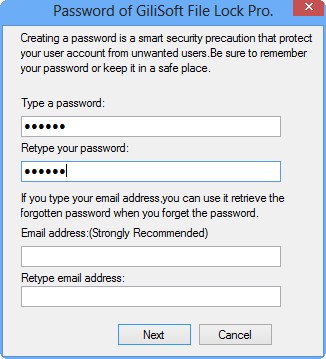
Step 1. Download and install GiliSoft File Lock Pro on your computer. For the first time setup, enter a strong authentication password for use, and a valid email address for password retrieval in case you forgot the password. You can change the password anytime in "Settings".
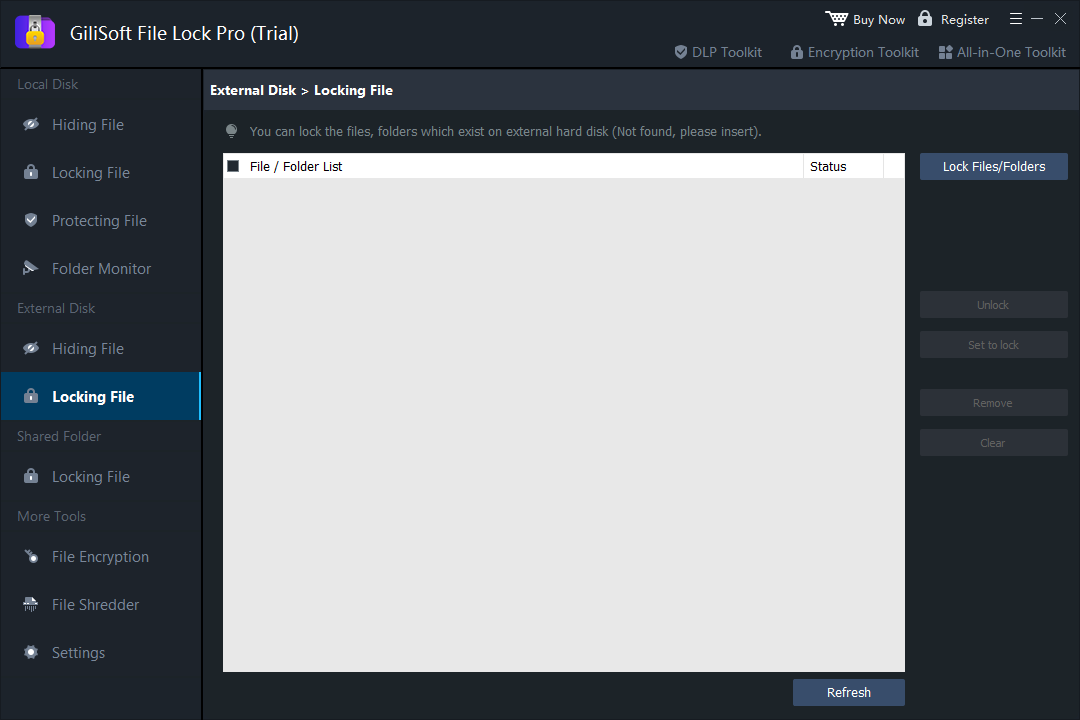
Step 2. To lock files or folders on an external device, navigate to the "External Disk" section and then click "Locking File". Next, on the right menu, choose the "Lock File(s)" or "Lock Folder" option.
Step 3. Select the target external drive and choose specific files or folders you want password protect, and then click "Open".
Step 4. Enter the password and confirm it once, and click "Lock". Wait for the process to complete. Your important files and folders should be fully protected with a strong password.
Windows has a built-in disk encryption tool, named BitLocker. BitLocker comes with Windows 10/11 Enterprise and Pro, Windows 8 Professional and Enterprise, Windows 7 Ultimate and Enterprise, and Windows Server 2008 and later.
BitLocker lets you encrypt and password protect data on both internal and external hard drives. Because of version limitations, if you want to password protect an external hard drive in Windows 10/11 Home, go back to the above method and use GiliSoft File Lock Pro to make it.
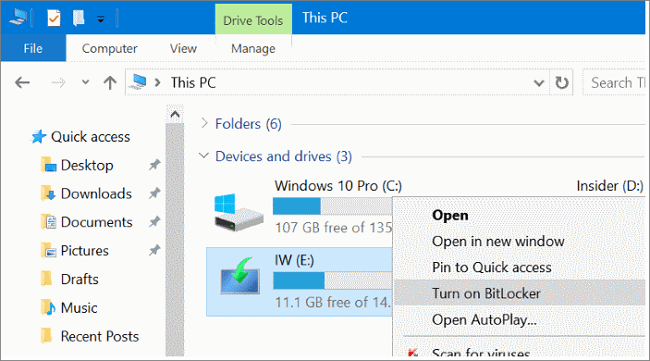
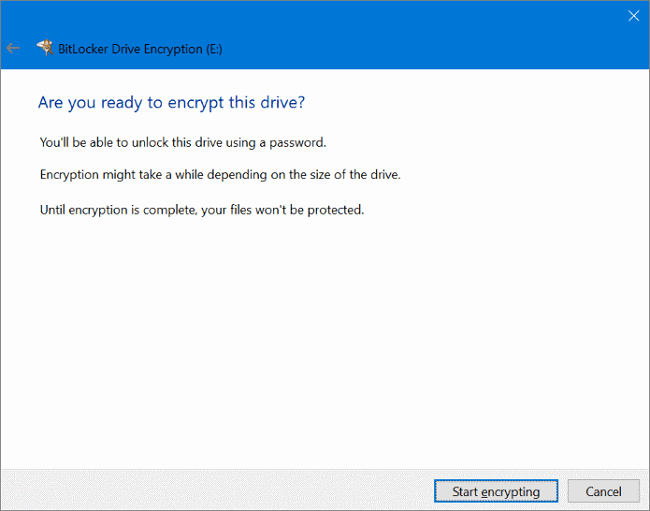
Step 1. Connect your external hard drive to the computer. Right-click the external hard drive and select "Turn BitLocker On".
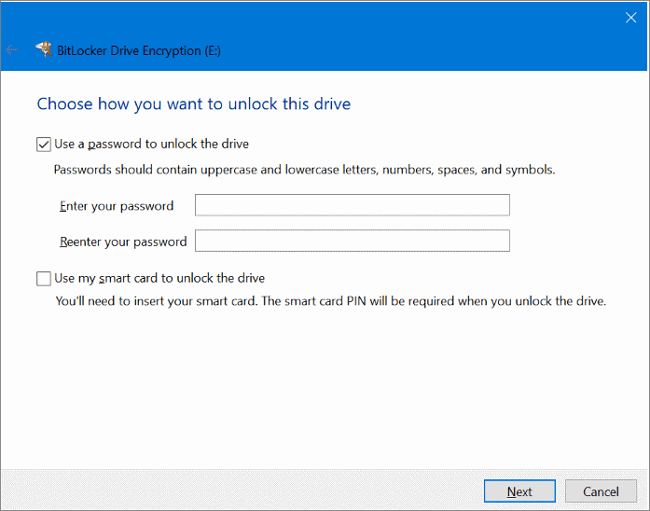
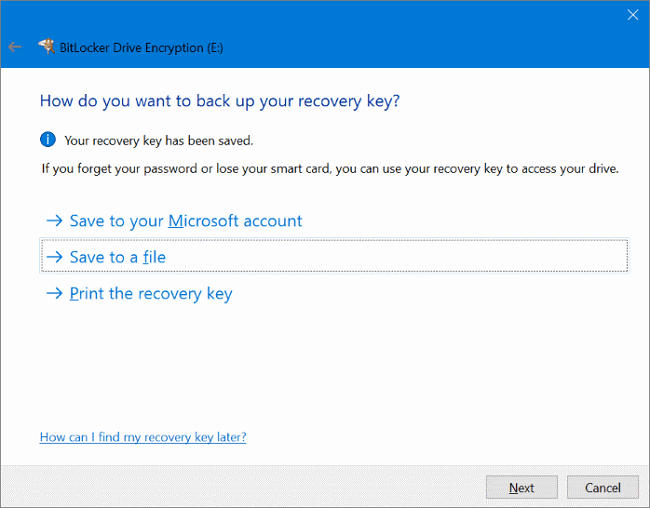
Step 2. Set the password used to protect your external hard drive. Then, back up the recovery key to a secure place. If you forgot your password, you can access the drive with the recovery key.
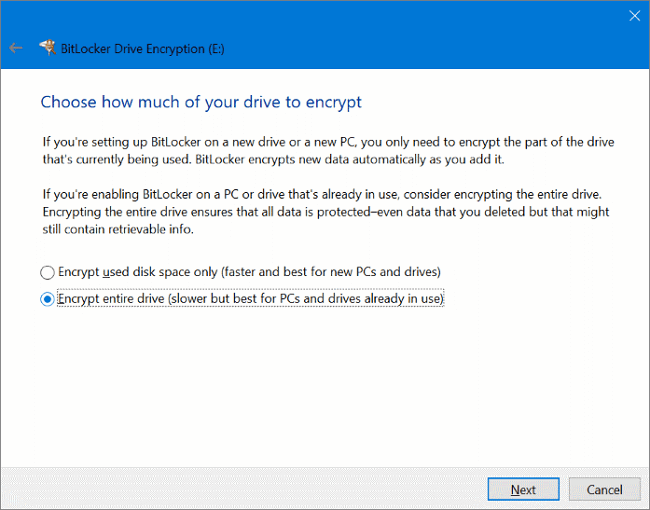
Step 3. If you want to protect the whole drive as well as newly added files and folders, choose "Encrypt entire drive". Or you can only choose to encrypt the used disk space.
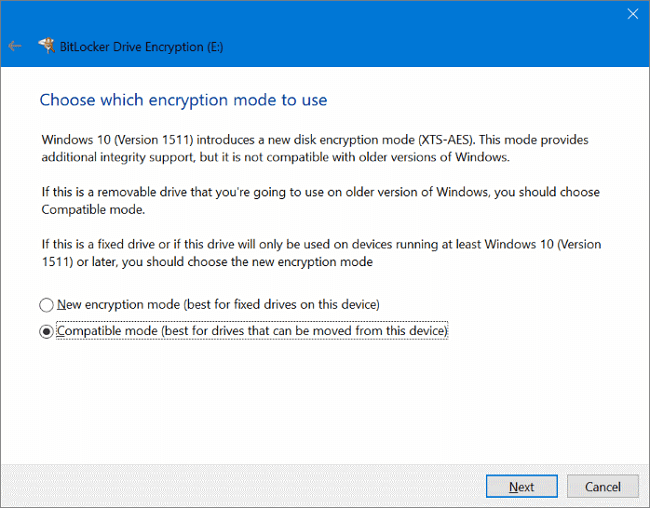
Step 4. Microsoft BitLocker offers two encryption modes. If you have the latest Windows version, you can choose "New encryption mode" with additional integrity support. Otherwise, select "Compatible mode" and then click "Next".
Step 5. Follow the on-screen instructions to finish encrypting the external hard drive.
It's equally important to password protect external hard drives on Mac. If you haven't protected your external hard drives with a password till now, this is how to password protect external hard drives on Mac.
When you format an external hard drive with Disk Utility on Mac, you can encrypt and protect it with a password in the steps below.
Step 1. Connect your external hard drive to the Mac.
Step 2. Go to "Finder > Applications > Utilities > Disk Utility". Or you can open Disk Utility by searching for it in Spotlight.
Step 3. Select your external disk on the left side menu, choose "Erase" in the toolbar. Remember to back up data before using this process.
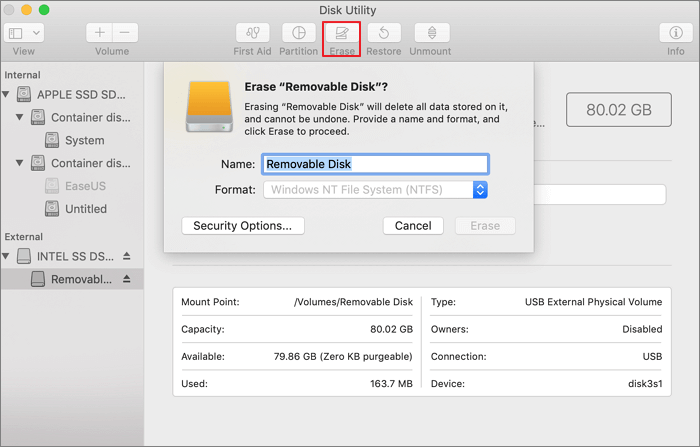
Step 4. Enter a name for the drive. Then, click the "Format" option and choose "Mac OS Extended (Journaled, Encrypted)".
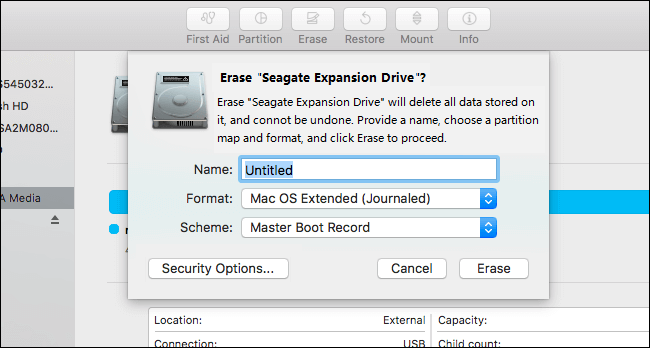
Step 5. Click "Erase". Enter and verify a password, then click "Choose".
Step 6. Finally, click "Erase" and "Done". When the process is finished, you will see that your drive is encrypted and you need to enter the password every time you restart your Mac or connect the external hard drive.
As the hard drive formatting will lead to data loss, you can take another way to encrypt your external hard drive without erasing it.
Step 1. Connect the external hard drive to your Mac.
Step 2. Open the Finder window. Locate and right-click the external disk, then select "Encrypt (drive name)" from the drop-down menu.
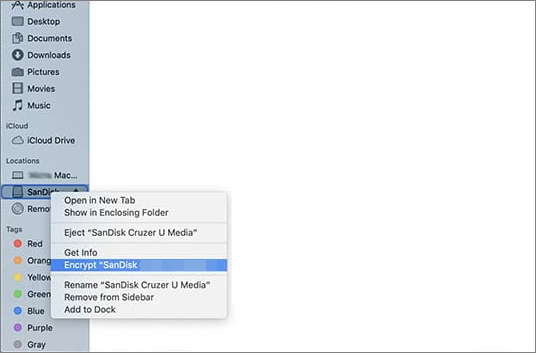
Step 3. Enter and confirm the password at the pop-up dialogue box. You can also add a hint to help remember the password later.
Step 4. Select "Encrypt Disk" to start encrypting the external hard disk. Depending on the size of the file, it can take a lot of time.
These are two ways to password protect an external hard drive in Windows 10/11. You can use GiliSoft File Lock Pro to lock and put a password to your external hard drive without encryption. With this software, it's not rocket science to protect your computer, external hard drive, and USB flash drive.
For users who don't like to use a third-party tool, you can use BitLocker to encrypt your whole external hard drive. This article also shows you two ways to password protect an external hard drive on Mac with or without erasing. Choose the one that works best for you.
Yes. GiliSoft File Lock Pro locks selected files and folders on the external drive with a password, without encrypting the whole disk.
No. BitLocker is only included in Pro, Enterprise, and Education editions. On Windows Home, use File Lock Pro to password protect the external drive instead.
A BitLocker-encrypted drive asks for the password on any Windows PC. Folders locked with File Lock Pro are protected wherever the drive is connected.
BitLocker drives cannot be opened on Mac. If you share the drive between systems, lock selected folders with File Lock Pro or format the drive with a Mac-compatible encrypted format.
Use GiliSoft File Lock Pro to password protect files and folders on external hard drives, USB flash drives, and local disks from one Windows interface.