

Microsoft Word offers several ways to discourage or restrict editing, but they do not provide the same protection. Restrict Editing can limit changes inside a document, Always Open Read-Only mainly warns the reader, and Encrypt with Password controls who can open the file. GiliSoft File Lock Pro adds Windows-level protection against unauthorized modification, renaming, deletion, or access, while GiliSoft Copy Protect is intended for documents distributed to other people.
Choose the Right Word Protection Method
Start with the action you want to control. A setting that opens a document as read-only is not equivalent to a password, and a password that prevents opening is different from protection against copying after delivery.
Method 1. Restrict Editing in Microsoft Word
Restrict Editing is the most direct built-in option when people should be able to read a Word document but should not freely revise its text, formatting, or selected sections.
- Open the document and select the Review tab.
- Choose Restrict Editing to open the protection pane.
- Select the formatting or editing restrictions required. For a fully read-only document, choose No changes (Read only).
- Select Yes, Start Enforcing Protection, enter a password, and confirm it.
- Save, close, and reopen the document to verify the restriction.


 Enforce the restriction with a password so ordinary readers cannot simply turn it off.
Method 2. Protect a Word File with GiliSoft File Lock Pro
Use File Lock Pro when the Word document stays on a Windows computer and the priority is protecting the file itself. Its Protecting File feature keeps an item visible while preventing unauthorized modification, renaming, deletion, or similar file operations. You can also lock or hide the file or its folder when access should be more limited.
- Open GiliSoft File Lock Pro and enter the master password.
- Select Local Disk, then open Protecting File.
- Choose Protect Files/Folders and add the target DOC, DOCX, or document folder.
- Apply protection, then test editing, renaming, and deletion from Word and Windows Explorer.
- Return to the list and use Unprotect when authorized changes are required.
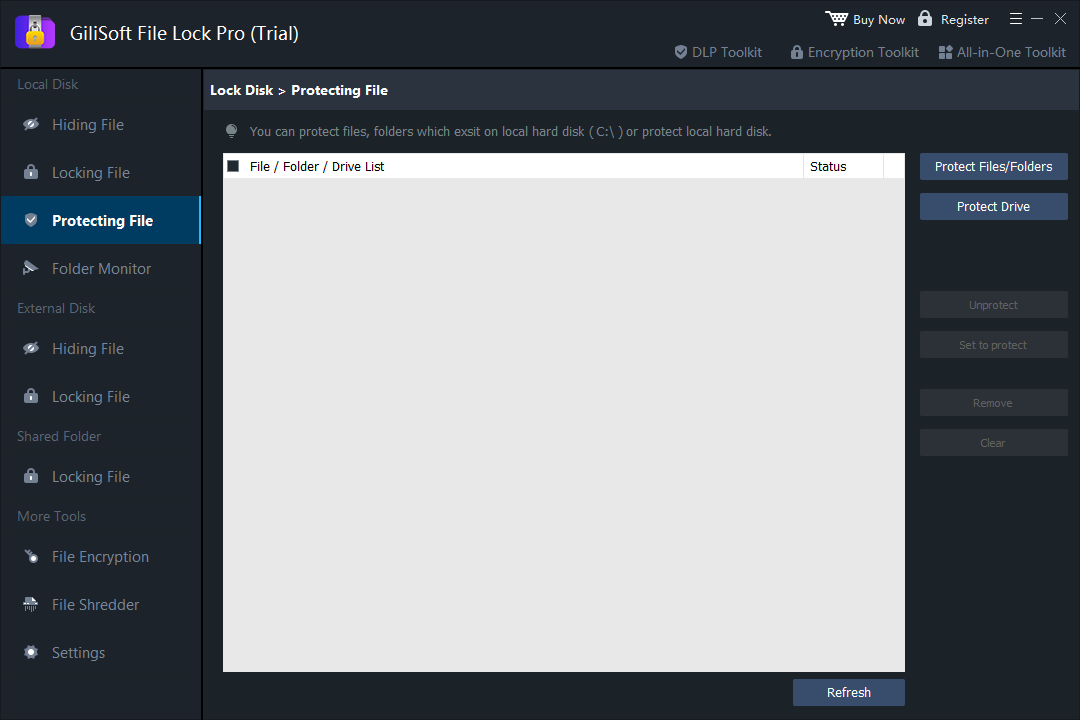 Protecting File manages local files, folders, and drives that must remain available without allowing unauthorized changes.
Useful for local Word documents and shared Windows PCs
File Lock Pro combines file change protection with hiding, locking, shared-folder controls, folder monitoring, program logs, and password-protected administration. It suits contracts, reports, templates, records, and working documents kept on a Windows PC or local network.

Method 3. Mark the Word Document as Final
Mark as Final tells readers that editing is complete and opens the document in a reduced-editing state. It is useful for review status and version discipline, but not strong security because a recipient may choose to edit anyway.
- Open the document and choose File.
- Select Info, then Protect Document.
- Choose Mark as Final and confirm the prompt.
- Save and reopen the file to verify the final-status notice.
 Mark as Final is a publishing signal rather than strong access control.
Method 4. Always Open the Word File as Read-Only
This setting encourages recipients to review instead of immediately editing the original. It is convenient for templates and reference documents, but does not stop a user from enabling editing or saving another copy.
- Choose File > Info > Protect Document.
- Select Always Open Read-Only.
- Save and reopen the document to confirm the read-only prompt.
 Always Open Read-Only reduces accidental edits but is not password-based enforcement.
Method 5. Encrypt the Word Document with a Password
Encrypt with Password controls who can open and read the file. This is stronger than a read-only prompt, but if the password is lost the document may become inaccessible.
- Open File > Info > Protect Document.
- Select Encrypt with Password.
- Enter a strong password, confirm it, and save the document.
- Close Word and test the password prompt before distribution or archiving.


How to Protect a Word Document from Editing on Mac
Word for Mac also provides document protection controls. Depending on the version, you can set a password to open the file, a password to modify it, or editing restrictions.
- Open the Word document on Mac and choose Review > Protect > Protect Document.
- Set a password to open the document, a password to modify it, or the available protection options required.
- Confirm the password, save the document, and reopen it to test the result.
- For a lighter reminder, use the read-only option when supported.
 Open Protect Document from the Review tab.
 Choose the password and editing options for the intended access level.
How to Lock Only Selected Text or Sections in Word
Restrict Editing can protect most of a document while leaving selected regions available for input. This is useful for forms, templates, approvals, and documents where readers should complete only assigned fields.
- Open Restrict Editing and choose the required editing restriction.
- Select the text or sections that specific users should be allowed to edit.
- Configure the Exceptions area for the selected users or groups.
- Start enforcing protection with a password and test both protected and editable sections.
 Use Exceptions when most of the document should remain protected but selected areas need input.
How to Protect Word Documents After Delivery
A Word password or local file rule protects the original file in specific ways, but distributed documents may also need limits on copying, printing, screenshots, clipboard use, or playback on unapproved devices. For that job, GiliSoft Copy Protect creates a controlled package for Office documents and other supported files.
Use Copy Protect for controlled document distribution
Choose Copy Protect when a document must leave your computer but should not become an ordinary reusable Word file. It provides controlled access options for distributed Office documents, PDFs, images, video, audio, and related content.
Word Protection Methods Compared
| Method | Best for | Password | What it does not fully solve |
|---|---|---|---|
| Restrict Editing | Limit text, formatting, or section changes inside Word | Recommended for enforcement | Does not provide delivery-level copy and screenshot control |
| File Lock Pro | Prevent local file modification, rename, or deletion on Windows | Master password | Does not replace Word permissions for a freely distributed DOCX |
| Mark as Final | Signal that review is complete | No | Recipients may still enable editing |
| Always Open Read-Only | Reduce accidental edits | No | Users may enable editing or save a copy |
| Encrypt with Password | Require authorization before opening | Yes | An authorized reader may still reuse visible content |
| Copy Protect | Controlled document delivery | Controlled access options | Uses a protected package instead of an ordinary editable Word file |
Frequently Asked Questions
Does Mark as Final stop someone from editing a Word document?
No. It communicates that the file is complete and discourages editing. Use enforced Restrict Editing, document encryption, or dedicated protection when stronger control is required.
Can a read-only Word document be copied or saved under another name?
Often yes. Read-only mode helps prevent accidental changes to the original but does not necessarily stop Save As, copying, screenshots, or reuse of visible text.
What is the difference between a password to open and a password to modify?
A password to open controls access to the content. A password to modify lets unauthorized users open a read-only version while reserving editing for users who know the modification password, when supported.
How do I remove Word editing restrictions?
Open Restrict Editing and choose Stop Protection, then enter the enforcement password. For File Lock Pro, select the item and use Unprotect with the authorized master password.
Should I use File Lock Pro or Copy Protect?
Use File Lock Pro for Word files stored on Windows PCs, local drives, shared folders, or attached storage. Use Copy Protect when documents are delivered to other people and copying, printing, screenshots, or device authorization must be controlled.
Protect Word documents with the right level of control
Use File Lock Pro for local Windows file protection, or choose Copy Protect when sensitive documents must be distributed with controlled access.
View GiliSoft File Lock Pro