
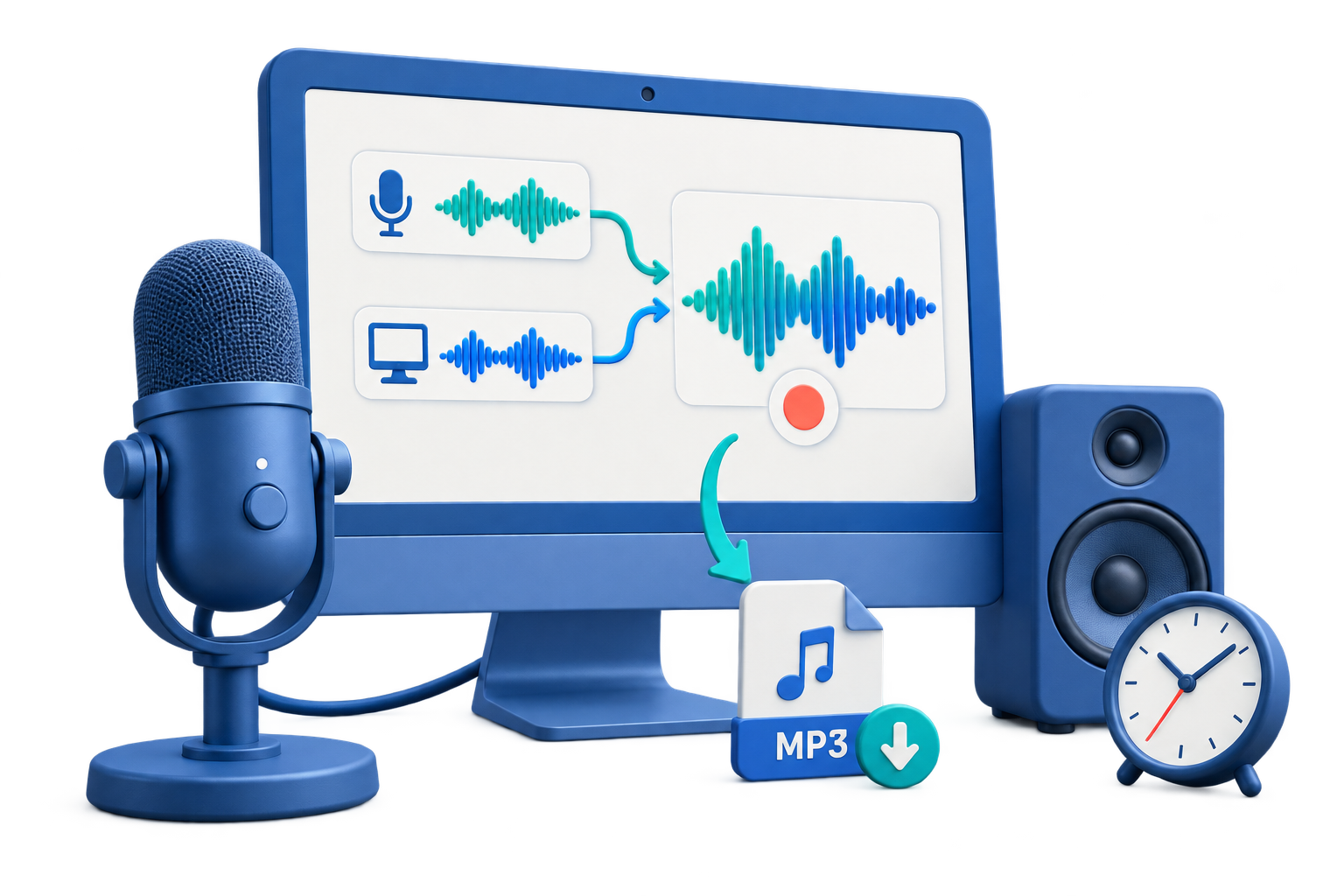
Choose the Correct Windows 11 Audio Source
| What to record | Recorder source | Windows 11 check |
|---|---|---|
| Browser or application playback | Computer Sound | Confirm the active output device and application volume |
| Voice note or narration | Microphone | Settings > System > Sound > Input and Privacy & security > Microphone |
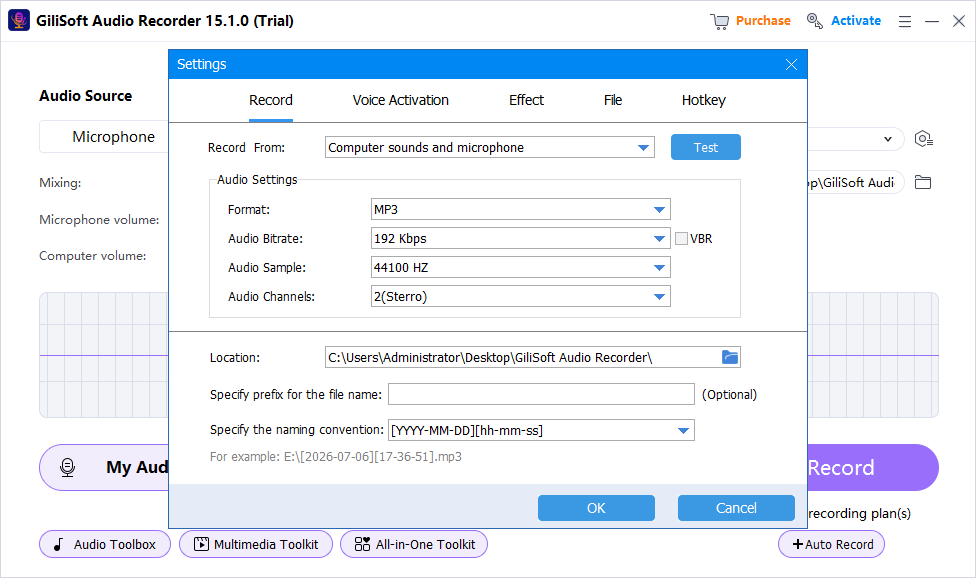
| Playback plus live voice | Computer Sound + Microphone | Use headphones and test both source levels |
| Timed program or class | Required source + Schedule | Check system clock, sleep behavior, power, and storage |
Record Audio on Windows 11: Step by Step
Identify the source
Decide whether the recording needs computer sound, microphone input, or both.
Check Windows 11 routing
Confirm the current output device for playback and the intended input device for voice.
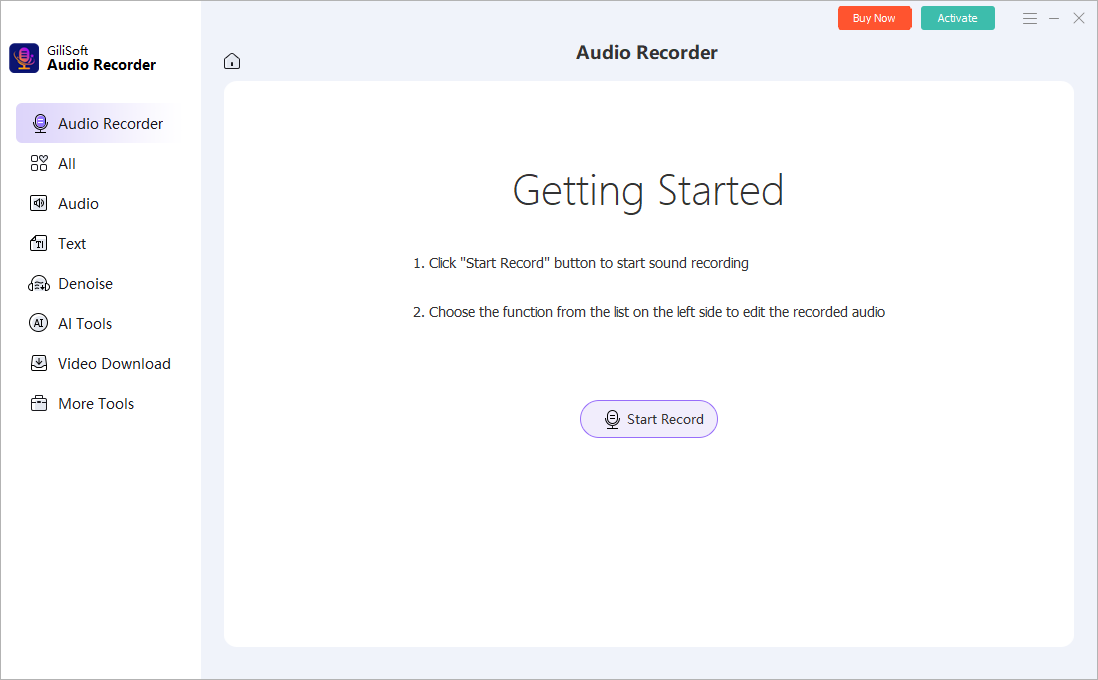
Open Audio Recorder Pro
Choose the matching recording task and set the output folder and format.
Make a realistic test
Include normal speech and the loudest expected playback, then review the saved sample.
Record the full session
Keep devices connected, prevent sleep when necessary, and monitor the recording status.
Review and organize
Check the beginning and end, then rename or move the verified file without overwriting the original.
Windows 11 Settings Worth Checking
Output device
A monitor, Bluetooth headset, dock, or USB interface can become the active playback route.
Input device
Select and test the intended microphone under System > Sound > Input.
Microphone privacy
Allow microphone access and desktop-app access when voice capture is required.
Power and sleep
For long or scheduled recordings, connect power and prevent the PC from sleeping.
Fix Silent or Distorted Windows 11 Recordings
- Check the recorder source before changing drivers or reinstalling software.
- Verify Windows output and application volume for missing computer sound.
- Verify input device, input volume, and microphone privacy access for missing voice.
- Lower excessive source levels when the waveform or sound clips.
- Reconnect or reselect devices after Bluetooth, USB, dock, or monitor changes.
- Run the Windows audio troubleshooter if normal playback or input testing also fails.
Frequently Asked Questions
Can Windows 11 record computer audio?
Yes. Use a recorder that captures Windows playback and select Computer Sound rather than Microphone.
Where do I choose a microphone in Windows 11?
Open Settings > System > Sound > Input, select the microphone, and run a test.
Where is microphone permission?
Open Settings > Privacy & security > Microphone and allow the access required by the recording application.
Can I record computer sound and voice together?
Yes. Select both sources, wear headphones, and test their relative levels first.
Why did the device change?
Windows may switch routing when a headset, display, dock, Bluetooth device, or USB interface connects.
What should I do before a long recording?
Test the saved file, connect power, prevent sleep, confirm storage, and silence notifications.
More Windows Audio Recording Guides
Continue with the source, device, or workflow guide that matches the next recording task.