
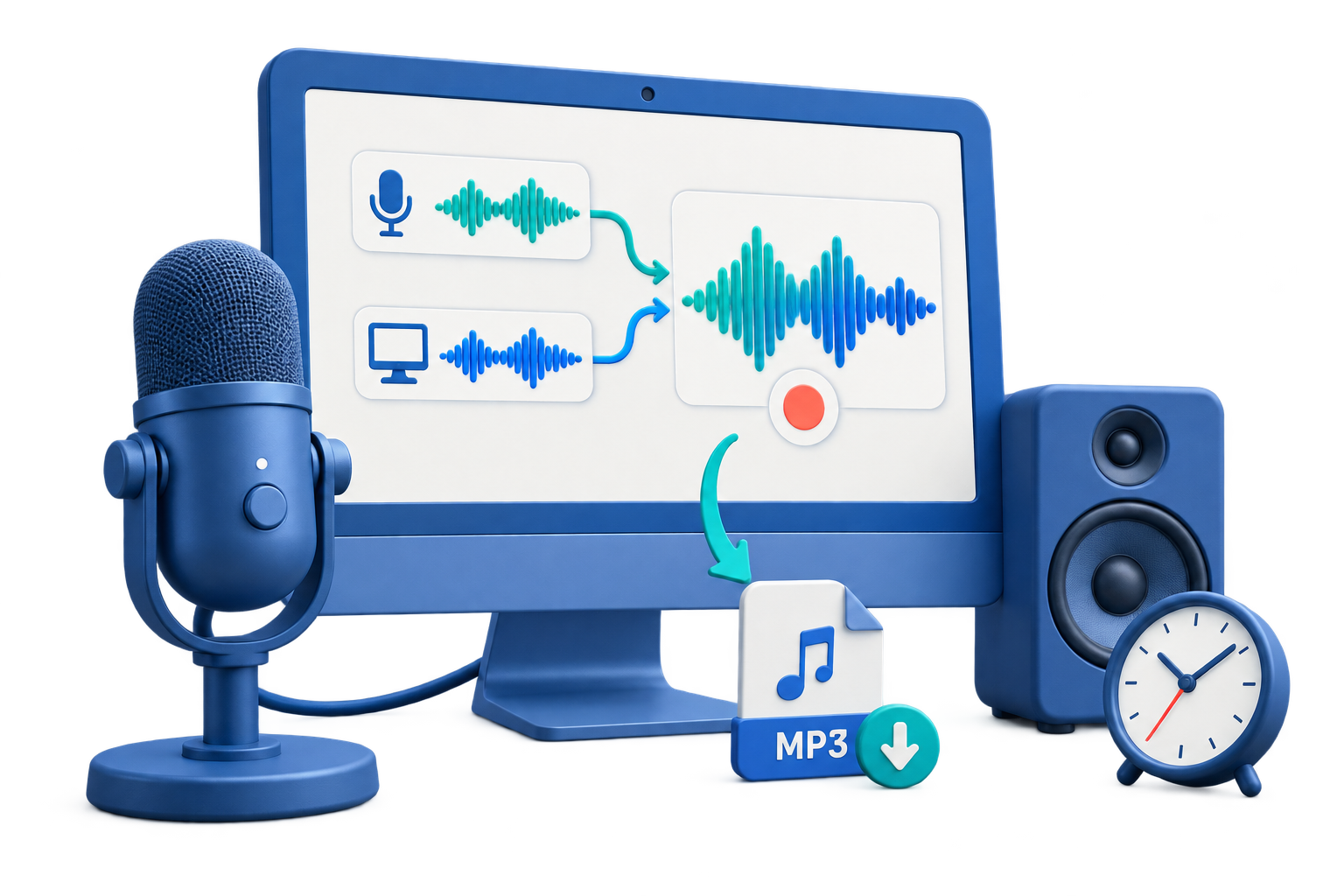
Choose Audio-Only or Screen Recording
| Deliverable | Better tool | Why |
|---|---|---|
| Podcast-style explanation with app sound | Audio Recorder Pro | Creates an audio file without unnecessary video |
| Software tutorial viewers must follow visually | Screen Recorder Pro | Keeps clicks, windows, and narration together |
| Webinar replay needed only for listening | Audio Recorder Pro | Produces a smaller audio-focused file |
| Visual product demonstration | Screen Recorder Pro | The screen is part of the message |
Record Desktop Audio and Voice: Step by Step
Prepare the desktop playback
Open the application or browser and remove unrelated notification sounds.
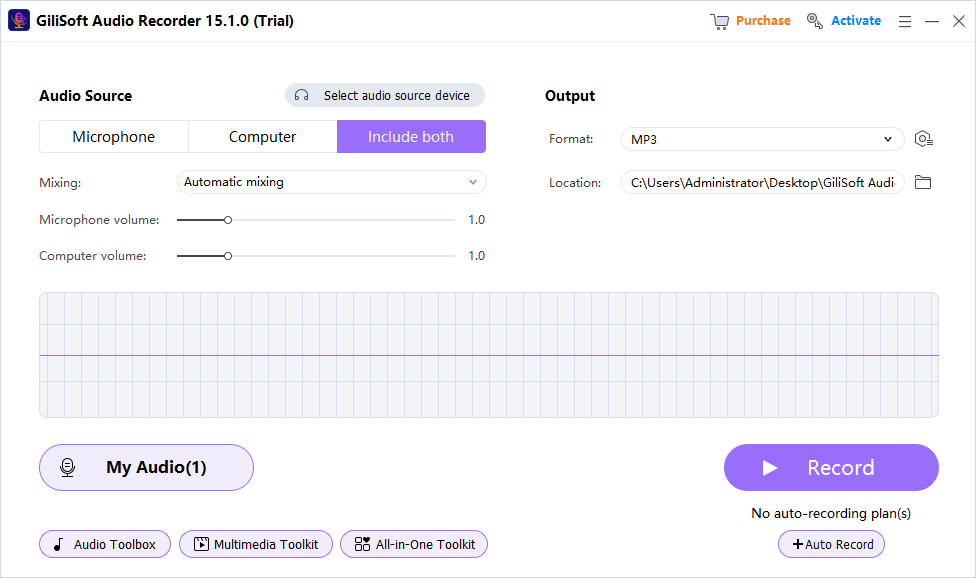
Select computer sound and microphone
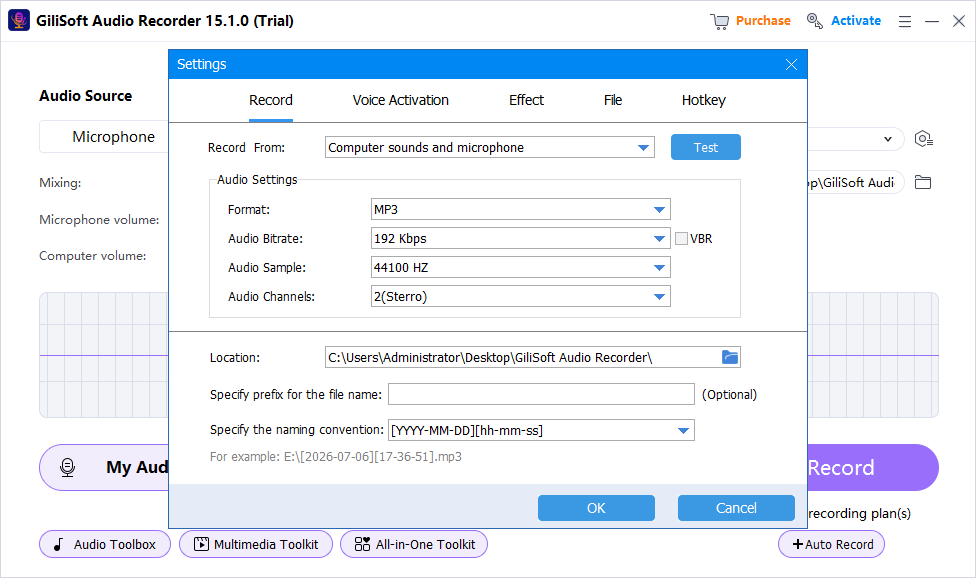
Choose both sources in Audio Recorder Pro and confirm the intended microphone.
Put on headphones
Keep playback from re-entering the microphone and creating echo.
Balance a realistic test
Speak normally while playing the loudest representative desktop audio.
Record the narration
Maintain a steady microphone distance and leave brief pauses around section changes.
Review and name the file
Check both sources, trim only after preserving the original, and use a descriptive filename.
Make Desktop Narration Clearer
Write a short outline
A few section prompts reduce restarts and keep the explanation focused.
Lower background playback
Keep music and application sound below speech whenever they overlap.
Control the room
Move away from fans and hard reflective surfaces and silence phones and alerts.
Record in sections when practical
Shorter segments are easier to review, replace, and organize than one long take.
Troubleshoot Desktop Audio and Voice
- If voice is missing, check the selected input device and Windows microphone permission.
- If desktop playback is missing, confirm Computer Sound and the active output route.
- If voice echoes, use headphones and turn off speaker monitoring.
- If keyboard noise dominates, move the microphone and use quieter input technique.
- If the two sources compete, reduce desktop playback and repeat a short test.
Frequently Asked Questions
Is desktop audio the same as system audio?
In this workflow both mean sound produced by Windows applications rather than sound captured from the room.
Can I record voice without recording the screen?
Yes. Audio Recorder Pro can combine computer sound and microphone into an audio-only recording.
When should I use a screen recorder instead?
Use a screen recorder when viewers need to see clicks, windows, slides, or visual demonstrations.
Why does my narration echo?
Speaker playback is probably entering the microphone. Wear headphones and disable unnecessary monitoring.
Can I edit the two sources separately?
Choose a separated output option before recording when later independent editing is required.
What format is good for spoken audio?
MP3 is convenient for general distribution, while WAV is useful as an uncompressed editing source.
More Windows Audio Recording Guides
Continue with the source, device, or workflow guide that matches the next recording task.