

Can You Remove an Unwanted Person from a Photo?
Yes, but the quality depends on where the person stands, what they cover, and how much matching background is still visible around them.
A small passerby over sky, grass, sand, pavement, a wall, or soft blur can often be cleaned convincingly. A large foreground person covering another face, hand, product, sign, patterned garment, or unique landmark requires much more reconstruction and may need manual retouching or a different source photo.
Evaluate the Person and Background Before Editing
A careful decision before editing saves time and avoids an artificial result. Examine the image at 100% and answer four practical questions.
How much of the frame is covered?
A distant person occupies fewer pixels and usually leaves more usable context. A large person may hide detail that cannot be inferred accurately.
Does the person overlap a keeper?
Hair, faces, hands, clothing, and transparent objects need protected edges. Hidden body detail cannot be recovered exactly from a single flattened image.
Is the background repeatable?
Sky, pavement, walls, grass, sand, and soft blur are more forgiving than crowds, text, railings, architecture, water reflections, or patterned interiors.
What else belongs to the person?
Look for shadows, reflections, bags, raised hands, footwear, footprints, chairs, and gaps the removal may leave among other people.
Check nearby photos before reconstructing pixels
If the photo came from a burst, event sequence, Live Photo, or repeated pose, another frame may contain the real background and a similarly good expression. Choosing that frame is often more accurate than inventing a large missing region.
Choose the Right Way to Remove a Person
| Method | Use it when | Strength | Limitation |
|---|---|---|---|
| GiliSoft MarkEase cleanup | The person is isolated and nearby background can support reconstruction | Keeps the original frame and provides a focused Windows workflow | Cannot recover exact pixels hidden behind the person |
| Crop the image | The person stands entirely on a disposable edge | Fast and uses only authentic remaining pixels | Changes composition, size, and possibly aspect ratio |
| Use another frame | A burst or event sequence contains a cleaner version | Preserves genuine people and background detail | The alternate expression or timing may be weaker |
| Manual clone and heal | The scene contains hair overlap, crowds, architecture, text, or complex perspective | Provides precise source-pixel and edge control | Requires more time and editing skill |
| Retake or replace | The scene can be recreated or a licensed alternative exists | Avoids large invented regions | Often impossible for travel, archives, and one-time events |
How reconstruction works
A flattened image contains the visible result, not a hidden layer behind each person. Adobe's person-removal workflow selects the subject and uses Content-Aware Fill with sampling controls. Microsoft provides local brush and mask controls for Generative Erase and notes that results may not always meet expectations. GIMP's Heal tool uses a selected source and warns that repeated healing can cause smudging.
Editing principles consulted: Adobe person-removal guide, Adobe Content-Aware Fill, Microsoft Generative Erase, and GIMP Heal documentation.
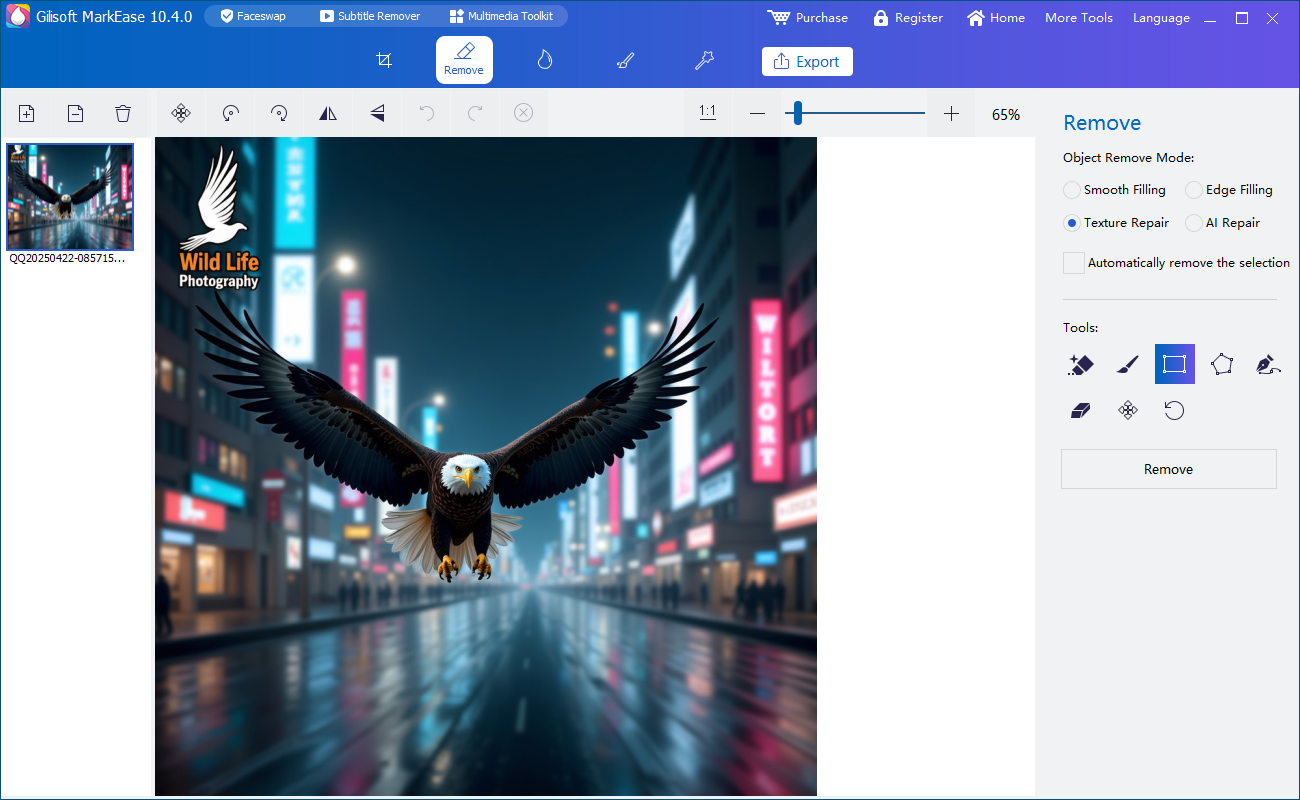
How to Remove an Unwanted Person with GiliSoft MarkEase
Start with one representative image. Do not assume that a setting that works on open sky will also work on hair, crowds, or architecture.
- Open the best authorized sourceUse the original camera file or highest-quality copy. Preserve an untouched version before editing.
- Decide whether removal is the best methodCheck nearby frames and test a crop before reconstructing a large section of the photo.
- Map the complete removal areaIdentify the person, hair, limbs, gaps, shadow, reflection, bags, footwear, and other related traces.
- Select close to the visible boundaryInclude the unwanted pixels while protecting the retained subject and clean background detail.
- Repair different surfaces in separate passesProcess sky, vegetation, pavement, walls, people, and geometric lines separately when their texture or perspective differs.
- Inspect and export a new fileReview the result at 100%, compare it with the source, then save a separate output for web, print, or presentation use.
Test person removal before editing the full album
Download GiliSoft MarkEase for Windows and try one easy photo and one difficult overlapping photo. This shows what the surrounding background can realistically support.
Download MarkEase TrialHow to Handle Different Person-Removal Scenarios
Background passerby
Select the person and related shadow separately. Check pavement, horizon lines, crowd spacing, and repeated background figures.
Person near the frame edge
Compare cleanup with cropping. A clean crop is usually preferable when it preserves the main subject and intended aspect ratio.
Person behind the main subject
Protect hair and shoulder boundaries first. Work outward into the background and inspect for softened or clipped subject edges.
Person within a group
Removing one member may leave unnatural spacing, missing arms, or broken interactions. Another frame or manual retouching is often safer.
Large foreground person
Expect extensive reconstruction. If unique scenery, another body, text, or a product is hidden, choose a different source when possible.
Person in glass or water
Handle the direct figure, reflection, and lighting changes as separate tasks. Reflections may cross surfaces that need different texture and perspective.
When the unwanted person overlaps someone you want to keep
Begin at the shared boundary. Use the smallest practical selection and verify every retained hair strand, finger, face edge, and clothing contour. If the unwanted person covers important anatomy, no automatic tool can recover the exact hidden detail from that single image.
Person Removal Quality Checklist
Stop when the edit changes the truth of the image
Do not remove a person when their presence is important to an event record, public-interest image, safety incident, legal matter, or historical context. Keep the source and label edited copies appropriately when disclosure matters.
Remove Unwanted Person from Photo FAQ
Can any person be removed from a photo?
Not equally well. Small isolated people over repeatable backgrounds are easier than large foreground people covering faces, hands, text, or unique scenery.
Can software recover the exact background hidden behind a person?
No. A flattened image does not contain the covered pixels. The missing region must be reconstructed from visible surroundings or another source photo.
What if the person overlaps someone I want to keep?
Use small selections and protect the retained subject edge. If important face, hair, hand, or clothing detail is hidden, use another frame or a skilled manual editor.
Should I remove the person's shadow and reflection?
Yes, when they clearly belong to the unwanted person. Process them separately when they cross different surfaces or lighting.
Is cropping better than removing a person?
Cropping is often better when the person is near an expendable edge and the new framing still preserves the subject and intended use.
Should I overwrite the source photo?
No. Keep the untouched source and export the edited result as a separate file for recovery and comparison.


