

10 Best Folder Lock and Encryption Tools for Windows 11/10
The phrase “folder lock software” covers several very different kinds of protection. Some tools block access on the current PC, while others encrypt individual files, create portable archives, build private vaults, or protect an entire drive. This guide compares those models so you can choose the right one instead of relying on a misleading feature checklist.
Quick answer
For straightforward privacy on a shared Windows PC, GiliSoft File Lock Pro is the most direct choice because it can lock, hide, monitor, or encrypt selected files and folders. Choose EFS for account-bound Windows encryption, 7-Zip for a portable encrypted archive, Cryptomator for cloud-synced files, VeraCrypt for a reusable encrypted container, and BitLocker when the real goal is protecting an entire drive.
What “folder protection” actually means
Before comparing products, decide what should happen to the data after protection is enabled. A folder that is merely hidden is not equivalent to an encrypted folder, and whole-drive encryption does not stop another signed-in user from opening a folder after Windows has unlocked the drive.
| Protection model | Best for | Main limitation |
|---|---|---|
| Lock or hide | Preventing casual access, changes, or deletion on the current PC | Protection depends on the installed application and Windows environment |
| File or folder encryption | Keeping selected data unreadable without a key | Password and recovery-key handling are critical |
| Encrypted archive | Email, transfer, backup, and infrequently opened folders | Files usually need to be extracted before editing |
| Encrypted container or vault | A reusable private workspace or cloud folder | The vault must be mounted or unlocked before use |
| Whole-drive encryption | Lost or stolen PCs and removable drives | It does not provide folder-by-folder privacy after sign-in |
Best folder lock software at a glance
| Tool | Best use | Protection model | Key tradeoff |
|---|---|---|---|
| GiliSoft File Lock Pro | Everyday privacy on Windows | Lock, hide, monitor, encrypted package | Commercial Windows software |
| Windows EFS | Account-bound NTFS protection | File and folder encryption | Edition, file-system, and key-backup requirements |
| BitLocker | Lost or stolen device protection | Whole-drive encryption | Not a folder-level access control tool |
| VeraCrypt | Private reusable containers | Encrypted volume | More setup and recovery responsibility |
| 7-Zip | Portable encrypted archives | AES-256 7z archive | Less convenient for files edited every day |
| Cryptomator | Cloud-synced private files | Encrypted vault | Designed around vaults, not Windows folder locking |
| AxCrypt | Encrypting individual working files | File-level encryption | A secured folder still encrypts files individually |
| Folder Lock | Cross-device lockers and safeguards | Protected folders and encrypted lockers | Account and plan choices add complexity |
| CryptoForge | Portable encrypted file delivery | File and folder encryption | Recipient workflow differs from a live private folder |
| PeaZip | Free archive-format flexibility | Encrypted archives | More format choices can be less approachable |
1. GiliSoft File Lock Pro: best for direct Windows folder privacy
GiliSoft File Lock Pro fits users who want to protect selected data without moving everything into a new virtual drive. It can lock or hide local files, folders, and drives; restrict reading or writing; monitor folder changes; and package selected content into password-protected GFL or EXE files.
Why it stands out
- Combines access control, hiding, folder monitoring, and encryption in one Windows interface.
- Works with selected folders, external storage, and shared folders instead of requiring whole-drive encryption.
- Offers a practical beginner workflow while retaining separate tools for different protection jobs.
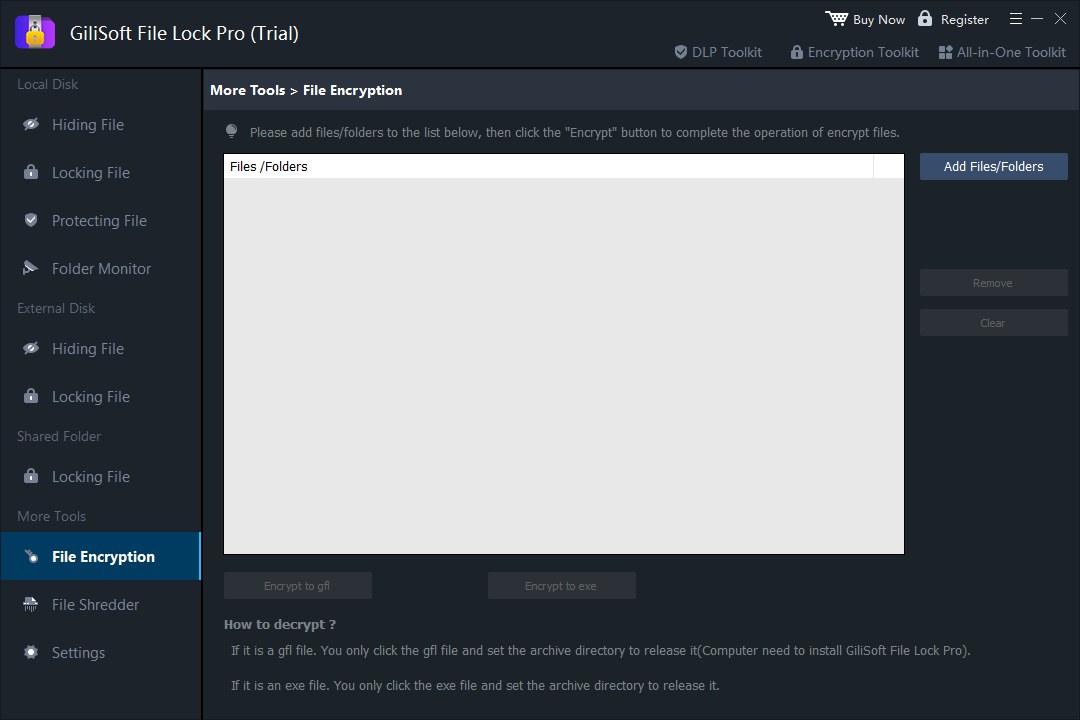
How to encrypt a folder with GiliSoft File Lock Pro
- Open File Encryption
Launch File Lock Pro, open More Tools, and choose File Encryption.
- Add the folder
Select Add Folders, browse to the folder you want to protect, and confirm the selection.
- Choose the output type
Use GFL for a GiliSoft encrypted package or EXE when the recipient needs a self-decrypting Windows package.
- Set a strong password and save
Choose the destination, complete encryption, and verify that the protected package opens before removing any original copy.

2–3. Built-in Windows options: EFS and BitLocker
2. Windows Encrypting File System (EFS)
EFS encrypts individual files and directories on NTFS volumes using credentials tied to a Windows user. It is useful when multiple Windows accounts share a PC and one user needs account-level separation. Availability depends on the Windows edition, and the encryption certificate must be backed up before hardware, account, or Windows changes make recovery difficult.
Choose it when: you want a built-in, transparent workflow for selected files on a compatible Windows edition. Skip it when: the folder must travel between PCs or be opened by people who do not share your Windows certificate.
3. BitLocker
BitLocker protects an operating-system, fixed-data, or removable drive against offline access. It is valuable if a laptop or disk is lost, stolen, or removed from its original computer. Once an authorized user signs in and Windows unlocks the drive, however, BitLocker does not act as a separate password prompt for one folder.
Choose it when: the threat is physical loss of a PC or drive. Combine it with: EFS or a dedicated folder tool when users who share the unlocked PC need different access.
4–6. Encrypted containers, archives, and cloud vaults
4. VeraCrypt
VeraCrypt creates an encrypted file container that mounts as a virtual disk, and it can also encrypt partitions or devices. The entire file system inside the volume, including file and folder names, remains encrypted while the volume is closed. It is powerful and free, but setup, mounting, backups, and password recovery demand more care than a simple folder-locking tool.
5. 7-Zip
7-Zip is a strong free choice for turning a folder into a portable encrypted archive. The 7z format supports AES-256 encryption and can hide file names when header encryption is enabled. It works especially well for backups and files that will be sent or stored, but repeatedly extracting and rebuilding an archive is awkward for a folder edited throughout the day.
6. Cryptomator
Cryptomator creates an encrypted vault whose encrypted files can live inside Dropbox, OneDrive, or another synced folder. The unlocked vault behaves like a drive in the file manager, while names and directory structure remain encrypted in storage. It is a better match for cloud privacy than for blocking another local Windows user from one ordinary folder.
7–10. File encryption and archive alternatives
7. AxCrypt
AxCrypt focuses on individual encrypted files. Its secured-folder workflow monitors a selected folder and secures files added to it, but each file remains an individually protected object. That model suits documents that are edited and shared separately rather than a single locked folder tree.
8. Folder Lock
Folder Lock combines protected folders, encrypted lockers, portable lockers, and cross-device features. It is a broad commercial alternative for users who want encrypted storage plus related privacy tools. Review which functions belong to the free and paid plans before building a long-term workflow around it.
9. CryptoForge
CryptoForge encrypts files and folders for storage or delivery and includes compression, filename encryption, and a portable decrypter workflow. It is a useful option when encrypted files must move through email, cloud storage, network shares, or USB media. It is less direct when the goal is simply to hide a working folder on the current PC.
10. PeaZip
PeaZip is a free archive manager with support for several encrypted archive formats, including AES-256 options. It gives experienced users more control over formats and compatibility than a one-purpose locker, but beginners must choose the archive format and encryption settings carefully.
Which folder protection tool should you choose?
- Shared PC, selected private folders: GiliSoft File Lock Pro.
- Windows account separation on NTFS: EFS, with the encryption certificate backed up.
- Lost laptop or removable drive: BitLocker or device encryption.
- Reusable private virtual drive: VeraCrypt.
- Email attachment or offline archive: 7-Zip, PeaZip, or CryptoForge.
- Cloud-synced confidential folder: Cryptomator.
- Individually encrypted working files: AxCrypt.
Frequently asked questions
What is the difference between locking and encrypting a folder?
Folder locking controls access and visibility on the current PC. Encryption converts data into unreadable ciphertext and is the better choice when files may be copied, uploaded, or carried on removable storage.
Does Windows 11 include folder encryption?
Windows supports EFS for file and folder encryption on eligible editions and NTFS volumes, while BitLocker protects an entire drive. Neither provides the same workflow as a dedicated folder-locking application.
What is the best free way to password-protect a folder?
For files that can be packaged into an archive, 7-Zip is a practical free option. VeraCrypt is better when you want a reusable encrypted container. Both require careful password and recovery-key management.
Which option is easiest for everyday folder privacy on a shared Windows PC?
A dedicated tool such as GiliSoft File Lock Pro is easier when you need to lock, hide, monitor, or encrypt selected folders without encrypting an entire drive.
Can encrypted folders be recovered if the password is lost?
Usually not. Strong encryption is designed to resist access without the password or recovery key. Keep recovery information separate from the protected files and test access before deleting an unencrypted original.