

Top 5 Best File Locker Software for PC Windows 11/10
The best file locker depends on whether you need routine access control, reduced visibility, encrypted output, portable archives, or a broader privacy suite. This comparison separates those jobs so you can test the right workflow instead of choosing by a feature count alone.
Quick answer
GiliSoft File Lock Pro is our best overall choice for Windows users who want locking, hiding, encrypted output, secure deletion, and folder monitoring in one local utility. Folder Lock suits users wanting a broader locker and privacy suite; WinZip is strongest for encrypted archive copies; IObit Protected Folder emphasizes straightforward access restrictions; Wise Folder Hider is a simpler visibility-focused option.
How we compared these file locker options
This page is published by GiliSoft, and GiliSoft File Lock Pro is our own product. We rank it first because it covers the broadest set of local file-protection jobs in this comparison. The same practical criteria are applied to every option:
- Protection type: locking, hiding, encryption, or protected archive output.
- Daily workflow: whether files stay in place or must be copied into another container.
- Windows fit: stated compatibility and the need to verify current Windows 11 behavior.
- Recovery planning: password handling, backup, and restoration after software or system changes.
- Portability: whether protected data must work on another PC or only on the current installation.
Quick comparison of the five file lockers
| Software | Best fit | Protection approach | Check before choosing |
|---|---|---|---|
| GiliSoft File Lock Pro | Broad local file, folder, and drive protection | Locking, hiding, encryption, shredding, and monitoring | Choose the correct mode; locking and encryption are different |
| Folder Lock | Users wanting lockers plus a wider privacy suite | Encrypted lockers, protected folders, wallets, shredding, and cloud-oriented workflows | Decide whether the suite is more than your task requires |
| WinZip | Creating protected archive copies for storage or sharing | Password-protected ZIP or ZIPX archives with available AES options | It creates an archive workflow rather than locking the original folder in place |
| IObit Protected Folder | Simple hide, deny-read, and deny-write controls | Access restrictions applied to selected files and folders | Its product page lists older Windows support; test current Windows 11 compatibility |
| Wise Folder Hider | Basic hiding and privacy for local files | Visibility-focused protection with features varying by edition | Confirm whether hiding or encryption is required for your threat |
1. GiliSoft File Lock Pro: best overall local protection
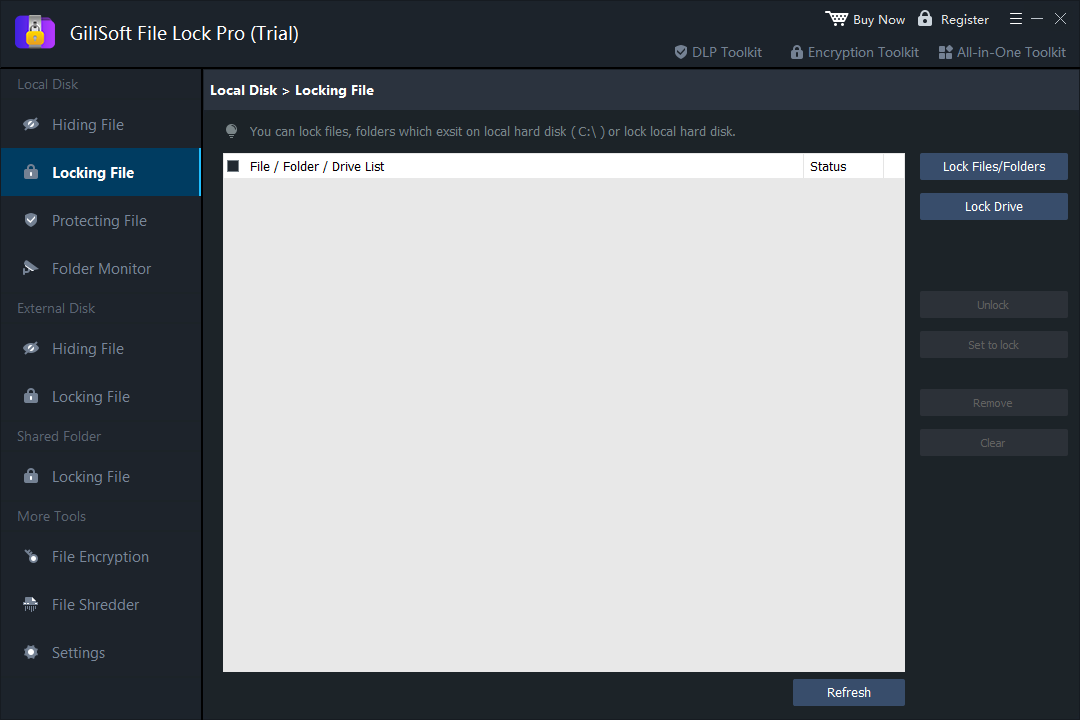
File Lock Pro is the strongest fit when one Windows PC needs several protection modes without moving every item into an archive. It can lock or hide selected files, folders, and supported data drives, create encrypted output, shred files, and monitor folder activity.
Why it ranks first
- Multiple local protection modes in one interface.
- Separate controls for local disks, external disks, and shared-folder scenarios.
- Folder monitoring and activity records complement access protection.
- Encrypted output and secure deletion cover tasks beyond simple hiding.
What to watch
Use the mode that matches the risk. Hiding reduces normal visibility, locking controls routine access, and encryption creates cryptographic protection. Keep a separate backup and test recovery before removing any original file.
Lock a folder with File Lock Pro
- Back up the folder.
Keep a verified copy on separate controlled storage.
- Set the master password.
Install File Lock Pro and store approved recovery information away from the protected PC.
- Open Locking and choose Lock Folder.
Select the intended path and close files currently in use.
- Apply and test.
Confirm locked access is blocked, then unlock and verify representative files.
2. Folder Lock: best for a broader privacy suite
Folder Lock combines encrypted lockers with protected folders, wallets, shredding, history cleaning, and cloud-oriented workflows. It fits users who want a larger privacy suite rather than only an in-place folder lock.

Best fit: users who want encrypted storage containers and adjacent privacy features. Consider first: whether a multi-feature suite adds useful capability or unnecessary complexity for a simple folder-locking task.
3. WinZip: best for password-protected archive copies
WinZip is an archive and sharing tool rather than a conventional in-place folder locker. Its encryption workflow is useful when files should be compressed into a separate password-protected ZIP or ZIPX copy for storage or transfer.

Best fit: packaging files into protected archive copies. Consider first: changes to the original folder are not automatically reflected in an archive you created earlier; rebuild and verify the protected copy when contents change.
4. IObit Protected Folder: best for simple access restrictions
IObit Protected Folder focuses on hiding selected items and denying read or write access. Its drag-and-drop model may suit users who want fewer protection modes than a broader security suite.
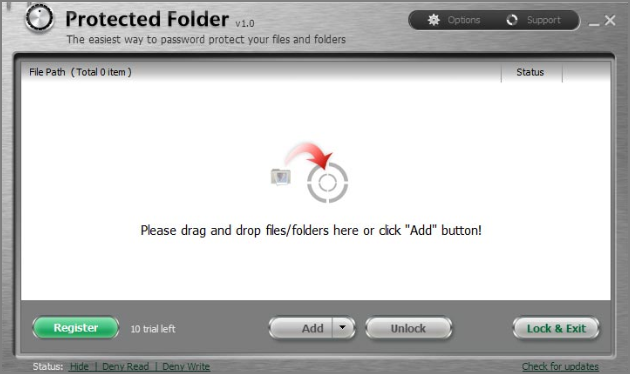
Best fit: straightforward hide, read-block, or write-block controls. Consider first: the current official product page lists support through Windows 10, so verify the trial on the exact Windows 11 build and workflow before protecting important data.
5. Wise Folder Hider: best for basic hiding
Wise Folder Hider is oriented toward keeping local files and folders out of normal view. It may suit a lighter privacy task when the primary goal is reducing casual visibility rather than building a broader protection workflow.

Best fit: basic hiding on a supported Windows PC. Consider first: hiding, access locking, and encryption address different threats. Confirm the feature set in the edition you install and test restoration after a restart.
How to choose the right file locker
| If you need to... | Start with... | Why |
|---|---|---|
| Lock, hide, encrypt, shred, and monitor local items | GiliSoft File Lock Pro | It covers the broadest local workflow in this comparison |
| Use encrypted lockers plus privacy and wallet tools | Folder Lock | Its design centers on lockers and a larger privacy suite |
| Send or store a separate encrypted archive | WinZip | Archive creation and sharing are its core workflow |
| Apply simple hide, read, or write restrictions | IObit Protected Folder | Its controls focus on selected-item access |
| Reduce casual visibility with a lighter tool | Wise Folder Hider | Its main use case is hiding local content |
Questions to answer before installing
- Must files remain in their original folder, or is a separate encrypted copy acceptable?
- Will the protected content be used only on this PC or carried to another computer?
- Do you need hiding, access blocking, encryption, monitoring, or secure deletion?
- Can you restore the files if the password, software installation, or Windows profile is lost?
- Has the exact workflow been tested on your current Windows 11 or Windows 10 build?
File locker software FAQ
What is the best file locker for Windows 11?
The best fit depends on the task. GiliSoft File Lock Pro is the broadest option in this comparison for locking, hiding, encrypting, shredding, and monitoring selected local files, folders, and drives in one Windows utility.
Is file locking the same as encryption?
No. Locking controls access through software, hiding reduces normal visibility, and encryption transforms content into unreadable data without the required key. Choose according to the threat and where the files will travel.
Can Windows 11 password protect a normal folder by itself?
Windows does not provide a simple separate-password button for an ordinary folder. Account permissions, supported device encryption, and third-party folder protection tools address different scopes.
Should I use a locker or an encrypted archive?
Use a locker for repeated access to files that remain in place. Use an encrypted archive or encrypted output when you need a separate protected copy for storage or transfer.
What should I test before choosing file locker software?
Test locked and unlocked access, restart behavior, file recovery, backup restoration, current Windows compatibility, and the exact workflow you need. Never remove the only original copy during a trial.