
GiliSoft Video Editor Pro

Edit, cut, enhance, subtitle, and export videos on Windows

Create social clips, training videos, demos, tutorials, family videos, and business media with timeline editing, trimming, joining, subtitles, overlays, watermark tools, chroma key, AI matting, color adjustment, audio tools, and flexible export.

  • Timeline video editing
  • Cut, join, split, crop
  • Subtitles and watermarks
  • AI matting and effects
Video Editor Pro

Video Editor Pro for Windows Video Production

GiliSoft Video Editor Pro is a Windows video editor for creators, educators, marketers, trainers, and small teams that need practical video editing without moving every task into a heavy studio application. It helps you turn raw recordings, phone footage, downloaded clips, screen captures, slides, and audio material into cleaner finished videos for social media, training, tutorials, product demos, family projects, and business delivery.

Use it to cut and join clips, crop frames, adjust color, add subtitles, apply watermarks, create picture-in-picture scenes, remove or replace backgrounds, edit audio, convert video to GIF, stabilize shaky footage, compress large files, and export videos in common formats. The goal is to keep common editing, enhancement, subtitle, audio, and export tasks in one approachable Windows video editor.

For macOS users, see Video Editor Pro for macOS. For Android users, see Video Editor for Android.

Core Video Editing Features

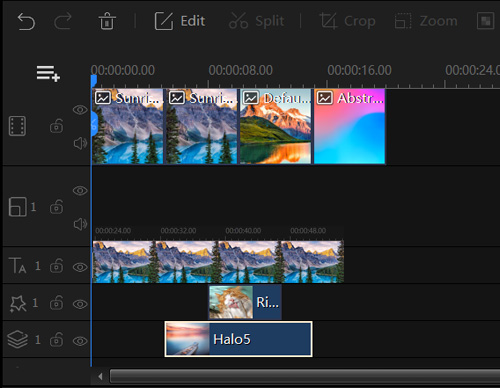
Timeline Video Editing and Movie Making

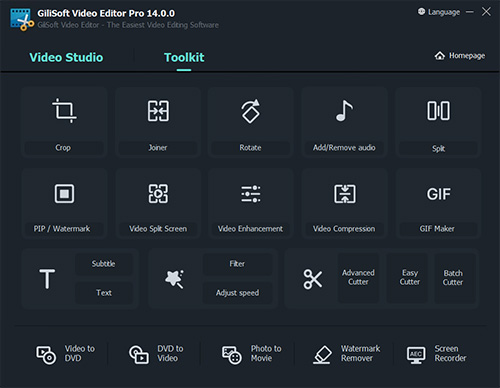
Import video, images, and audio, then edit with timeline tracks, picture-in-picture layers, filters, overlays, text, transitions, and music. Preview changes and export to MP4, AVI, WMV, MKV, MOV, and other common formats.

Video Cutting and Trimming

Cut unwanted sections, trim the start or end of a clip, and keep only the useful moments. Use it for tutorials, social videos, lessons, demos, and other edits that need cleaner timing.

Video Merger and Video Joining

Combine multiple clips into one video, add transitions between scenes, and choose the final output format. Use it for event highlights, product demos, lessons, and videos built from several source clips.

Video Splitting and Slicing

Split long recordings into shorter clips by time, file size, or manual split points. This helps with webinars, lectures, screen recordings, and social clips that need smaller versions.

Split-Screen and Video Collage Layouts

Create split-screen videos and collages with clips, images, GIFs, and music. Use layout tools for comparison videos, reaction edits, product walkthroughs, event recaps, and multi-angle presentations.

Remove Logo or Watermark from Videos

Clean up unwanted date stamps, logos, static marks, or distracting areas from authorized video material. Use it for your own footage, screen recordings, or licensed content that needs a cleaner final edit.

Add Watermarks, Subtitles, Text, and Stickers

Add branding, captions, subtitles, labels, and sticker-style elements to video projects. ASS and SRT subtitle support helps you position text, adjust style, and preview timing before export.

Add Dubbing and Music to Video

Add background music, narration, voiceover, and sound effects while keeping original audio under control. This helps tutorials, demos, lessons, and social clips feel more complete.

Add Mosaic and Blur over Video

Add mosaic and blur effects to hide sensitive information. For example, you can blur faces, license plates, or confidential on-screen details with adjustable mosaic regions.

Video Filters and Special Effects

Apply filters, visual effects, contrast changes, and color adjustments for a more polished look. Effects help social clips, promotional edits, and training videos feel clearer.

Video Color Adjust

Adjust brightness, contrast, saturation, vignette, fade, and other visual settings before publishing. Use these controls to make inconsistent lighting and color feel more balanced.

Change Aspect Ratio/Video Background

Change aspect ratios for 16:9, 9:16, 4:3, 1:1, and other common formats. Use background, fit, and chroma key tools when adapting one video for different channels.

Reverse Video or Audio

Reverse playback can create eye-catching highlights. You can reverse video only, mute original sound, or reverse audio together for creative effects.

Convert Video to GIF & GIF Maker

If you already have a great short clip, convert it into an animated GIF for looping playback. GIF Maker can also create animated banners and slideshows from image sequences.

Audio Recorder & Audio Editing

Record audio, edit audio tracks, mute sound, add fade-in and fade-out effects, change speed, reverse audio, or adjust voice style. These tools help narration, music, and source sound fit the final video more naturally.

Video Compressor & Converter

Compress large videos, change resolution, adjust quality, and convert output formats for upload, sharing, archiving, or client delivery. Presets help balance file size, speed, and playback quality.

Rotate and Flip Video

Fix sideways or upside-down footage, rotate clips to the correct orientation, and flip video horizontally or vertically when a camera angle needs correction before publishing.

Video Cropper

Crop unwanted edges, remove black bars, reframe large videos for smaller screens, and prepare clips for different display sizes. Cropping can be combined with titles, effects, and other editing controls.

Video to Audio

Extract audio from video files when you need narration, music, interview sound, or reference audio as a separate file for editing, reuse, or review.

Video Enhancer

Improve footage with enhancement controls that can adjust brightness, recover visual detail, and make dull or inconsistent clips look clearer before export.

Video Stabilizer

Reduce shaky motion in handheld or mobile-shot footage so training clips, travel videos, product demos, and informal recordings feel steadier and easier to watch.

2D Video to 3D Converter

Convert 2D video to 3D-style output and choose common 3D modes such as anaglyph, side-by-side, and top-bottom layouts when a project needs special display effects.

Video Downloader

Save online video sources for later editing when you have the right to use the material. Downloaded clips can then be cut, converted, subtitled, enhanced, or combined with other project media.

Beat Video Maker

Create music-driven edits by cutting clips to a beat, adding effects, syncing audio and visual changes, and preparing short videos for social posts, event recaps, or promotional reels.

Video Beauty

Use beauty tools to soften skin, reduce blemishes, brighten facial details, and make presenter-focused video look more polished while keeping the overall edit natural.

PPT to Video, Doc to Video

Convert PowerPoint presentations and document-based material into video for training, sales, education, and internal communication. Add narration or supporting media so the result can be shared as a normal video file.

AI Frame Interpolation

Use frame interpolation to make low-frame-rate footage look smoother. It can help with older recordings, action clips, animation footage, and videos that need more fluid motion before final export.

Video to SRT, Audio to SRT

Extract or prepare subtitle text from video and audio sources for accessibility, translation, editing, or review. SRT output helps teams keep captions editable outside the main video project.

AI Video Matting and Chroma Key

Use AI video matting and chroma key to separate subjects from backgrounds for cleaner compositing. Chroma key is fast for green-screen projects, while AI matting helps in more complex edge scenarios.

Beauty Camera

Apply beauty enhancements such as skin smoothing, blemish reduction, and facial detail adjustments to improve on-camera presentation in videos.

Testimonials

Video Editor Pro helped us shorten production cycles for social campaigns with faster cut, subtitle, and export projects.

- Olivia M., Creative Operations Lead

The timeline tools are easy for new editors, and output quality remains consistent across different delivery formats.

- Kevin T., Studio Systems Administrator

Cutting, joining, and speed control made it much easier to prepare short-form video versions from long recordings.

- Rachel P., Content Production Manager

Chroma key and matting features saved us time when producing training videos with custom branded backgrounds.

- Daniel K., Media Production Administrator

Subtitle and watermark controls are practical for multilingual releases and protected client-facing video assets.

- Brian C., Post-production Specialist

The all-in-one toolset reduced app switching and made our day-to-day editing process noticeably smoother.

- Megan S., Operations Manager

Color adjustment controls helped us fix uneven lighting without moving the project into a separate grading app.

- Aaron W., Video Team Lead

Blur and mosaic tools are useful when compliance videos need sensitive details hidden before publishing.

- Sophia N., Compliance Media Coordinator

GIF export and short-clip slicing help us turn long webinars into social snippets and help-center animations.

- Marcus L., Digital Content Specialist

Stabilization and enhancer tools improved handheld training footage enough for internal release.

- Emily R., Learning Experience Producer

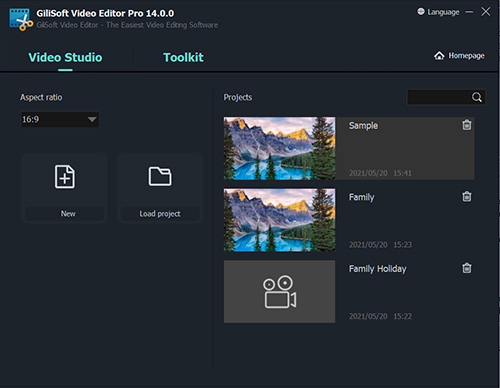
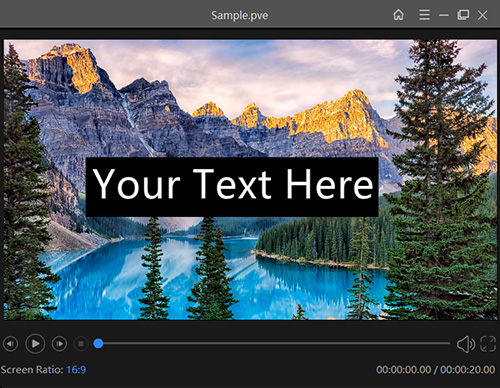
GiliSoft Video Editor Pro Screenshots

Video Editor Pro main editing interface
Main editing interface
Video Editor Pro cutting tools
Cut and trim clips
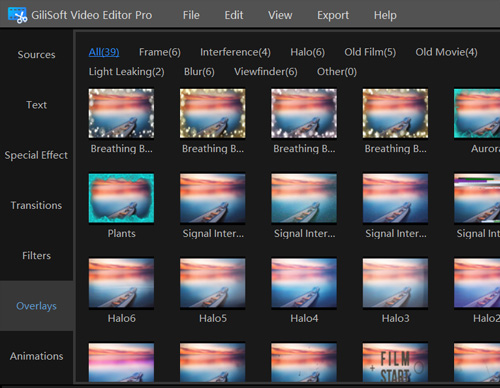
Video Editor Pro effects and overlays
Effects and overlays
Video Editor Pro export settings
Export settings
Video Editor Pro subtitle and audio tools
Subtitle and audio tools

Top How-to Guides

Who Is This For?

Creators who need one editor for daily production

Use Video Editor Pro when one process needs trimming, joining, subtitles, overlays, effects, and flexible export without splitting the project across many small tools.

Teams preparing demos, tutorials, and training videos

It fits social, product, and internal communication videos where screen captures, narration, subtitles, branding, and cleaner delivery all matter.

Editors repurposing long footage into shorter versions

Use it when recordings need to become short clips, GIFs, reels, lessons, or aspect-ratio variants for different channels.

Windows users who want more than a basic cutter

Video Editor Pro is a stronger fit when simple trim tools are not enough and the project needs effects, color, subtitles, audio, and export control too.

Why Choose GiliSoft Video Editor Pro?

One process for editing, subtitles, overlays, and audio

It combines trimming, joining, subtitles, mosaic, blur, dubbing, transitions, and export preparation in one editor instead of forcing app switching.

Built for both fast edits and polished exports

Quick clip cleanup and fuller production tasks can stay in the same product, which makes it practical for both daily work and more presentable delivery.

Supports modern creator and business video tasks

Aspect-ratio changes, subtitles, overlays, chroma key, GIF export, and cleaner compression projects make it useful for social, training, and product content.

Keeps broad editing control approachable on Windows

It gives users more room than a single-purpose tool without forcing them into a much heavier professional editing stack first.

Common Video Editing Use Cases

Cut, join, crop, and split video in one place

Prepare shorter versions, remove unwanted sections, merge clips, or change framing when long recordings need more practical final output.

Video Cutter | Video Joiner | Video Splitter | Video Cropper | Trim and Edit Video on Windows

Add subtitles, text, and visible branding

Use subtitle, text, and watermark tools when publishing videos needs on-screen guidance, ownership marks, or more accessible delivery.

Add subtitle to video | Add watermark to video | ClipMark | Subtitle Video Editor for Windows | Add Music to Video on Windows | Video Editor with Text and Music

Create social, training, and product-ready edits

Prepare customer demos, social clips, explainers, lessons, and internal walkthroughs with one editing process that also handles ratio, music, and subtitles.

Slideshow Maker | Screen Recorder Pro | Video Converter | Video Editor for Windows 11 | Video to GIF Maker | Edit Training Videos on Windows | Edit Product Demo Videos | Make Social Video Clips on Windows | Business Video Editor for Windows | Video Editor for YouTube Videos | Video Editor for Tutorial Videos | All-in-One Video Editor for Windows

Enhance footage before final export

Apply filters, color adjustment, stabilization, enhancer tools, blur, mosaic, and other visual cleanup before sending the final version out.

Video Effect | Video Rotation | Watermark Remover | Video Effects Software | Chroma Key Video Editor | Video Editor with Transitions and Effects

Video Editor Pro FAQ

What is Video Editor Pro best for?

Video Editor Pro is best for users who want one Windows editor for trimming, joining, subtitles, overlays, effects, audio work, and export preparation in the same process. It also fits users searching for a video editor for Windows 11, practical video effects software for Windows, or an all-in-one video editor for Windows.

Can Video Editor Pro handle both quick edits and more polished output?

Yes. It fits both quick trimming and joining tasks and broader editing projects with transitions and effects, subtitles, color adjustment, overlays, and final export control.

Does it fit social, training, and business video projects?

Yes. It can be used for social clips, demos, training content, YouTube videos, tutorial videos, internal communication videos, and customer-facing business exports, including subtitle-heavy edits and music-supported edits.

Can Video Editor Pro also fit GIF and chroma-key projects?

Yes. It can support lighter video-to-GIF work as well as chroma-key editing when users need short social assets, presenter overlays, or green-screen composites.

How is Video Editor Pro different from a simpler single-purpose tool?

Single-purpose tools focus on one task such as trimming or subtitle work, while Video Editor Pro combines editing, overlays, subtitles, effects, audio handling, and export preparation in one process.

Media Review

Editors highlighted practical timeline projects for cutting, subtitles, overlays, and effects. Coverage noted a useful balance between fast operation and more detailed editing control.

Write-ups emphasized that Video Editor Pro can stay approachable while still covering the broader editing tasks needed for social, training, and business video production.

Reviewers praised consistent output quality across social, training, and marketing formats. Lab observations mentioned stable rendering with common codecs and aspect ratios.

The overall impression was that the editor can handle daily production tasks well when users need more than a simple clip tool but do not want an overly complex process.

Independent write-ups described the editor process as efficient for iterative revisions and multi-version delivery. Commentary emphasized predictable results across repeated export cycles.

Coverage also noted that the software can help users move from raw clips to more polished branded outputs without always splitting the work across many separate utilities.

SPECIAL OFFER | MEGA SALE
#1 Multimedia Toolkit Suite
11 Video Tools in Ultimate Multimedia Bundle