
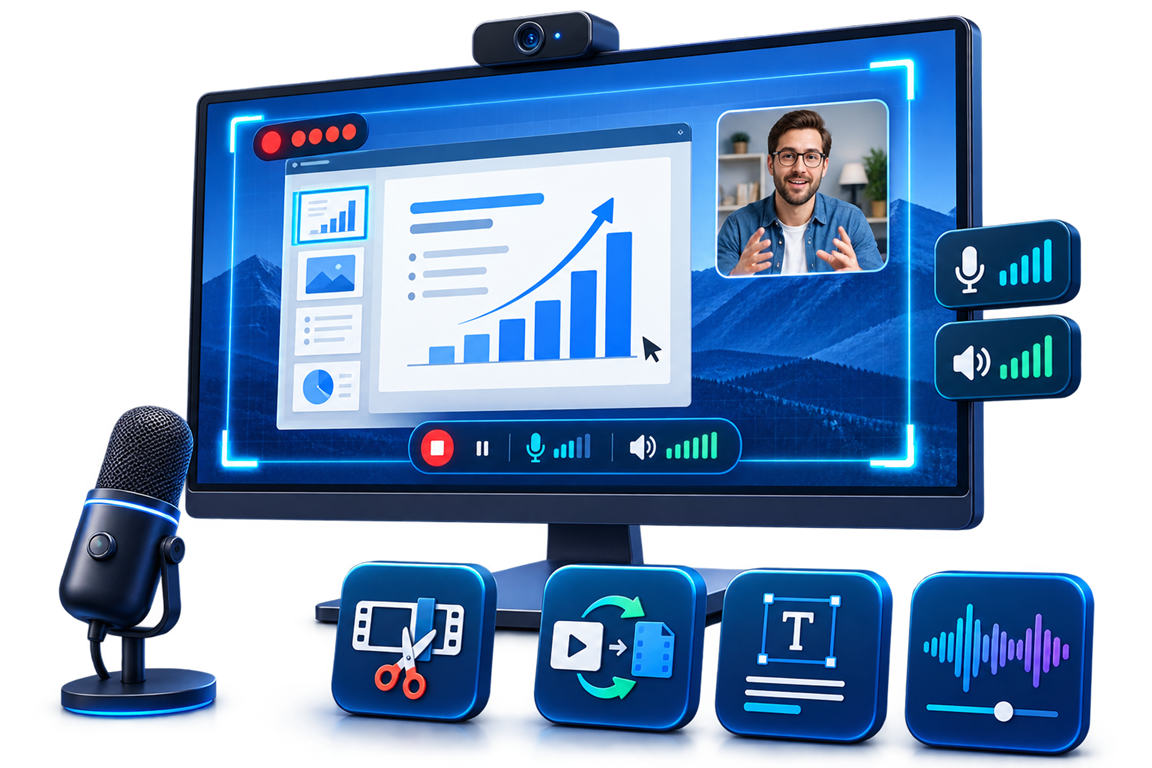
When You Need System Audio Instead of Microphone Audio
System audio is the sound produced by Windows and running applications. It is different from microphone input, which captures a voice and the physical room around it.
| Audio setup | Best for | Why choose it |
|---|---|---|
| Computer sound only | Webinars, browser playback, games, and application audio | Avoids room noise and unnecessary microphone input |
| Computer sound + microphone | Narrated demonstrations, lessons, and troubleshooting | Combines application output with live explanation |
| Microphone only | Commentary where internal playback is not relevant | Keeps the recording focused on the speaker |
Record Screen and System Audio on Windows: Step by Step
Open the content and set its volume
Prepare the application, webinar, or media before recording. Use a moderate playback level and disable unrelated notification sounds.
Choose the screen area
Select full screen, one window, or a region that contains all menus and dialogs viewers need to follow.
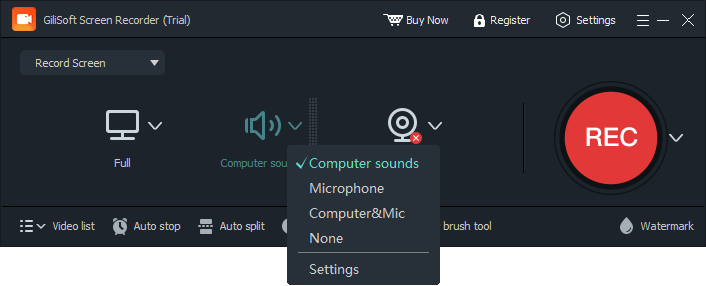
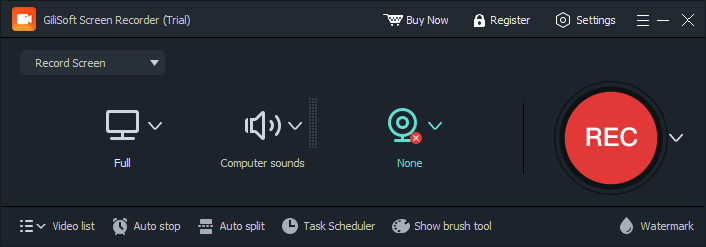
Enable Computer Sound
Turn on the computer-audio source. Add Microphone only for narration, and use headphones when both sources are active.
Test, record, and review
Capture a short sample with real playback, listen for silence or distortion, then record the full session and review synchronization.
System Audio Recording Checklist
Check the Windows volume mixer
Confirm that the target application is not muted and that its level is appropriate before recording.
Avoid notification interruptions
Use Do Not Disturb or close unrelated applications so alerts do not become part of the finished recording.
Respect protected playback
Some services or protected media may block capture or produce a black or silent result. Record only content you are authorized to capture.
Keep a local test sample
A short test reveals missing audio, clipping, or synchronization issues before they affect a long session.
If System Audio Is Silent in the Recording
- Confirm that Computer Sound is enabled rather than Microphone only.
- Play audio before starting the test and verify the target application is not muted.
- Check the Windows output device if sound is being sent to a disconnected headset, monitor, or Bluetooth device.
- Try another capture mode when protected playback or graphics acceleration produces a silent or black result.
- Restart the target application and recorder after changing audio devices.
Frequently Asked Questions
What is system audio?
System audio is sound played by Windows and applications, such as browser playback, webinar speech, software alerts, or game sound.
Can I record system audio without a microphone?
Yes. Enable Computer Sound and leave Microphone off when the video only needs internal playback.
Can I record system audio and narration together?
Yes. Enable both sources, use headphones, and test their relative levels before the full recording.
Why is the recorded system audio silent?
Computer Sound may be disabled, the application may be muted, the wrong Windows output device may be active, or protected playback may prevent capture.
Can I record a webinar with its audio?
Technically, the screen and computer audio can be captured when the application permits it. Make sure you have permission to record and distribute the session.
Why does the recording contain notification sounds?
System audio captures computer output. Silence notifications and close unrelated applications before starting an important recording.
More Screen Recording Guides
Continue with the recording setup or troubleshooting guide that matches the next task.