
How to Recover Files After Emptying the Recycle Bin
The Recycle Bin is empty, but you now need one of the files you removed. Windows no longer offers its normal Restore action for that item. Start with retained copies, then consider a scan of the storage where the file originally lived.
Quick answer
Stop writing to the affected drive. Check existing File History, cloud, or external backups. If no usable copy remains, open Recycle Bin Recovery in GiliSoft Data Recovery and select the pre-deletion location. Scan, review supported previews, and recover selected files to another physical drive. Emptying the bin does not guarantee either recovery or total erasure.
Stop Activity That Could Overwrite the Files
After the bin is emptied, storage occupied by deleted content can be reused. Downloading several recovery programs onto that same drive can reduce the chances of retrieving what was there.
- Keep the installer, installation, and recovered output off the affected device.
- Do not run disk cleanup, drive optimization, free-space wiping, or file-system repair as recovery steps.
- If the files were on C:, minimize normal PC use. Windows may write to C: even when you save to another device.
- For irreplaceable system-drive files, consider shutting down and getting qualified help with recovery from another computer.
Check Backups Before Running a Scan
File History or another backup
If File History protected the folder before deletion, connect its backup drive. Open Control Panel > System and Security > File History > Restore personal files, locate a version from before deletion, and restore to a separate destination where available.
You can also inspect the original parent folder's Properties > Previous Versions for available backed-up copies. Turning backup on now does not recreate an earlier version.
OneDrive's web recycle bin
For files stored in OneDrive, sign in to the correct account on the web and check Recycle bin. Select a retained item and choose Restore. The Windows bin and web bin are different recovery locations. Work or school users can ask their administrator about retained copies.
Other copies you already have
Check external backups, email attachments, shared project copies, and earlier exports. Verify the date and contents. If files were on the system drive, check cloud copies from another device to avoid extra PC activity.
Recover Files with GiliSoft Recycle Bin Recovery
Use this route if no suitable backup remains and the source storage is healthy and readable. Prepare another physical drive for recovered output.
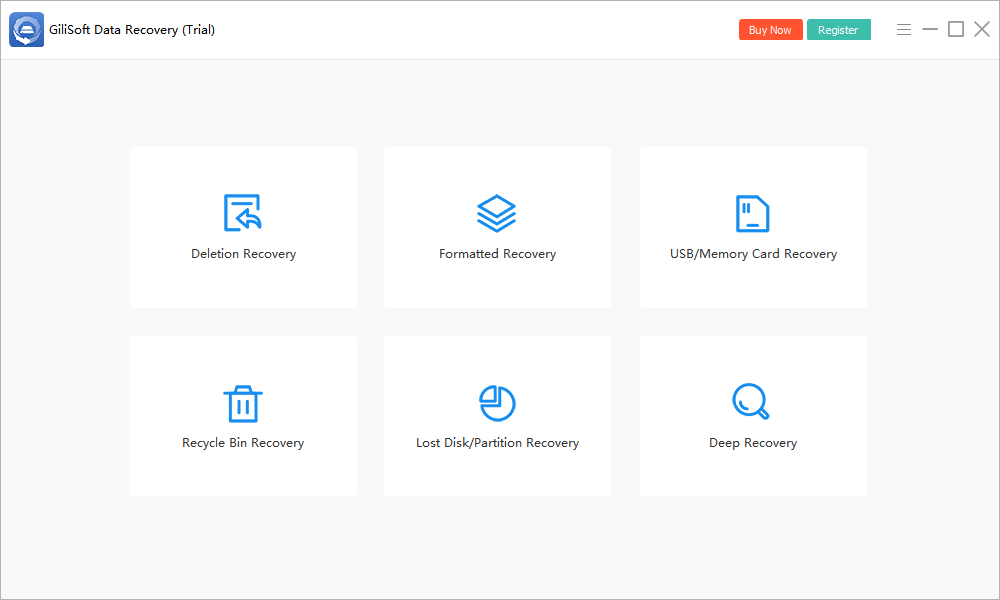
- Open Recycle Bin Recovery.
Launch GiliSoft Data Recovery from healthy storage and choose the mode on the main screen.
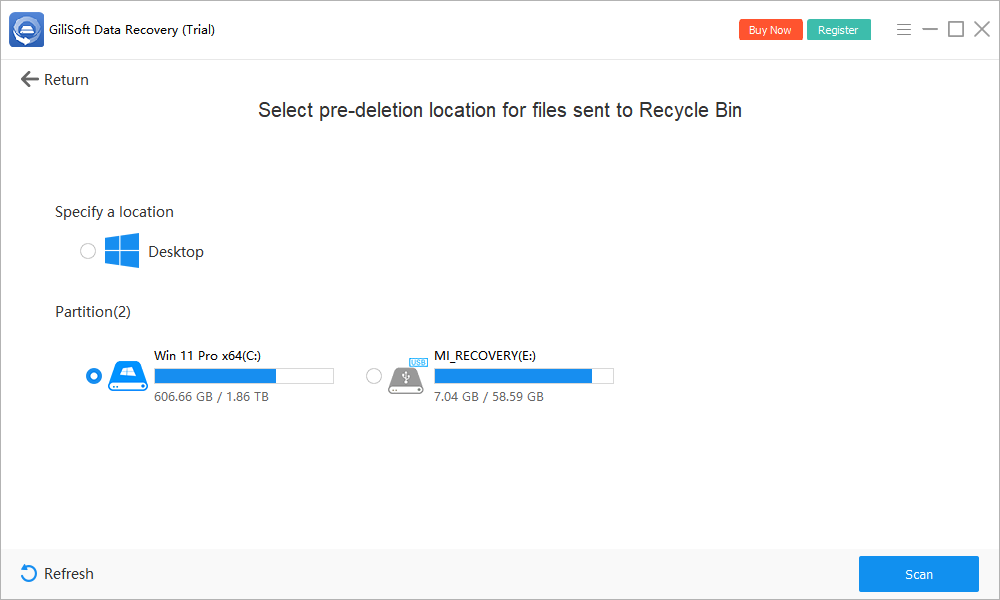
- Select the pre-deletion location.
The screen asks where the files were before they were sent to the bin. Select Desktop when appropriate or the original partition, rather than assuming all files came from C:.
- Start the scan.
Click Scan. Keep the source connected and do not save new files onto it while results are collected.
- Review candidates and supported previews.
Look for expected names, paths, and types when available. Prioritize irreplaceable files over temporary or duplicate items.
- Recover to a different device.
Save selected output to another physical drive. Open the recovered files and make a backup of verified copies.
Check the installed trial's current recovery limits. Deep Recovery may find additional candidates on a healthy source when an initial search is incomplete; it cannot reconstruct overwritten content. See the Data Recovery User Guide for the available modes.
Choose the Original Drive, Not Just the Desktop Icon
| Original location | Recovery source | What to check |
|---|---|---|
| Desktop or Documents | The actual folder and underlying volume | These folders can be redirected or synced |
| A project folder on D: | The original D: volume | Do not scan C: solely because it contains the desktop |
| Several local drives | Each relevant original volume | Recover priority locations without writing output to any affected source |
| Cloud-only file | The service's retained copies | A local scan cannot find content never stored on that disk |
If you cannot remember the exact folder, use the original volume when known. A recovered filename or folder path may be missing, so supported previews and content checks become more important.
Why Recovery Can Be Incomplete
Storage was reused
New files and background Windows activity may overwrite deleted content. There is no reliable number of days during which all emptied-bin files remain recoverable.
The source is an SSD
TRIM and device cleanup can make deleted content inaccessible to recovery software. A quick response does not guarantee success; existing backups may be the only useful route.
Records survived but contents did not
Check recovered documents, full-resolution photos, video duration and playback, and archive contents. A matching name or size is not sufficient evidence of an intact file.
The device is unstable
Stop if the disk clicks, disconnects, or disappears. Repeated scanning is not the right response to signs of physical failure; seek specialist advice for valuable data.
Emptied Recycle Bin Recovery FAQ
Can I undo Empty Recycle Bin with Ctrl+Z?
Not after the operation has completed. The normal Restore action is no longer available for those items. Check an existing backup or evaluate a scan of the original storage.
Which drive should I scan after emptying the Recycle Bin?
Use the drive or folder where the file was stored before deletion. Files originally on D: should not automatically be searched for on C: just because the Recycle Bin icon appears on the desktop.
Can I recover files without a backup?
Sometimes, if usable content remains on accessible storage. Overwriting and SSD TRIM can prevent recovery. Scan results must be verified after saving to another physical drive.
Does emptying the Windows Recycle Bin empty OneDrive's web recycle bin?
They are separate recovery locations. Check the correct OneDrive account on the web for a retained copy; do not assume a local empty bin proves the cloud copy is gone.
Does System Restore recover these personal files?
System Restore reverts system changes rather than restoring deleted personal documents or photos. Use an existing file backup or an appropriate recovery scan.
Why does a found file have the right name but damaged contents?
Its record may remain even when the data is incomplete or overwritten. A filename or size is not proof of recovery. Open the exported file in its normal application and check important content.