
How to Recover Deleted Files on Windows 11
Deleted a document, emptied the Recycle Bin, or pressed Shift+Delete by mistake? Start with copies that may still exist, then consider scanning the original storage. The right method depends on where the file was saved and what happened after deletion.
Quick answer
Stop saving new data to the affected drive. Check the Recycle Bin and existing backups first. If no copy remains and the drive is healthy, use GiliSoft Data Recovery to scan the original location and save selected results to a different physical drive. Recovery is not guaranteed, especially after overwriting or SSD TRIM.
Before You Try to Recover Deleted Files
- Keep recovery activity off the source. Do not download installers, copy files, or save recovered output to the affected storage.
- Minimize use of the Windows system drive. If files were on C:, Windows can write new data even when you save elsewhere. For irreplaceable files, consider shutting down and seeking qualified help with recovery from another computer.
- Do not format or repair first. Avoid disk cleanup, drive optimization, and file-system repair while retrieving the missing data is the priority.
- Prepare another destination. Use a separate physical drive with enough free space. A new folder on the source is not a safe destination.
Choose the Right Recovery Method
| Your situation | Try first | Important condition |
|---|---|---|
| File is still in the Windows Recycle Bin | Restore from Recycle Bin | The item has not been removed from the bin |
| A backup existed before deletion | File History or another backup | The file was included in the backup |
| File was saved in OneDrive | OneDrive web recycle bin | The cloud copy is still retained |
| Shift+Delete or an emptied bin, with no backup | Scan the source storage | Deleted data must still be accessible |
| Drive is RAW, formatted, or missing | Use the matching drive-recovery guide | Do not format just to make Windows recognize it |
Before assuming deletion, check the original folder and the correct Windows or cloud account. A moved file or online-only item needs a different approach from deleted local data.
Method 1: Restore Files from the Recycle Bin
- Open the Windows Recycle Bin.
Find the item by name and check its original location to distinguish similar files.
- Select the files you need.
Right-click the selected items and choose Restore.
- Check the original folder.
Open the restored files and verify their contents. Back up important items.
Shift+Delete bypasses the normal Recycle Bin route. Files deleted from some removable or network locations may not appear there either. If the bin was emptied, check an existing backup before scanning.
Method 2: Restore an Existing Backup or Cloud Copy
Use File History or Previous Versions
File History helps only if it already backed up the relevant folder. Enabling it after deletion cannot create an earlier copy.
- Connect the File History backup drive.
Open Control Panel > System and Security > File History and choose Restore personal files.
- Find a version from before deletion.
Browse the available dates and folders. Alternatively, inspect the original parent folder's Properties > Previous Versions when backed-up versions are available.
- Restore without replacing a good copy.
Review the version first. Use Restore to where available to select a separate destination, then verify the file.
Check OneDrive on the web
Sign in to the account that held the file, open Recycle bin, select the item, and choose Restore. Check this even if the Windows Recycle Bin is empty. For work or school files, contact your administrator if the item is unavailable.
A disk scan cannot recover cloud-only content that was never downloaded to that disk. If the source is C:, checking cloud copies from another device avoids extra activity on the affected PC.
Method 3: Recover Deleted Files with GiliSoft Data Recovery
Use this route when no usable backup remains and the source drive is readable and appears healthy. Prepare a separate drive for output before starting.
Choose the mode that matches the deletion
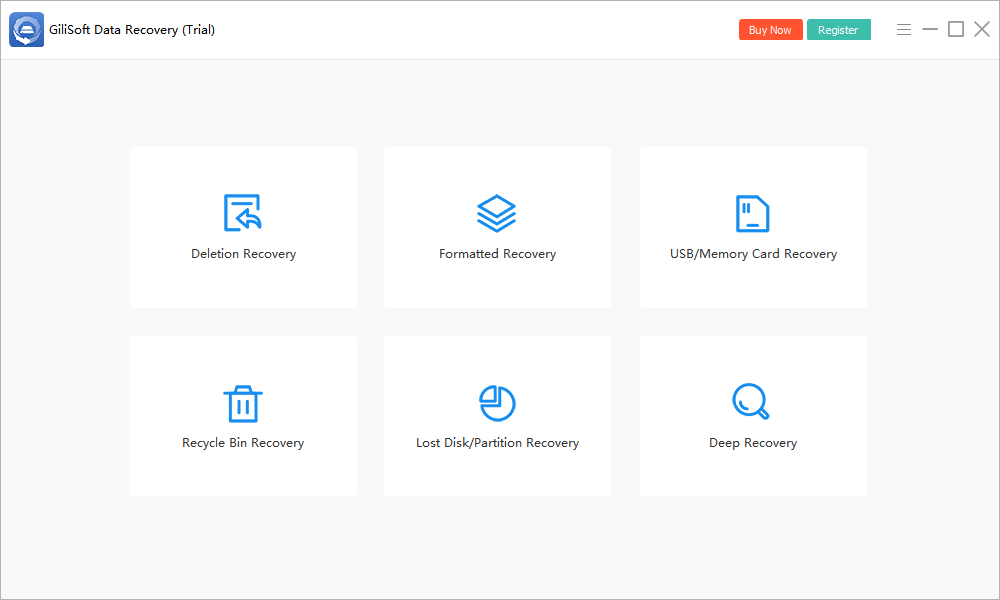
Open GiliSoft Data Recovery and choose Deletion Recovery for accidental deletion or Shift+Delete. For files removed after emptying the Windows Recycle Bin, choose Recycle Bin Recovery.
- Select the original location.
Choose the drive or folder where the files existed. The screen includes Desktop, Recycle Bin, Select Folder, and available partitions.
- Start the scan.
Click Scan and allow the search to proceed without saving new data to the source.
- Review recoverable results.
Look for relevant names, paths, and file types where available. Preview supported files and prioritize irreplaceable documents, photos, and projects.
- Recover to a different physical drive.
Select the results you need and use the recovery action. Choose a destination outside the affected device, not another folder on it.
- Open and verify the output.
Check documents, view photos at full size, play videos, and test important archives. A listed filename does not prove the contents are intact.

If the initial search finds too little, Deep Recovery is another available mode for healthy storage. It can take longer and may not preserve original names or folders. It cannot recreate overwritten data.
See the GiliSoft Data Recovery User Guide for other loss scenarios. Check the installed trial's current recovery limits before relying on it for a large restore.
Why Some Deleted Files Cannot Be Recovered
The original content has been overwritten
Storage can be reused after deletion. Downloads, installations, and normal system activity may replace recoverable content. There is no universal time window or guaranteed success rate.
SSD TRIM has made the content unavailable
TRIM and the SSD's handling of freed blocks can make deleted content inaccessible to software. Acting quickly avoids additional activity but does not guarantee SSD recovery. A backup may still contain the file even when a scan finds nothing.
A file is listed but will not open
Its file-system record may remain while some content is missing or damaged. Save a candidate to another drive and verify it. Check other versions found in the scan, but do not assume a deeper scan can repair missing bytes.
The source is encrypted or physically damaged
Encrypted storage may require its legitimate password or recovery key before files can be accessed. Recovery software does not bypass encryption. For an undetected or failing device, stop repeated attempts and seek specialist advice.
The wrong recovery route was used
System Restore and Reset this PC are not substitutes for deleted-file recovery. Repairing Windows is different from retrieving a personal file. Use an existing file backup or a suitable scan for the actual loss.
Windows 11 Deleted File Recovery FAQ
Can I recover permanently deleted files on Windows 11?
Sometimes. Check existing backups first. Recovery software may find local files if their data has not been overwritten or made unavailable by SSD TRIM. Shift+Delete and an emptied Recycle Bin do not guarantee either success or failure.
Can I restore files without recovery software?
Yes, if a copy remains in the Recycle Bin, File History, OneDrive recycle bin, or another backup. File History must have backed up the relevant files before deletion.
Can GiliSoft recover files after Shift+Delete?
Use Deletion Recovery to scan the original location. Success depends on the remaining data and storage condition. Save recovered candidates to another physical drive and verify them.
Why can SSD files be unrecoverable?
TRIM and the SSD's handling of freed blocks can make deleted content unavailable to software. A deeper scan cannot reconstruct content that is no longer accessible. Backups may still help.
Can I restore files to another folder on C: ?
Not when C: is the affected source. Another folder still writes to the same storage. Use a different physical drive for the first recovery output.
Does System Restore recover deleted personal files?
System Restore reverts system changes; it is not a method for restoring deleted personal documents, photos, or videos. Check file backups or use an appropriate recovery scan instead.