
Lost Partition Recovery Software for Windows
A drive letter disappears, or a volume you used yesterday now appears as unallocated space. Before rebuilding anything, use the disk's actual condition to choose your next step. GiliSoft Data Recovery includes a lost-partition workflow for finding files on accessible storage.
Quick answer
Stop making changes to the affected disk. Do not create a replacement partition, initialize the disk, or format it. If the hardware is stable and readable, open Lost Disk/Partition Recovery in GiliSoft Data Recovery, select the physical disk that held the missing partition, and scan. Review the results and save selected files to another physical drive.
Is the Partition Lost, or Just Not Visible?
Right-click Start and open Disk Management. Inspect the disk model, capacity, partition layout, and status without applying changes. A missing File Explorer entry alone does not prove that a partition was deleted.
| What you see | What it may mean | What to do |
|---|---|---|
| Unallocated space where a volume used to be | A deleted or missing partition entry | Evaluate a lost-partition scan before creating a volume |
| An existing volume with no drive letter | A mounting or letter-assignment issue | Confirm the volume's identity and purpose; do not treat it as deleted |
| A volume marked RAW | Windows cannot read its file system | Follow RAW-drive recovery without formatting first |
| Not Initialized on a previously used disk | Metadata or device access problems | Do not initialize it while old data matters |
| No Media, zero capacity, or repeated disconnects | Storage may not be accessible to software | Check the connection; seek specialist help if persistent |
Some EFI, recovery, and other system partitions normally have no drive letter. Do not assign letters or alter partitions merely because they do not appear in File Explorer.
Protect the Disk Before Scanning
- Do not rebuild the layout first. Avoid New Simple Volume, initialization, formatting, DiskPart clean, and MBR/GPT conversion while retrieving files is the priority.
- Stop writes to the affected device. Keep downloads, software installation, backup restoration, and recovered output off it.
- Record what changed. Note whether you deleted a volume, resized partitions, reinstalled Windows, or moved an external disk. Record its model and approximate capacity.
- Check existing backups. A known-good file backup may be simpler than scanning. Restore it to healthy storage, not over the affected source.
- Prepare another physical drive. Another partition on the same disk is not the preferred destination. Reserve enough space for the files you need.
Recover Lost-Partition Files with GiliSoft Data Recovery
This process retrieves file copies. It is not an instruction to rewrite the partition table or restore boot records. Use it when the source disk is detected, stable, and accessible to the software.
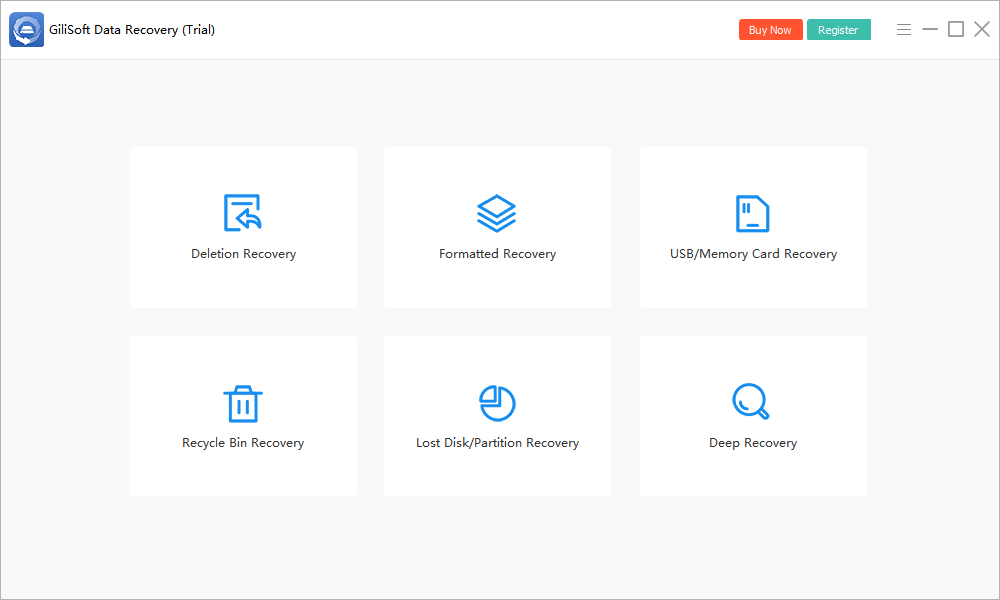
- Open Lost Disk/Partition Recovery.
Launch GiliSoft Data Recovery from healthy storage and choose the matching mode.
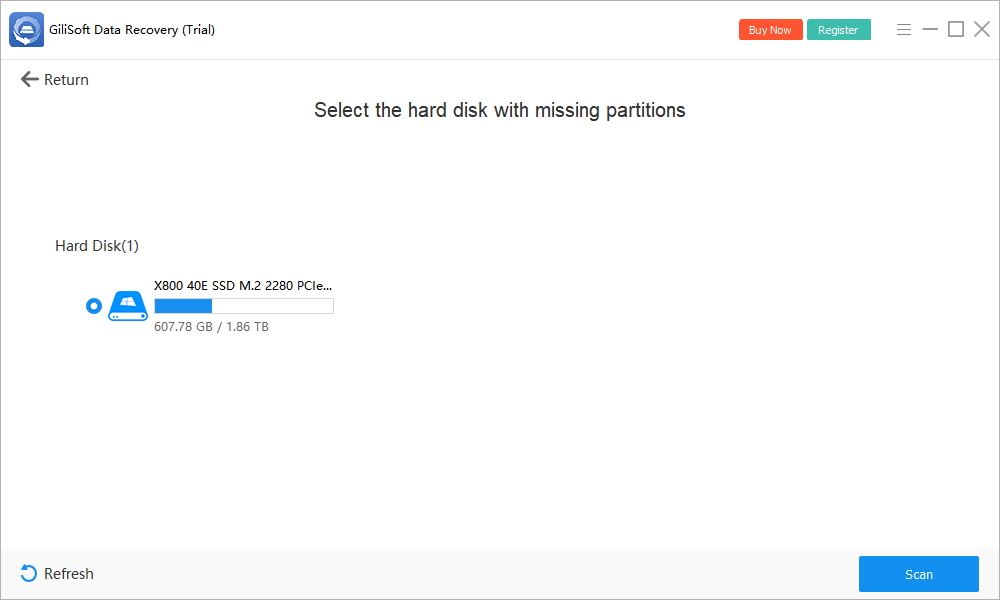
- Select the hard disk with missing partitions.
Match the disk model and total capacity to your notes. Select the source disk, not the separate drive reserved for recovery output.
- Start the search.
Click Scan and let the software search the accessible disk. Keep external connections stable and avoid further disk-management changes.
- Inspect the available recovery results.
Review any found partition candidates and their file contents where available. Look for expected folders, file types, and supported previews rather than relying solely on a matching label.
- Recover priority files to another device.
Select useful results and save them to a different physical drive. Never create a replacement source partition just to hold recovered files.
- Verify and back up the output.
Open documents, inspect images at full size, play videos, and test important archives. Make another copy of irreplaceable files before deciding how to repair or reuse the source.
Check the installed trial's current recovery limits before planning a large restore. The Data Recovery User Guide covers the other recovery modes. If the expected source is absent, investigate access rather than initializing it to force detection.
How to Recognize Useful Recovery Results
Match content, not just the old drive letter
A recovered candidate may not have the former letter or volume name. Look for familiar directory names and representative documents, photos, or projects. Old layouts can leave multiple candidates, so a similar capacity alone is not enough.
Check full files after export
A filename, thumbnail, or first video frame can survive when other content is missing. Verify important output in its normal application. If original folder names are lost, useful content may still appear under file types or generated names.
Keep file recovery separate from disk repair
Usable copies on another drive do not mean the original partition layout has been restored. Only plan repartitioning or reuse after critical output is verified and backed up.
When Lost Partition Recovery May Fail
- Data was overwritten. New partitions, new files, or a Windows installation may replace earlier content. Deeper scanning cannot reverse an overwrite.
- SSD data is no longer accessible. TRIM and device cleanup can reduce recoverability; a recent loss does not guarantee success.
- Encryption prevents access. Use the legitimate key or password. A lost-partition scan does not bypass encryption.
- The disk is physically failing. Unstable capacity, repeated disconnections, and read failures call for specialist assessment rather than repeated DIY scans.
- The storage uses a complex layout. RAID, Storage Spaces, and multi-disk volumes require correct reconstruction and interpretation. Do not initialize individual members or assume a basic single-disk workflow applies.
There is no universal success rate or recovery time. Base the next decision on actual readable results, the value of the files, and the condition of the hardware.
Lost Partition Recovery FAQ
Can files be recovered from a deleted partition?
Sometimes, if the disk remains readable and usable file content has not been overwritten or erased. Stop changing the disk and evaluate a lost-partition scan. Recovery is not guaranteed.
Should I create a new partition in unallocated space?
Not while recovering old files is the priority. Creating and formatting a new volume changes the source. Recover important files to a different physical disk before deciding how to reuse it.
Which disk do I select if the old drive letter is gone?
Select the physical disk that contained the missing partition. Match its model and capacity to your notes rather than looking only for the former drive letter.
Does this restore the original partition table?
This workflow focuses on recovering file copies to another drive. It does not promise to rebuild the partition table, restore the old drive letter, or make Windows bootable.
Can an encrypted lost partition be recovered without its key?
Recovery software does not bypass encryption. Access to usable content generally requires the legitimate password or recovery key and a supported way to read the encrypted storage.
Why are some recovered folders or filenames missing?
Partition and file-system metadata may be damaged while some content remains readable. Review supported previews, check alternate candidates, and verify exported files instead of relying only on names.