
How to Recover Files from a Formatted Drive on Windows
Formatted the wrong volume or erased a USB drive before copying its files? Stop using the device. Whether a recovery scan can help depends on the format operation, storage type, and anything written afterward, not simply how recently it happened.
Quick answer
Do not format again or copy new data to the device. Check an existing backup. If the formatted storage is healthy and readable, choose Formatted Recovery in GiliSoft Data Recovery, select the correct volume, and scan. Save selected results to another physical drive. Content overwritten by a full erase cannot be reconstructed by a deeper scan.
What Kind of Format Was Performed?
A format creates file-system structures so storage can be used again. The name of the operation alone does not describe whether all old content was erased.
| Situation | What it means for recovery | Next step |
|---|---|---|
| Quick format, no new files copied | Some content may remain; metadata may be replaced | Check backups, then evaluate a scan |
| Overwrite format or secure erase | Overwritten content is not recoverable by software | Look for backups or another copy |
| Format followed by new files or OS installation | Additional writes may overwrite more old content | Stop use and prioritize remaining data |
| Formatted SSD | TRIM and device behavior can remove access to old data | Do not assume quick format is recoverable |
| Windows only asks to format | A format may not have happened at all | Cancel and follow RAW-drive precautions |
Windows format tools and camera or card utilities do not all behave identically. For example, an overwrite format is designed to erase the user data area as well as reset file-system information. Do not run any further format just to test what it does.
Prepare a Recovery Attempt Without More Writes
- Stop using the formatted device. Do not reinstall Windows, restore a backup onto it, or copy files there while searching for lost data.
- Record what happened. Note the tool used, quick/full/overwrite choice if known, original capacity, and whether new data was saved afterward.
- Identify the source accurately. A volume label or drive letter may have changed. Match the device and capacity before selecting a scan.
- Install and save elsewhere. Use healthy storage for both the application and recovered output. For system-drive losses, consider professional help with recovery from another computer.
Recover Formatted Files with GiliSoft Data Recovery
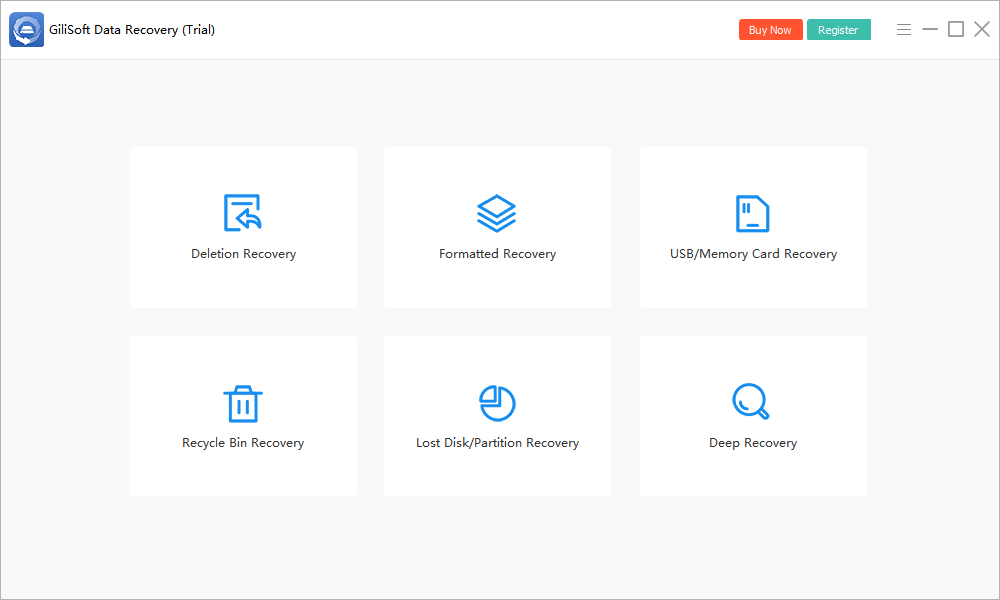
For a stable, accessible volume, open Formatted Recovery. This workflow aims to retrieve file copies, not roll back the format operation.
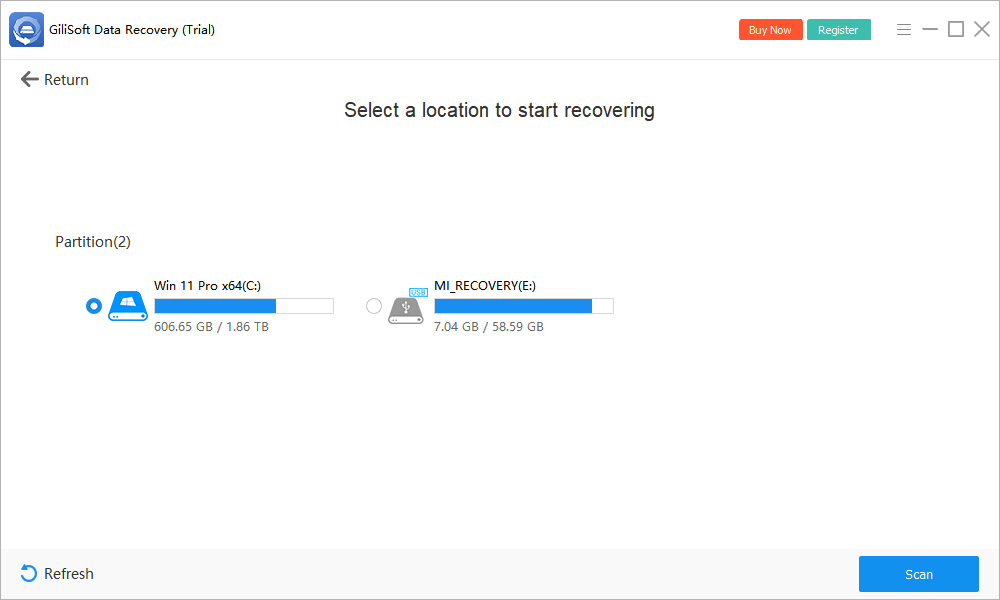
- Select the formatted volume.
Match the device and capacity to your notes. If the partition is missing entirely, review the lost-partition workflow instead of creating a new volume.
- Start the scan.
Click Scan and maintain a stable connection. Avoid using the source while the search proceeds.
- Review possible matches.
Use available file types, names, and supported previews. Expect that some names or folder paths may be missing after formatting.
- Recover priority files elsewhere.
Choose a separate physical drive with sufficient space. A new folder on the formatted device is not a safe first destination.
- Verify important output.
Open recovered documents, inspect images, play videos, and test archives before treating the recovery as complete.
Check current trial limits before planning a large restore. Deep Recovery is another available option for a healthy source when results are incomplete, but it cannot retrieve bytes already overwritten. The user guide covers the available recovery modes.
How to Judge the Recovered Files
Check contents before folder organization
A recognizable folder tree is convenient but not proof of intact data. Open representative files from each important type, then check critical items individually.
Inspect media beyond a preview
A thumbnail or first frame may survive when other data is missing. View full-resolution images and check the beginning, middle, and end of videos, including sound.
Back up verified output
Keep a second copy of irreplaceable results before considering reuse of the formatted storage. Do not erase the source merely because a scan listed the expected filenames.
When a Formatted-Drive Scan Finds Too Little
Confirm that you scanned the correct source, not a similarly sized backup or newly assigned drive letter. If the original partition no longer exists, use the lost-partition guide.
Missing names can result from replaced metadata; damaged content can result from overwriting or storage failure. A deeper scan may find different candidates, but cannot reverse an overwrite erase. Seek a backup or another authorized copy if important content is gone.
Stop repeated attempts if the device clicks, disconnects, or reports unstable capacity. Physical failure needs a different approach from a healthy drive formatted by mistake.
Formatted Drive Recovery FAQ
Can files be recovered after a quick format?
Sometimes. A quick format changes file-system structures, but some content may remain accessible. Later writes, storage cleanup, and SSD behavior can still prevent recovery. Check backups and test recoverable results rather than assuming success.
Can a full format be undone?
There is no universal undo operation. If the format or erase overwrote the user data, recovery software cannot reconstruct those bytes. Exact behavior depends on the tool and options used.
Can I recover a formatted SSD?
It depends on whether the content is still accessible. TRIM, device cleanup, and overwrite operations can make it unavailable even after a quick format. Backups may be the remaining recovery route.
Should I change the drive back to its old file system first?
No. Formatting again to restore an old file-system label does not restore the original files and changes the source further. Recover copies to another drive first.
Why are original folder names missing?
Formatting can replace directory metadata. A scan may identify content without the original names or folder hierarchy. Review supported previews and verify exported files.
Will file recovery restore a formatted Windows installation?
Not necessarily. Recovering personal files is different from rebuilding a bootable operating system, installed applications, or the original partition layout. Do not reinstall onto the source while trying to recover personal data.