Record System Sound
Capture browser playback, media players, online lessons, software audio, and other computer sound directly from the Windows PC.

Capture system sound, microphone voice, or both at the same time. Audio Recorder Pro helps you record online classes, meetings, interviews, narration, streaming audio, and long sessions with timer recording, voice activation, device preview, and practical MP3, WAV, and WMA output.
GiliSoft Audio Recorder Pro is for Windows users who need reliable audio capture without opening a full audio editor first. It can record system playback, microphone input, VoIP conversations, webinars, online classes, interviews, lectures, and narration from one practical desktop recorder.
Use it when the recording needs to start at a specific time, skip long silent sections, keep system sound and microphone channels easier to manage, control recording with hotkeys, reduce noise after capture, manage recorded files, or export directly to common audio formats for review, publishing, archiving, or later editing.
For Mac users, see Audio Recorder for macOS. For broader editing, conversion, and cleanup, see Audio Toolkit Suite or Audio Editor.

Capture browser playback, media players, online lessons, software audio, and other computer sound directly from the Windows PC.
Record narration, interviews, voice notes, meetings, and commentary from a microphone with device preview before capture starts.
Record speaker output and microphone input in the same session, useful for tutorials, reactions, remote calls, and training explanations.
Set daily, weekly, or one-time recording plans for webinars, broadcasts, classes, and sessions that should start or stop without manual action.
Use sound detection to begin, pause, or reduce silent sections so long recordings stay easier to review and store.
Save recordings to MP3, WAV, WMA, and other common formats, with auto-naming, auto-split, file list management, and output settings for repeat capture tasks.
Start, pause, resume, or stop recording with keyboard shortcuts when the recorder should stay out of the way during calls, lessons, or demos.
Use noise reduction and practical audio effects after capture to make voice recordings, interviews, and training audio cleaner before sharing.

We use Audio Recorder Pro to capture webinars and internal training sessions, and the audio quality stays consistent across episodes.
Recording system sound and microphone together made tutorial narration much easier to review before editing.
Scheduled recording is reliable for sessions in different time zones, so our team no longer misses important audio.
Voice activation skips silent sections automatically, which keeps interview files shorter and easier to process.
Preview the updated recording workflow: choose the recording source, start capture, schedule sessions, use voice activation, manage recorded files, and clean audio after recording.
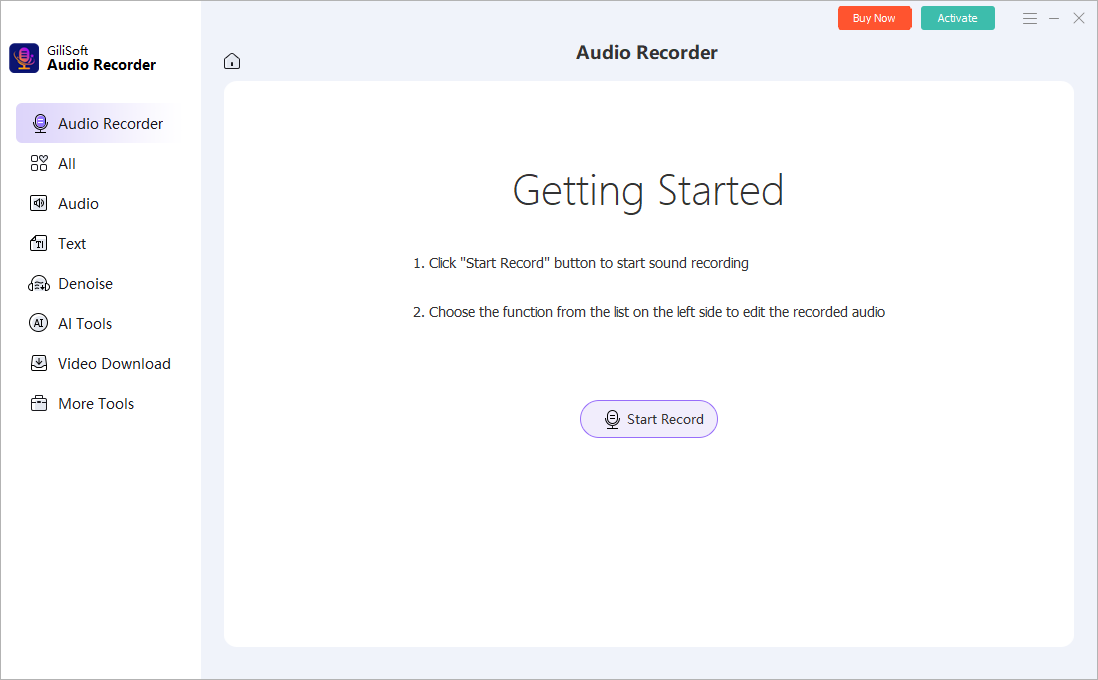
Choose system sound, microphone, or mixed recording tasks from the main Audio Recorder Pro workspace.
Capture system audio, microphone narration, or both at once for replay, archive, and later review.
Record speaker output and microphone tracks together, then keep clearer source material for later editing or publishing.
Use timer-based recording, hotkeys, and after-record actions when the session needs to start, pause, stop, or finish without manual supervision.
Record lectures, interviews, online audio, and internal sessions with voice activation, auto-split, file management, denoise, effects, and format export controls.
Choose Audio Recorder Pro when the real job is capturing system sound, microphone input, or both, instead of doing a full edit project.
Record computer sound and microphone together, then keep cleaner material for review, publishing, or later editing.
Scheduled recording, voice activation, hotkeys, auto-split, denoise, and before-or-after actions help with repeated recording tasks.
Stay with Audio Recorder Pro when recording is the priority. Move to Audio Toolkit Suite only when editing, converting, and broader cleanup become the main job.
Capture software playback, browser audio, voice input, and mixed sessions from one Windows recording setup.
Record Computer Audio on Windows | Record System Sound and Microphone | Voice Recorder for Windows 11 | Record Audio on Windows 11 | Audio Recorder for Windows 11 | Audio Recording Software for PC
Use auto recording for planned webinars, broadcasts, training sessions, and overnight capture jobs.
Scheduled Audio Recording | Record Online Class Audio on Windows | Record Retrospective Meeting Audio
Use voice activation and split-file options to reduce wasted space and keep long sessions easier to review later.
Voice Activated Audio Recorder | Stream Audio Recorder | Record Podcast Interview Audio | Record Expert Interview Audio
Record streaming audio, voice conversations, tutorial narration, and internal meeting content in common output formats.
Record Webinar Audio on Windows | Record Streaming Audio on Windows | Stream Audio Recorder | Record Meeting Audio on Windows | Record Customer Interview Audio | Record Course Narration Audio | Record Lecture Audio on Windows | Record Internal Training Recaps | Record Call Quality Reviews | Record Coaching Session Audio | Record Product Demo Narration Audio
Yes. Audio Recorder Pro can capture system audio and microphone input together, and it can also keep them in separate channels for easier review and editing later.
Yes. It supports scheduled recording on daily or weekly plans and can auto-start or pause based on detected sound through its voice activation settings.
Scheduled Audio Recording | Voice Activated Audio Recorder | Voice Recorder for Windows 11 | Record Voice Notes on Windows | Voice Recorder for PC | Record Voice Memos on Windows | Microphone Recorder for Windows 11
It supports practical export formats such as MP3, WAV, WMA, and other common audio outputs depending on the output settings you choose. Recorded files can also be organized from the file list after capture.
Audio Recorder Pro is mainly built for recording tasks. Choose it when the main job is capturing system sound, microphone input, scheduled sessions, voice-activated recordings, or hotkey-controlled recording rather than doing full audio editing.

Editors praised dual-source recording for capturing system audio and microphone together. Coverage highlighted stable output quality for meetings, webinars, and voice-over narration.
Write-ups emphasized that the recorder stays practical for common Windows capture jobs where users need clean system audio, microphone input, or both in one session.

Reviewers noted reliable long-session performance with minimal interruption risk. Lab observations highlighted useful scheduling and auto-split controls for unattended recording tasks.
Coverage also noted that scheduled recording and voice activation help reduce manual supervision during repeated capture tasks.

Independent write-ups described the tool as effective for podcast and interview production. Commentary emphasized voice activation and noise control as practical time-saving features.
The overall impression was that Audio Recorder Pro works well when recording itself is the priority and users do not want a heavier edit-first application.


Enter your email address to get our latest newsletter